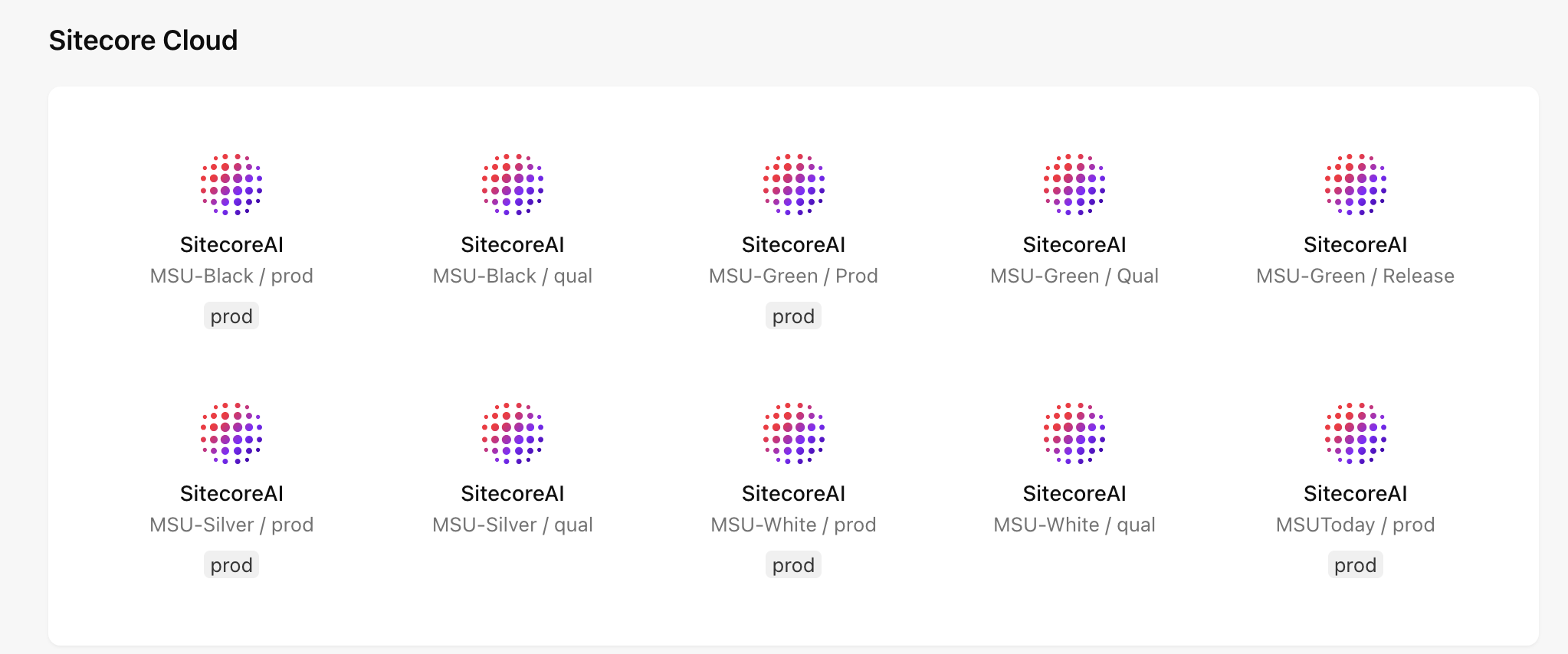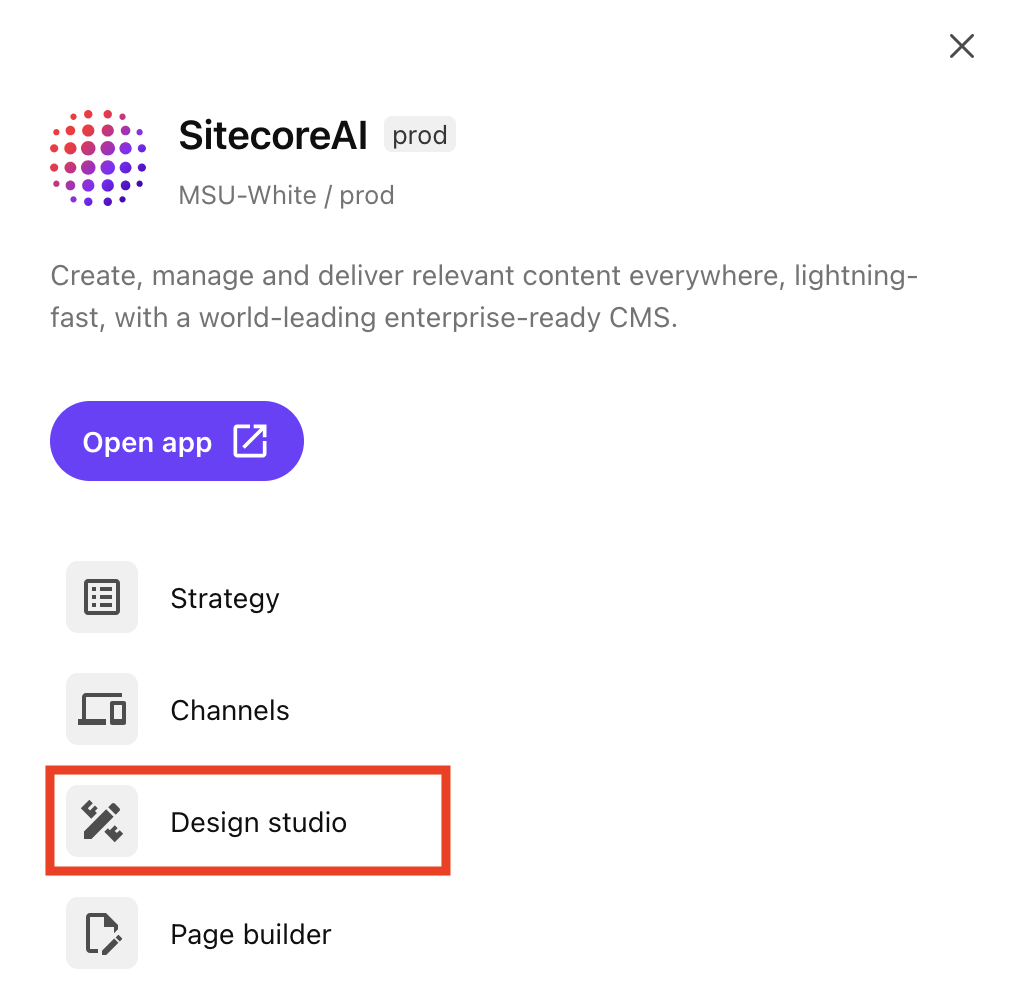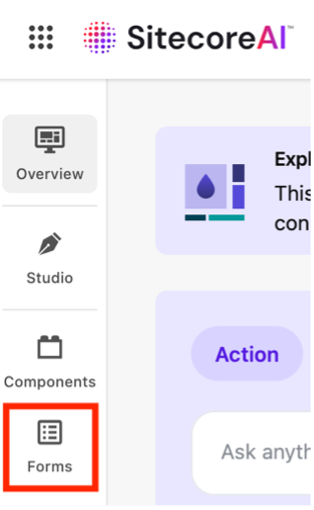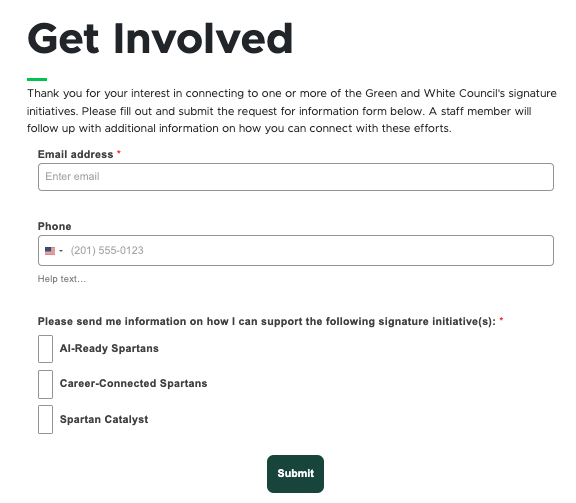
Forms are built and managed using SitecoreAI’s Design Studio. See below for resources regarding Sitecore Forms, as well as step-by-step instructions for creating and editing forms and embedding forms on a web page.
Forms are built in SitecoreAI Design Studio. Learn how to use the Design Studio interface.
Guidelines for usage, best practices, styling, accessibility and data fields for forms.
Learn about the data template and setting options for the various available form fields.
Follow the instructions in the tabs below to generate a form, establish a webhook to capture form data and to embed the form on a web page.


Forms can be built from scratch using a set layout or can be created based on a saved form template. The instructions below cover building from scratch. See “Build a Form Using a Template” in the Advanced Form Features section, below, for template instructions.
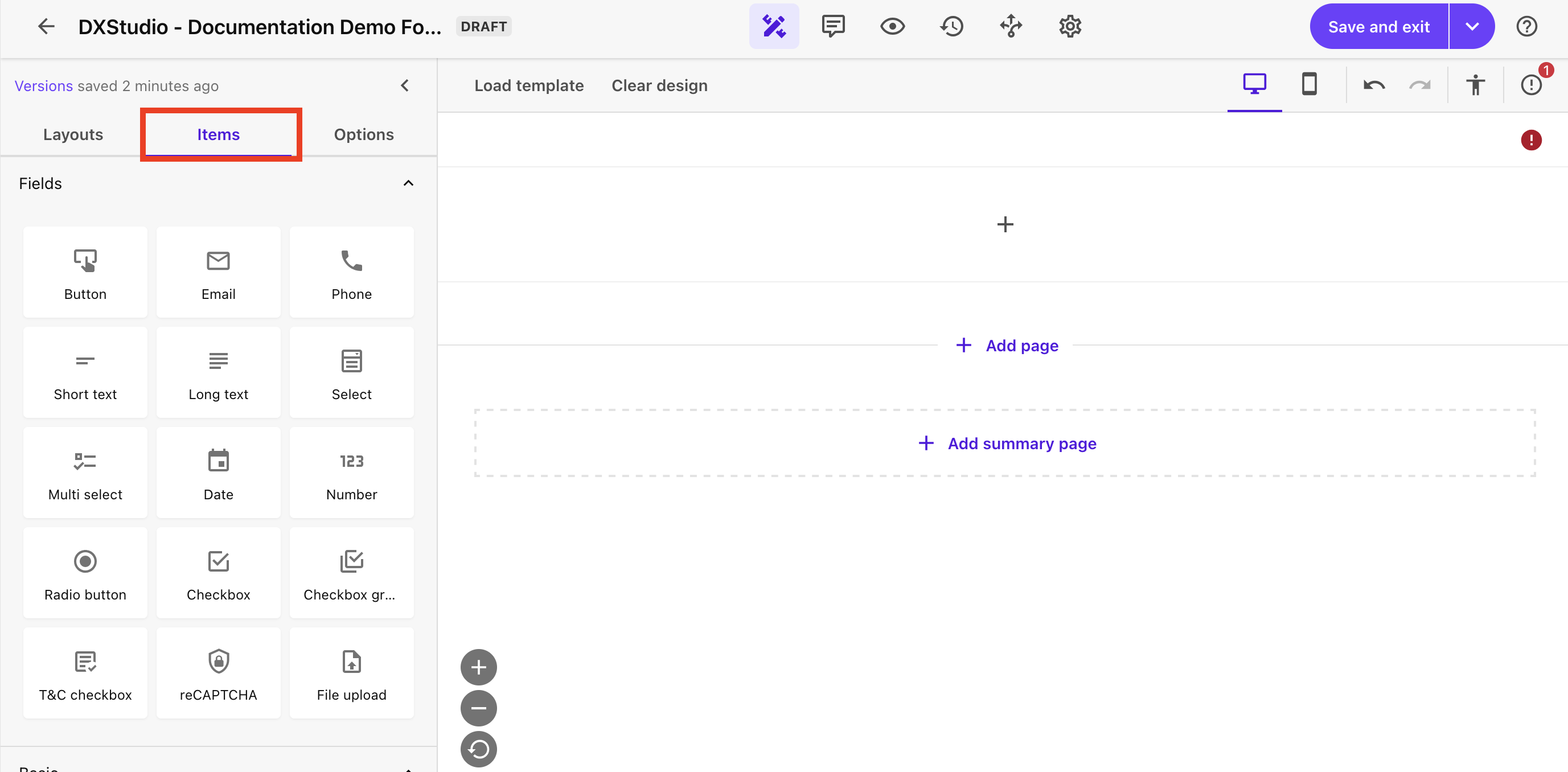
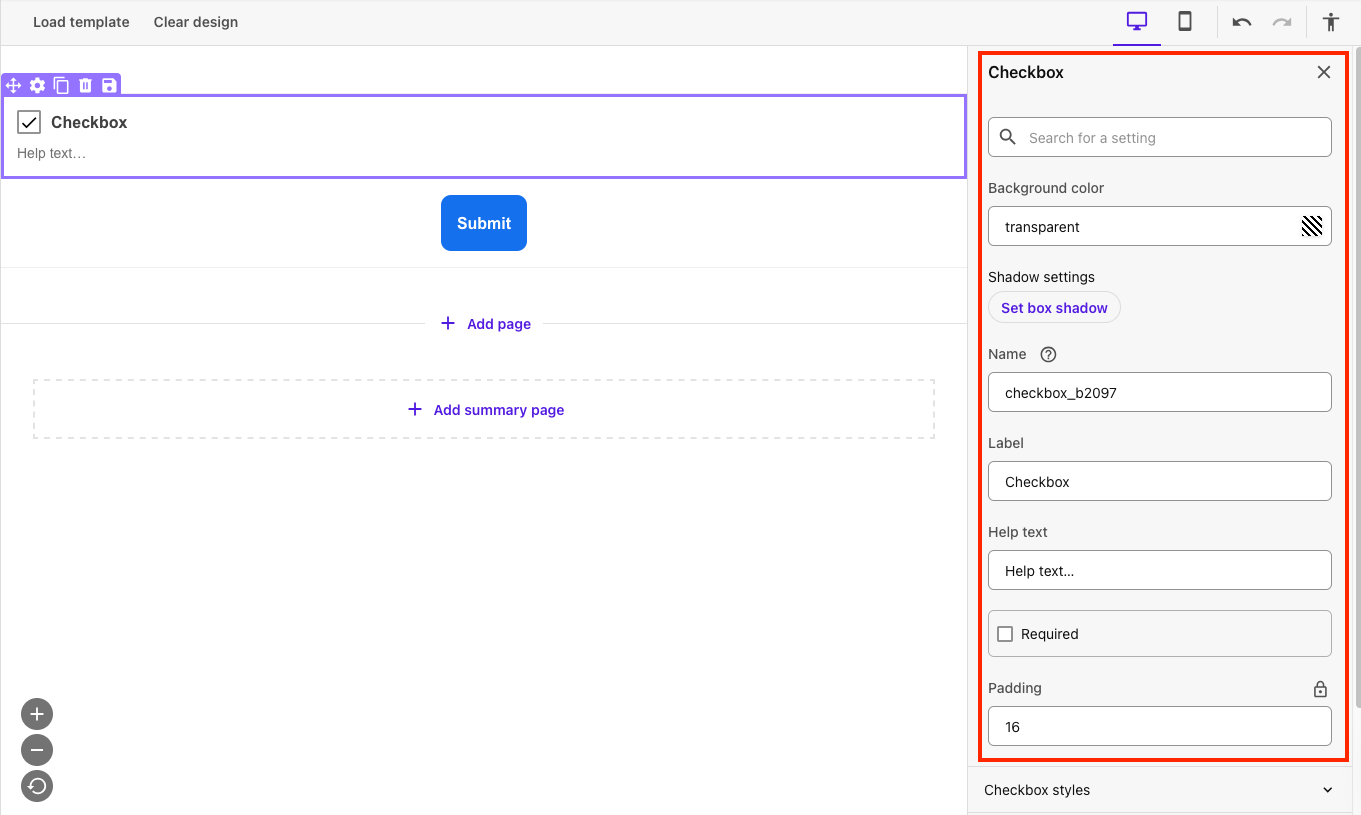
Forms are built similarly to how a page is built in Page builder. Form fields are called “Items” and behave similarly to page components. Click in a placeholder (“+” icon) within the form layout to add an item or drag and drop an item from the Items tab in the left-side panel into the form design on the right.


Use the Preview feature within SitecoreAI forms to view the form as it would appear on a desktop, tablet or mobile device.
View different versions of the form using the Versions preview.
To complete and activate the form, units must request a webhook generated by University Communications and Marketing.
To request a webhook: Send an email to Comms.WebSupport@msu.edu. Be sure to note that a webhook is needed for a new form and include the website(s) the form will be included on and the email address to which the webhook should send the form submission data.
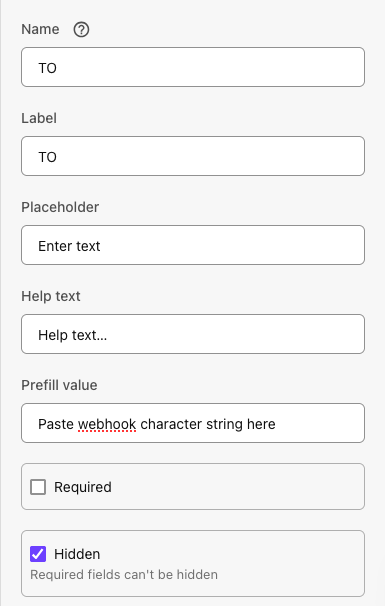
Users will receive a string of characters to be used as the webhook in Step 5. It is recommended that users keep a record of this character string to refer to in case there’s an issue with the form submission emails and the webhook needs to be confirmed to ensure there are no typos, etc.
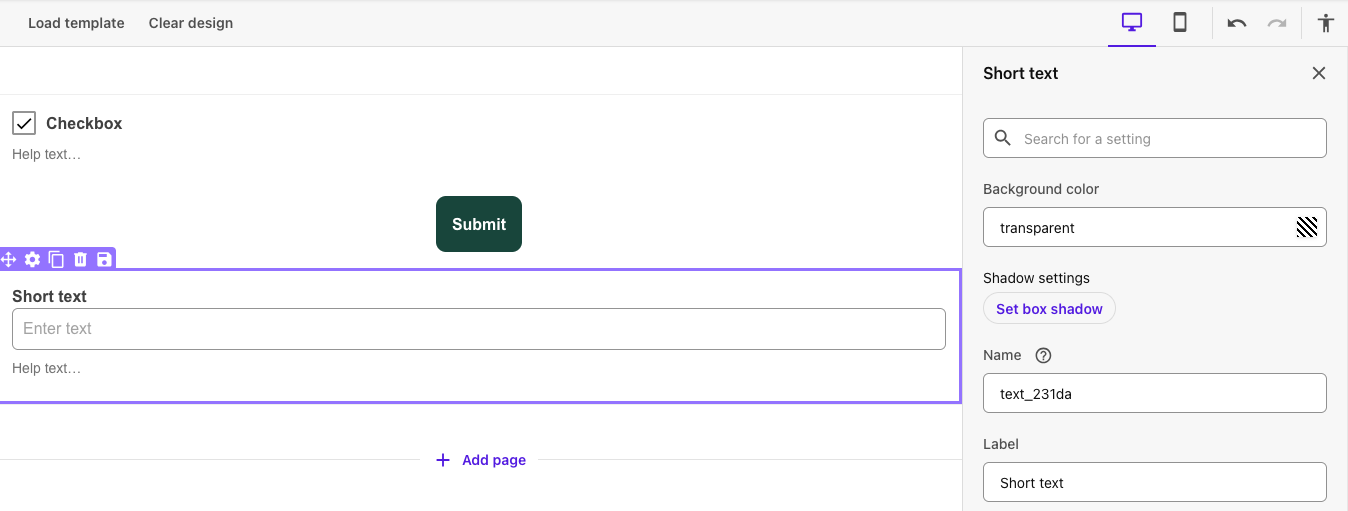
Forms must have a hidden short text field added containing the webhook code for the system to correctly route form data to an email address when a visitor submits the form.


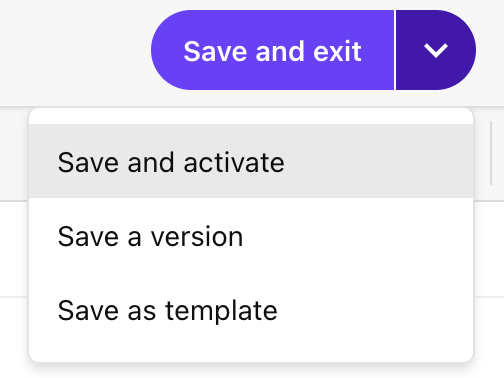
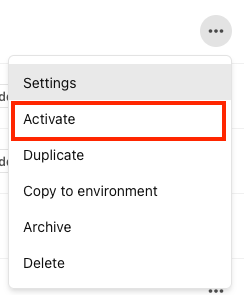
The form is now ready for use but it must be activated before it can accept data.
To activate a form from the form edit view:

Alternatively, to activate a form from the Forms listing page:


After a form has been built, saved, activated and placed on a web page, the web page must be published.
Follow the standard publishing procedures. See “Publishing Content with Workflows” for more information.
Some users may choose to use advanced features when creating forms. Form templates can offer a quick start to a form build based on a previously saved template. Form logic alters item behavior depending on pre-established conditions. Style sheets can be created to apply CSS style set to one or more forms. Follow the instructions below to add form logic or create style sheets.
Users can save a specific form item (i.e., a field and its settings) for reuse. Saved items will appear in the “Saved” section at the bottom of the Items panel.
Users can save an existing form layout as a template and can load a saved template to create a new form.
To save a form as a template:
To load a template when creating a form:
To remove a template and all form content:
Sitecore users can create robust forms that utilize logic rules to route site visitors to different questions as they fill out a form. For example, a question could be skipped (i.e., hidden) if a visitor responds to a previous question in a particular manner.
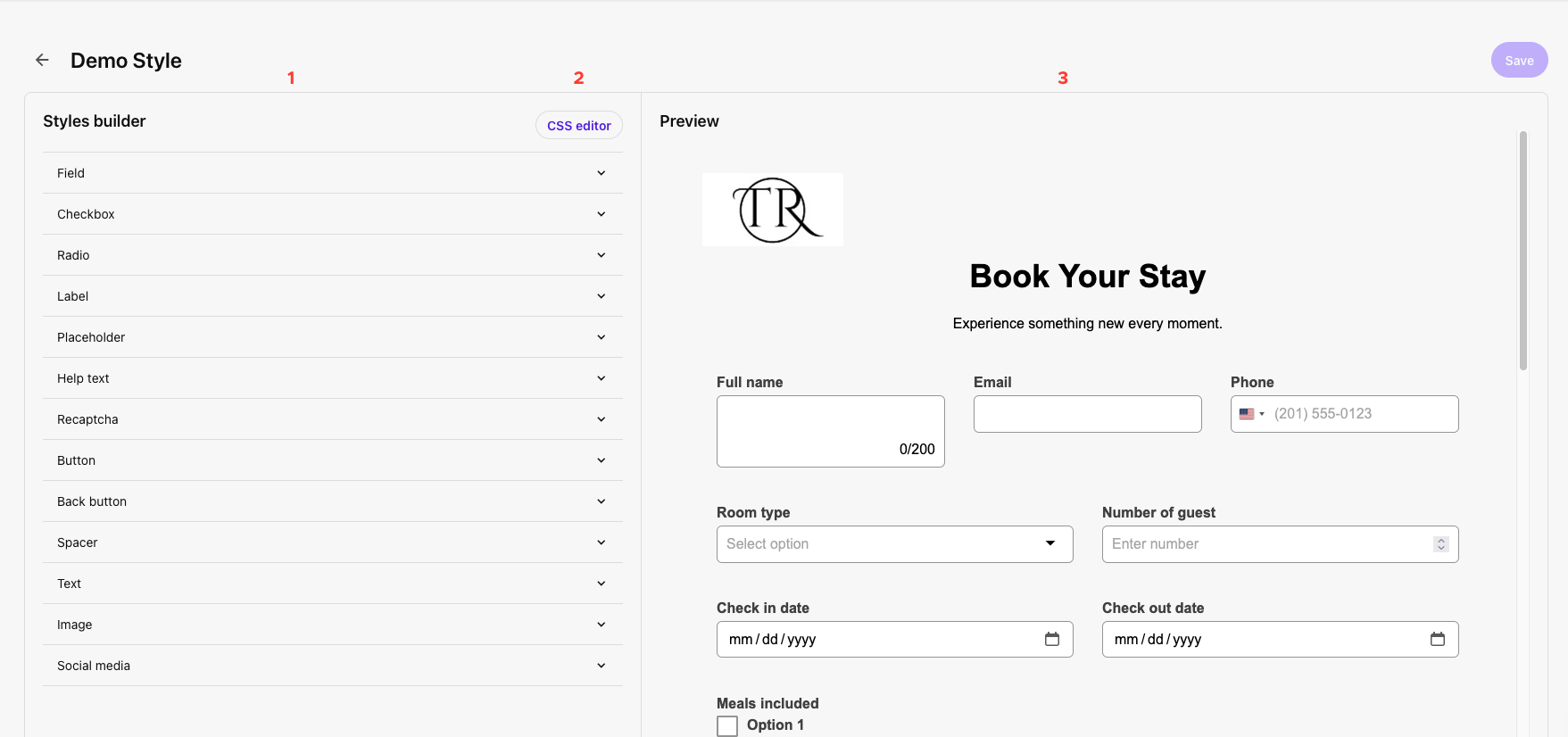
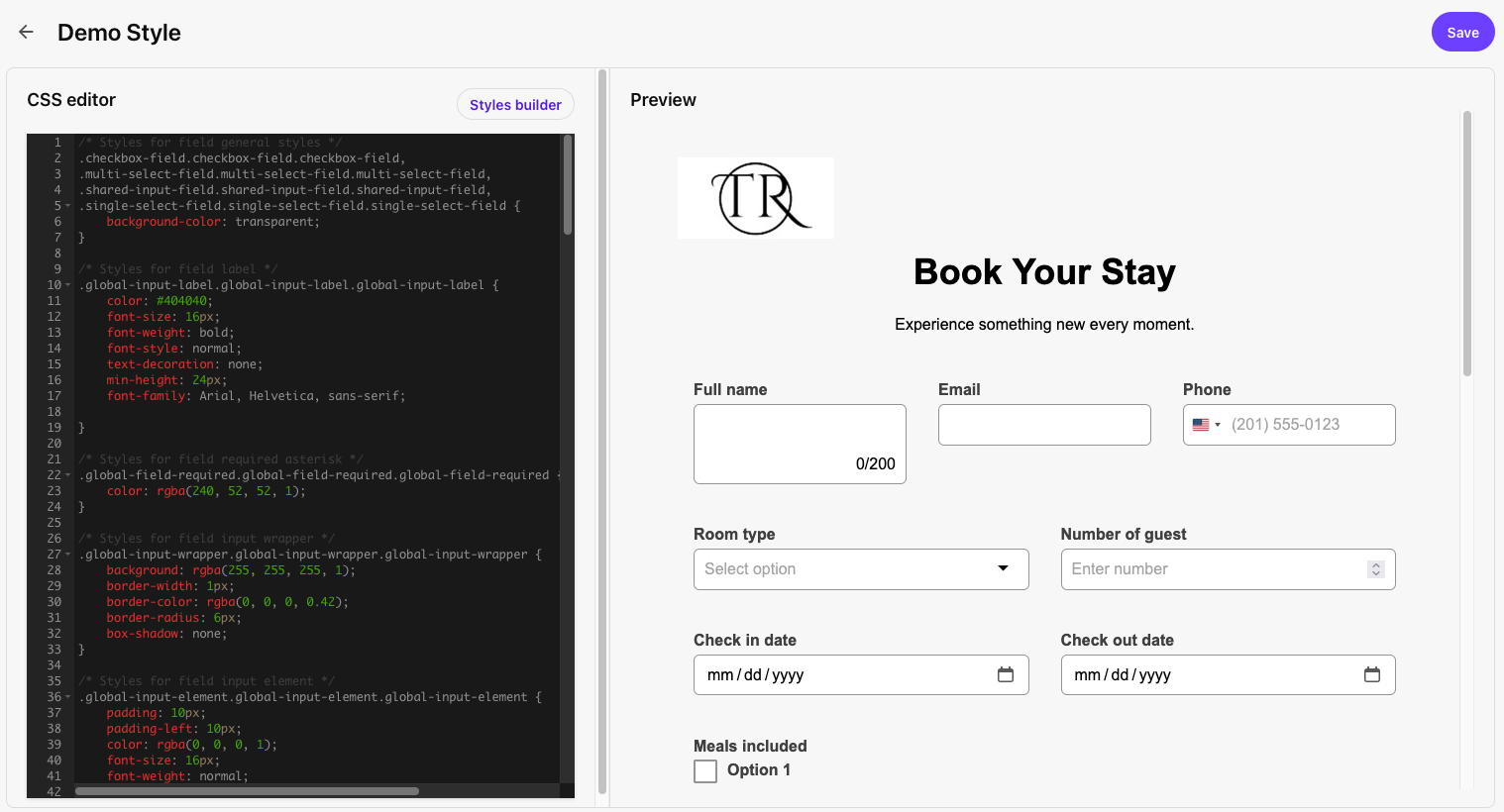
Form styles are style sheets that apply to one or more forms. This is an efficient way to ensure all forms across a website share the same design properties for a cohesive look. Form styling should align to MSU’s brand standards, color palette and Web Accessibility Standards.
To create a Form style using Styles builder:

To create a Form style using CSS editor:


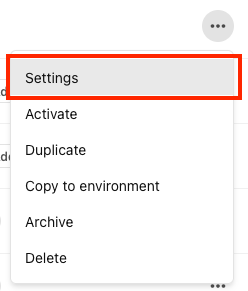
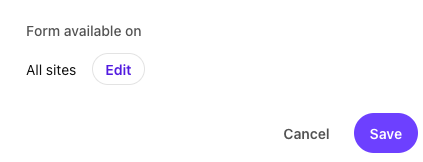
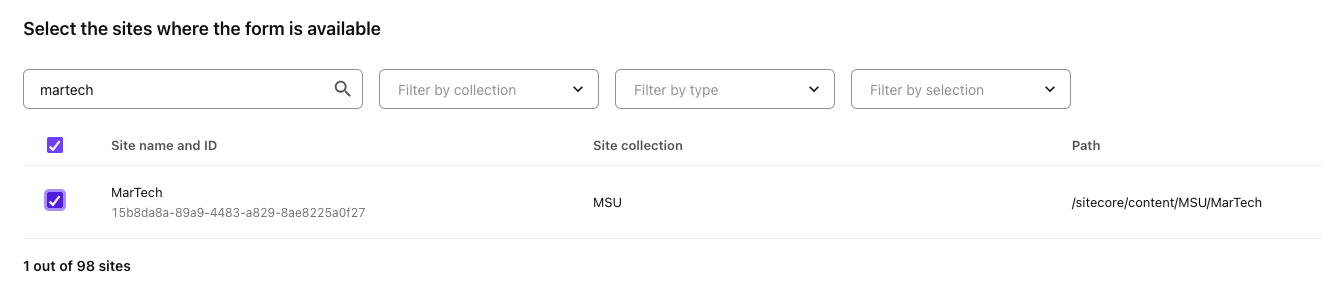
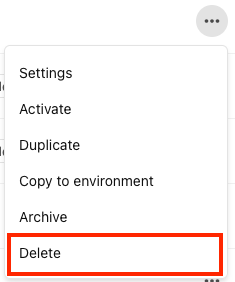
Follow the instructions in the tabs below to edit an existing form, restrict site(s) a form can be used on, view analytics for a form, copy a form to another environment, archive or delete a form.


Note: Interactions may be higher than submissions. A large gap may indicate an issue with the user experience of the form: It may be asking too many questions or appear at the wrong stage of the user journey before a visitor is ready to commit to submitting a form.
If there are many interactions but zero submissions, this can indicate an issue with how the webhook was set up for the form. Contact Comms.WebSupport@msu.edu to troubleshoot. Include the form name and details about which website and web page contain the form.
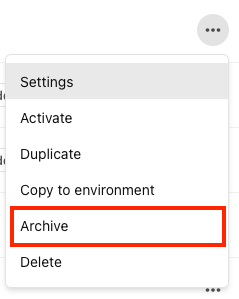
When a form is no longer needed and should not be used, it can be archived. This helps reduce the number of forms visible in the interface.


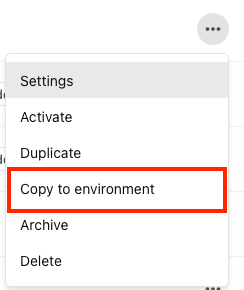
Forms are environment-specific but MSU’s Sitecore users may have websites in different environments and wish to use the same form layout. This can be done by building a form in one environment and then copying it to another environment. The user should have access to both environments before attempting this.


When a form is no longer needed and data is no longer needed, it can be deleted. This helps reduce the number of forms visible in the interface.


Documentation updated: Mar. 31, 2026
Is there an issue with this documentation? Report it here.