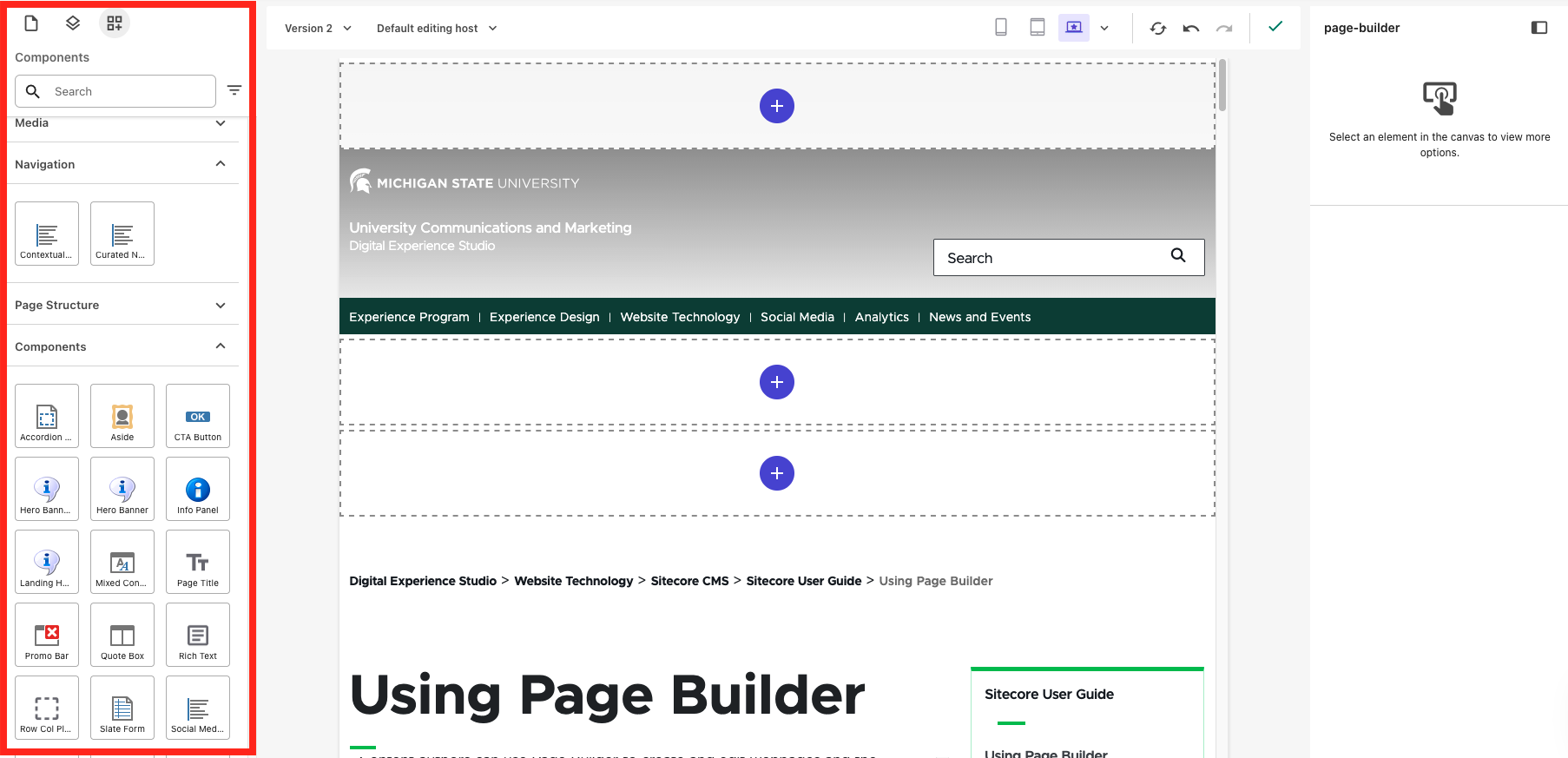
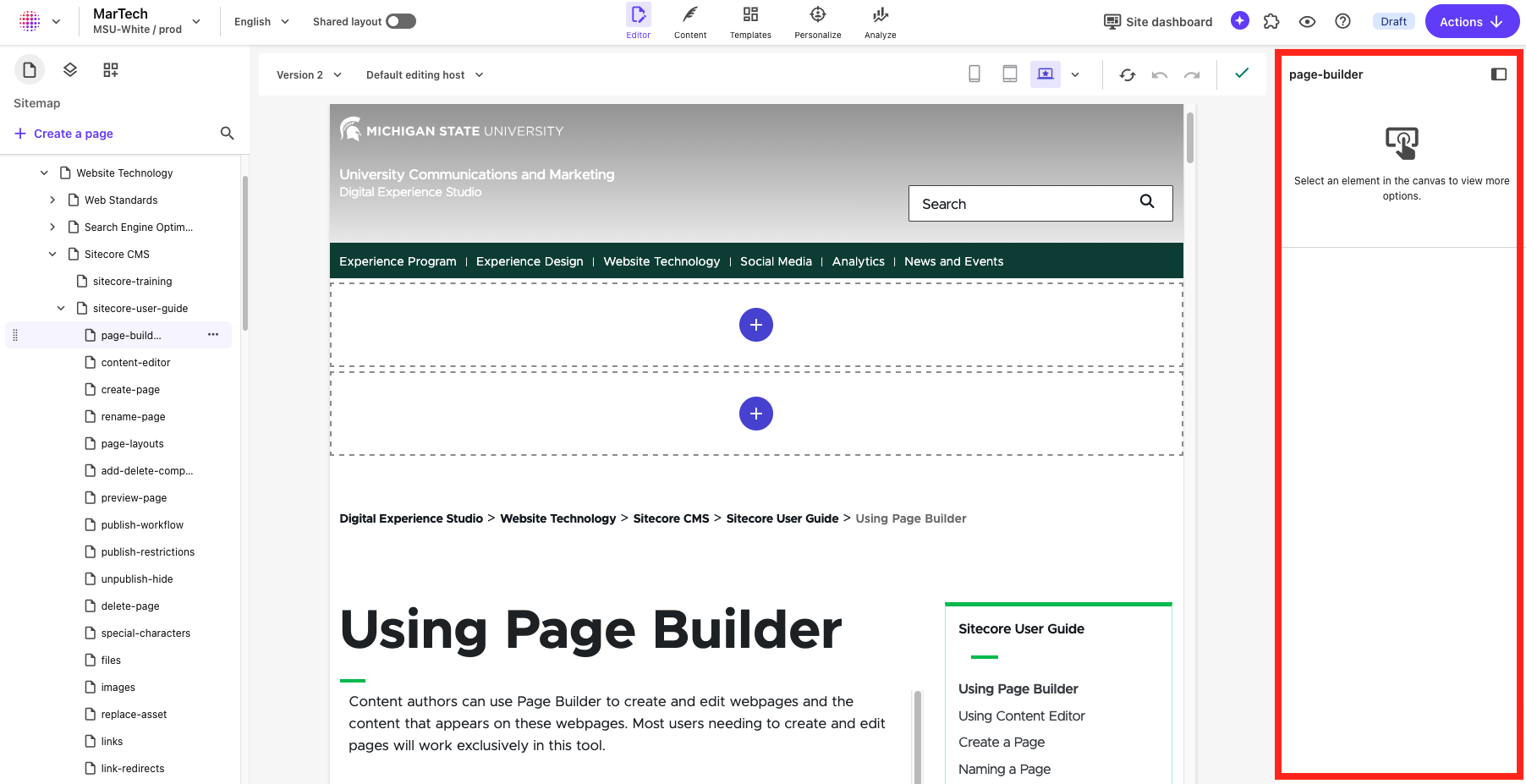
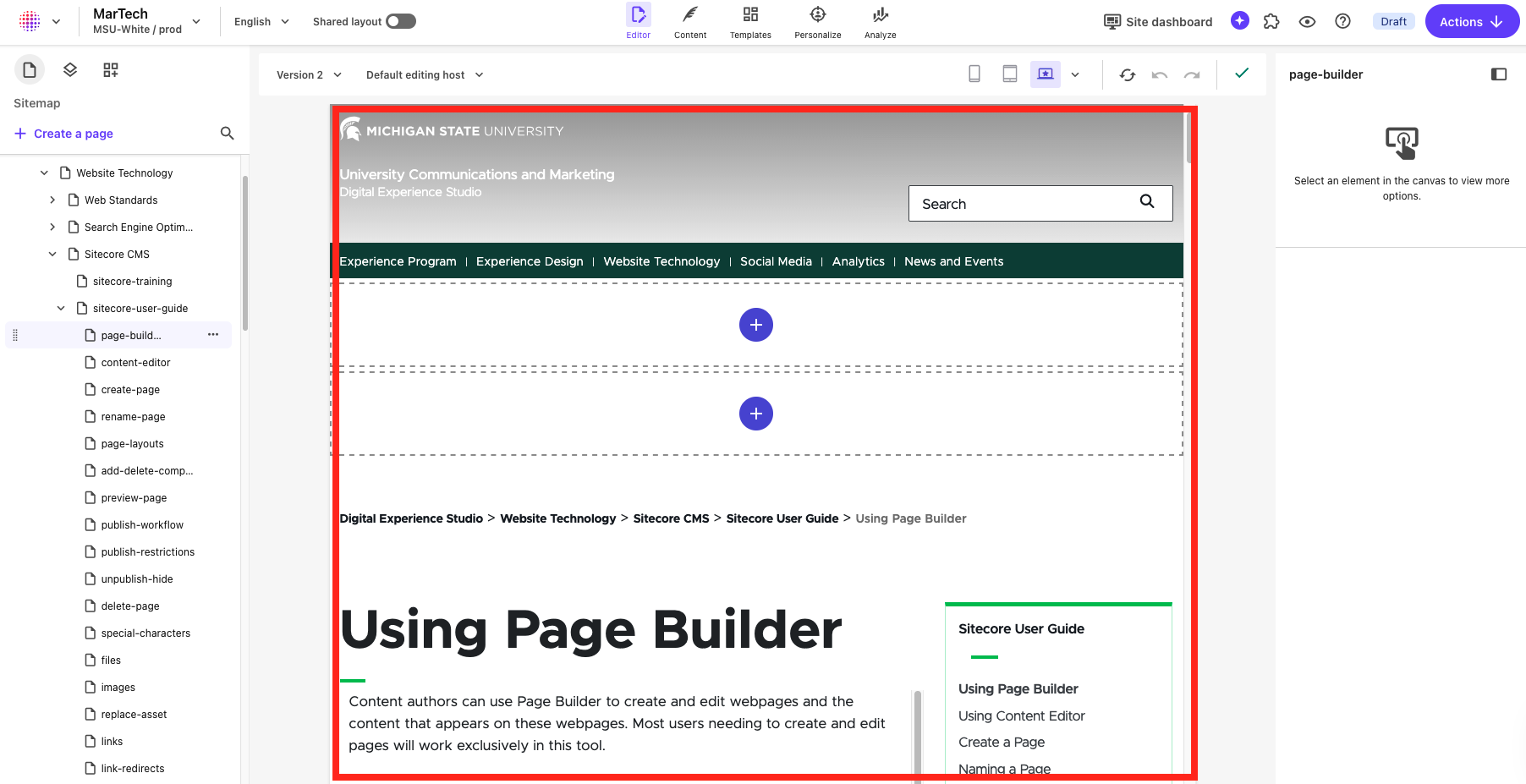
Content authors can use Page Builder to create and edit webpages and the content that appears on these webpages. Most users needing to create and edit pages will work primarily in this tool.
The components and page templates have been developed with a goal of ensuring that most functional needs can be met using Page Builder. It is the most user-friendly tool in the SitecoreAI suite.
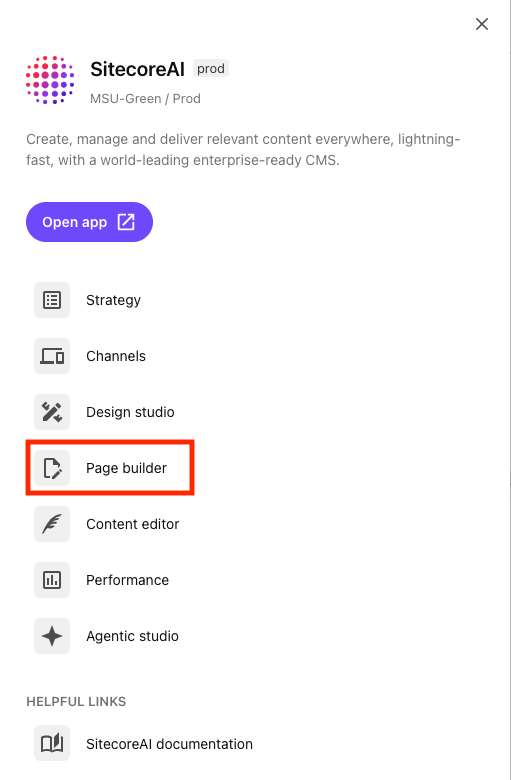
Page Builder User Interface
Expand the tabs below to review the different areas of Page Builder.
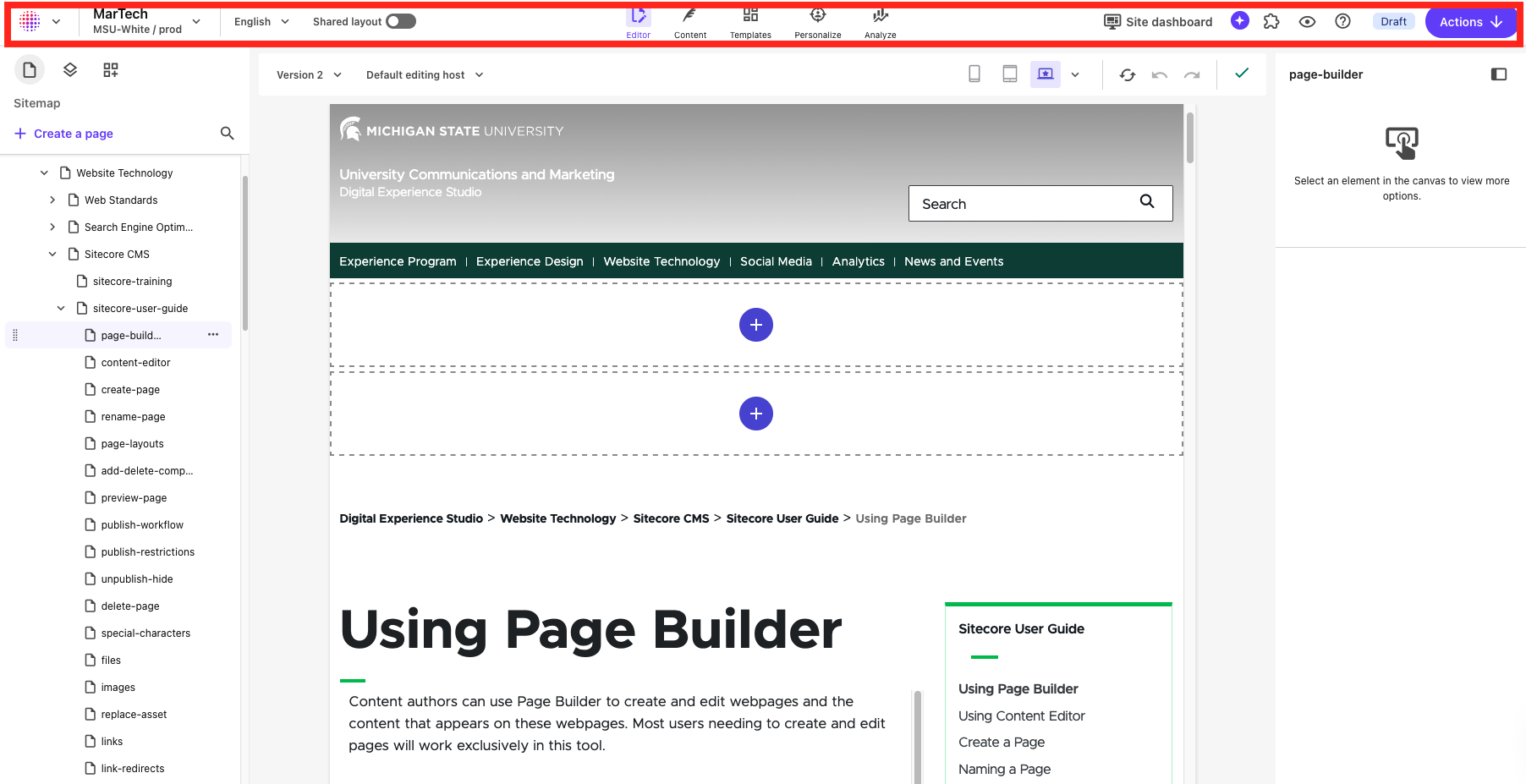
The Global Toolbar appears at the top of the window. Selections on this toolbar will apply to all screens in Page builder. Use this toolbar to:
- Navigate to the SitecoreAI Dashboard by clicking the dotted circle icon on the left. Clicking this icon takes users to the Strategy tab of the SitecoreAI Dashboard. Click the Page Builder button in the top right corner to return to Page Builder.
- Open another SitecoreAI tool, such as Content Editor, using the dropdown arrow next to the dotted circle icon
- Navigate to a different website or environment using the dropdown arrow next to the active site name. This opens the Site Name dropdown menu. Choose a site name to select a different site. Click Change next to the environment name to select a different environment.
- Select a language variant of the website to work on (for multilingual sites) using the language dropdown menu. The default setting is English.
- Toggle between Editor, Content, Templates, Personalize and Analyze modes by clicking the corresponding icon.
- Preview the page in a browser window.
- Click Site Dashboard to open the Sitecore overview analytics in a new window.
- Click the star icon to open the Agentic Studio (requires advanced permissions).
- Click the puzzle piece icon to open the Apps menu. As of January 2026, there are no additional applications installed for general users of MSU’s Sitecore. Documentation will be added to this website if future apps are enabled.
- Click the eye icon to open the Preview menu.
- Click the question mark icon to open the Sitecore help menu. These reference documents are general to Sitecore and not specific to MSU’s environments.
- The page status indicator shows the current status of the page (e.g., draft).
- The Actions button includes the Submit option to submit the page to the publishing workflow. See “Publishing Content with Workflows” for additional directions.
Page Builder Modes
Page Builder modes are accessed using icons on the Global Toolbar. Each mode has different options for working with page content, metadata and settings. Learn more about the modes using the pages linked below.
Editor Mode
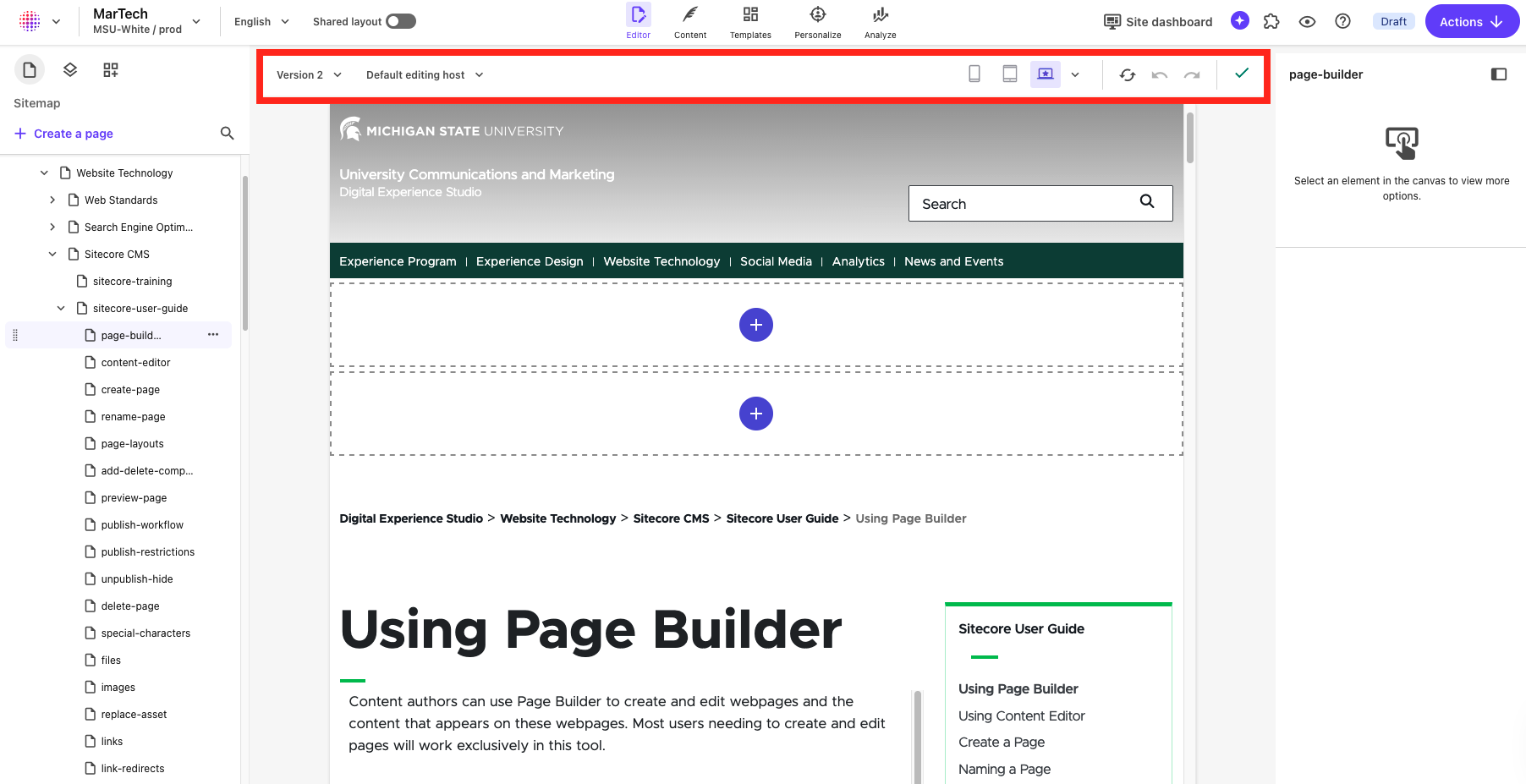
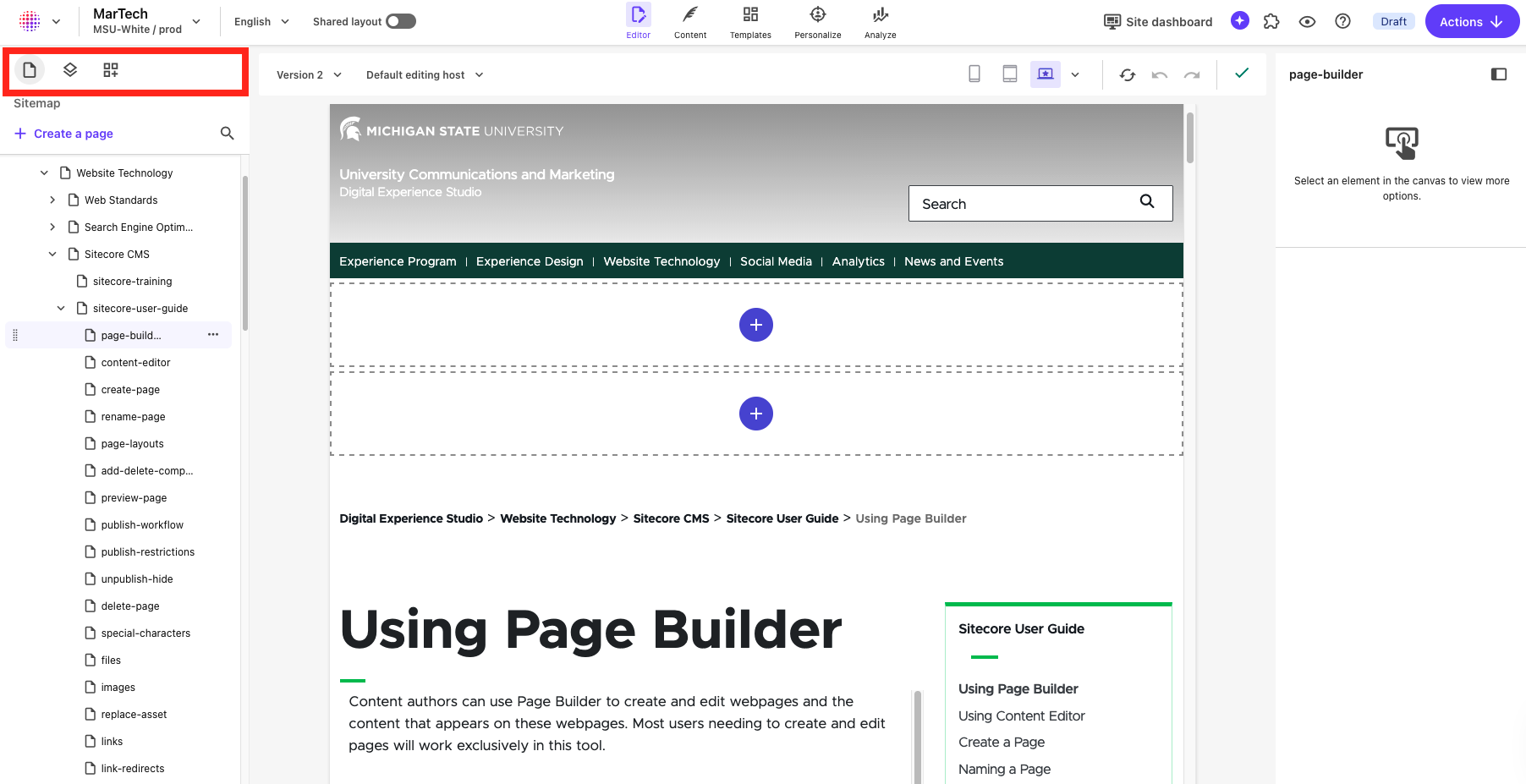
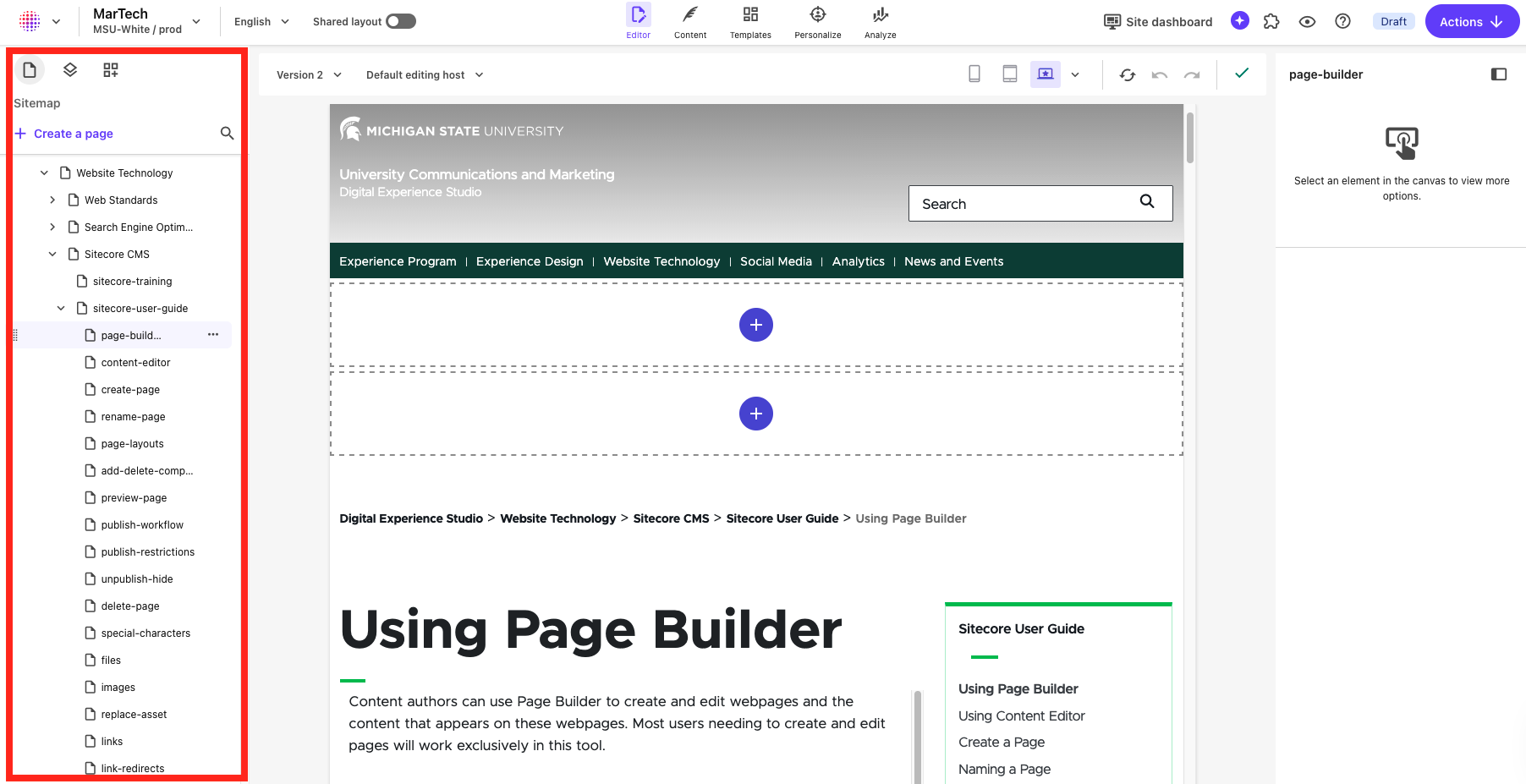
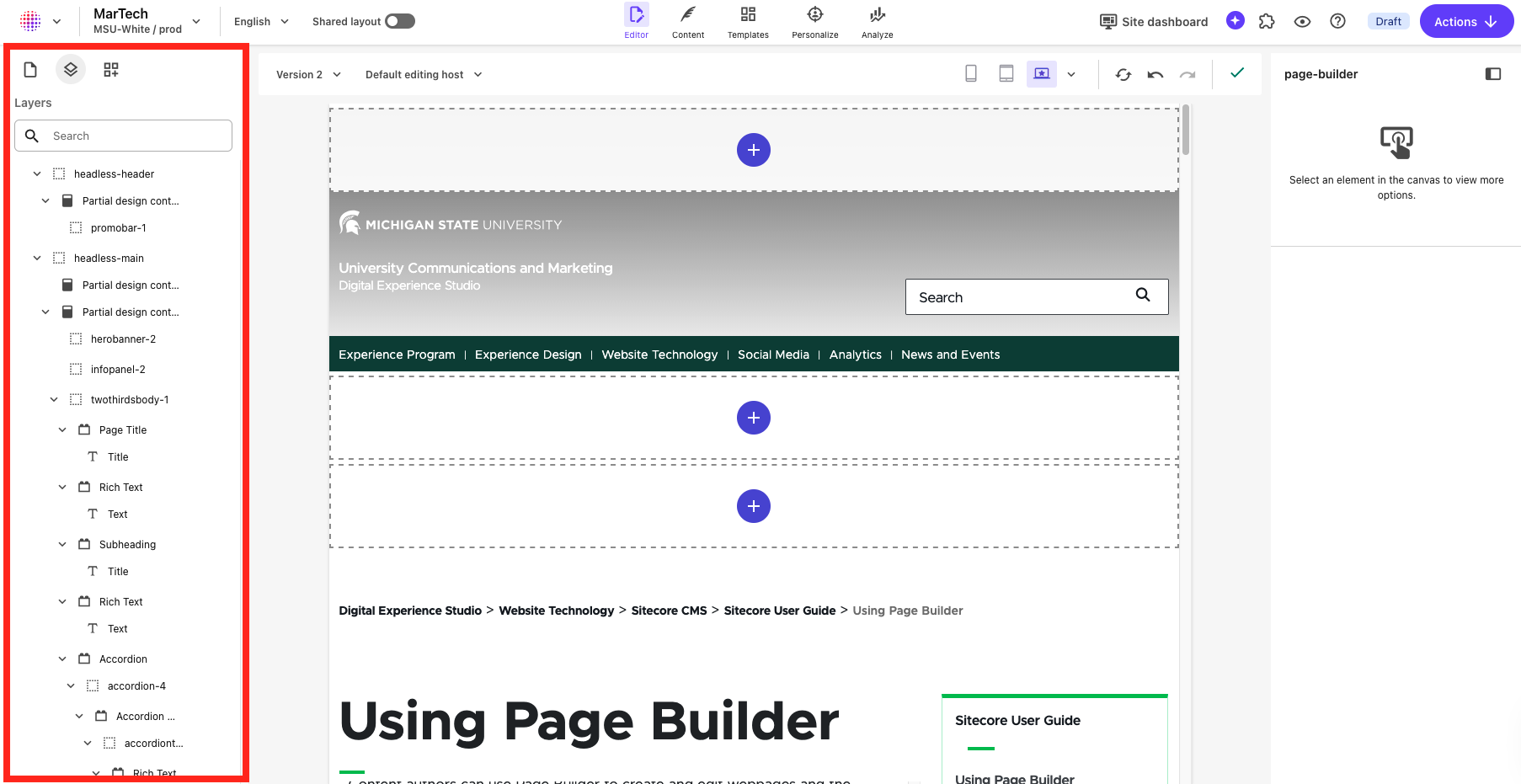
Editor Mode allows for working with page settings, content and items in a visual format. More options are available in the Content Tree menus.
Content Mode
Content Mode allows for editing field data and settings in a minimal form view. Navigation and metadata can also be adjusted.
Analyze Mode
Analyze Mode provides high-level site and page insights using Sitecore data. It is not intended as a replacement for Google Analytics.
Building a Page

Page Layouts
View information and use cases for the available page templates and components that can be used to build page layouts.
Component Guide
View documentation, including use cases, best practices, data field explanations and step-by-step instructions for working with components.
Documentation updated: Sept. 21, 2026
Is there an issue with this documentation? Report it here.