The Events feature provides a means for adding calendar events content to a website to promote awareness. Each Events item is a web page built on the Event Page template. The Events items within a website are automatically grouped into a filterable and searchable Events Listing Page on the website. Events items also can be featured in components on other web pages. See the pages below for information on how to work with the Events feature in SitecoreAI.
Feature Information
- The Events feature can be used to add event promotion content to a calendar listing on a website.
- All Events items use the Event Page layout.
- Each Events item is associated with a specific date.
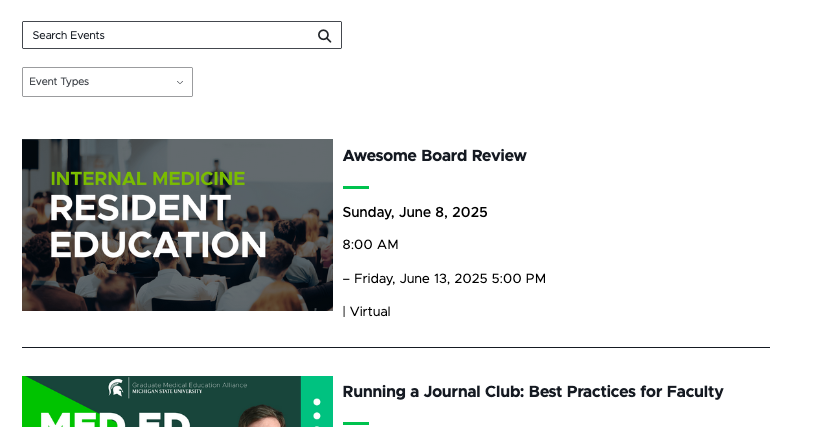
- Events items display in a listing view that can be filtered by event type, event category, date or date range and unit.
- Assign open graph data to each event in Content Editor. This ensures that event pages are optimized when sharing to social media, including a proper title, description and thumbnail image.
- Fill out all relevant taxonomy fields for each event. This ensures that event filters accurately represent the full available collection of event content matching a selected filter parameter.
- Ensure all staff are familiar with how taxonomy fields are to be used for the unit so that event tagging is consistent. Consider creating internal documentation for how recurring events should be tagged.
- Units should limit their selected options within a taxonomy category (e.g., Event Types, Event Categories) to 10 selections across the site.
- Event Listing Pages can be viewed in a list layout. There is not a calendar grid view. This is intentional; grid views make for a challenging mobile user experience for event content.
- All event items appear on the listing page. Pagination appears after a designated number of events, as selected in the events widget presentation settings.
- The listing page can be filtered by Event Category, Event Type, Department, date or date range.
- Past events do not display in the listing page but can be searched for using a toggle option in the date filter calendar.
Similar features:
- News — News behaves in a similar way to Events items. Events and News features are activated together but can be used independently.
Related components:
- Featured News and Events — The Featured News and Events component includes several variants, allowing content authors to feature news and/or events, using either manual or automatic curation, on a web page.
- Grid Container — Events can be featured in a Grid Container by including an image and link to the Event Details Page within a grid container cell. This must be manually curated and updated.
- Mixed Content — Events can be featured in a Mixed Content Container by including an image and link to the Event Details Page within a container cell. This must be manually curated and updated.
Frequently Asked Questions
To request the Events feature be activated on a unit website, fill out and submit this form.
The digital experience program manager will generate a ticket, and a member of the University Communications and Marketing platforms group will activate the feature on the website.
No, the Events Listing Page would not provide a quality user experience on mobile devices when events are displayed in a grid.
Yes. Use the toggle on the date range filter.
Content authors can adjust the number of events listed on a page using pagination controls in the Events Listing presentation settings.
Yes and no. Units can customize the options within some filter categories, but not the categories themselves. This is because creating or modifying categories requires custom development. If a unit has a need for a new filter category, contact University Communications and Marketing to discuss your use case. There may be unit expense related to the custom development of additional category filters. University Communications and Marketing will discuss options with the unit prior to moving forward with any work that may lead to expenses.
Event Types are site-specific. University Communications and Marketing has provided a recommended set of Event Types to get units started. See “Events Taxonomy” for instructions and additional information.
Backend Tags and Unit Tags are site-specific and shared across Events, News and People Directory features. These can be used for search, but not as filters.
Event Categories and Event Audiences are a standardized global list within the system. This was done to support development of a future campus events calendar. Departments is also a standardized list within the system. If a department or unit is missing, please contact University Communications and Marketing to request that it be added. The platforms group will investigate.
The filters are contextual and additive. Options will only appear in the drop-downs if there is an event tagged that matches the applied filters. If multiple filters are in use, the available options in the second (or third, etc.) filters will automatically update to contain only what is available in content on the site that already meets the other applied active filters.
This typically occurs when “Hidden Items” and “Buckets” are not selected to display in Content Editor.

In Content Editor:
- Click the “View” tab on the navigation ribbon.
- Check Hidden Items and Buckets.
- Items should now be visible in the Content Tree.
If you’re still experiencing issues, contact University Communications and Marketing to generate a support ticket. Include the website URL and details regarding the Events items you’re expecting to see.
Event Pages are automatically bucketed by year and month, based on the Start Time field set on the page. When a content author creates an Event Page, it will be bucketed with today’s date. If the author changes the Start Time field in the Event section of Content Editor, the page will move to that date’s corresponding bucket.
Not currently. This is an enhancement that University Communications and Marketing may add in the future. For now, users can set a timeframe for when an Event Page is “publishable” to ensure it isn’t accidentally published too early, but the Event Page must be manually published during the “publishable” window.
See “Publishing Content with Workflows” for instructions.
Using Events in Sitecore XM Cloud
Event Page
Each Events item creates an Event Page. These pages have event-specific data template fields to enhance a website visitor’s experience in exploring content.
Events Taxonomy
Units can create custom taxonomy options to enable search and filters based on Event Types and Backend Tags. Units can also use the global Event Audiences and Event Categories filter options.
Event Listing Page
Event Listing Pages are automatically populated listing views of the Event Pages on a website. These listing pages are filterable using the data template taxonomy and date fields, enabling website visitors to find the event they’re interested in exploring. As Event Pages are added to the website and published, they’ll automatically populate into the site’s Events Listing Page. As event dates pass, the event will fall off the display of the listing page (though past events can be found using a toggle on the date filter).
Note: The “Put Up On Site” and “Take Down” data fields are not currently operational.