Jump to HeaderJump to Main ContentJump to Footer
Michigan State University
Digital Experience Studio

University Communications and Marketing

Digital Experience Studio

  • Experience Program
    • Website Project Process
    • Working with a Vendor
    • Glossary
    • Taxonomy Data Dictionary
  • |
  • Experience Design
    • Website Strategy
    • Website Structure
    • Information Architecture and Navigation
    • User-Centered Design Conventions
    • Common UX Issues
    • Enterprise Design System
    • Content Planning
    • Creating Accessible Content
    • Taxonomy and Filters
  • |
  • Website Technology
    • Web Standards
    • Search Engine Optimization
    • Cascade CMS
    • Sitecore CMS
    • Content Hub Overview
    • Content Hub DAM
    • Content Hub Operations

    SitecoreAI

    Sitecore user login
  • |
  • Social Media
    • Alt Text Bookmarklet
    • Meta Ad Pixel
    • Social Media and Web Integration
    • Sprinklr

    Sprinklr

    Sprinklr user login
  • |
  • Analytics
    • Google Analytics (GA4)
    • Testing
    • Data Visualization

    Google Analytics

    Google Analytics user login
  • |
  • News and Events
    • News and Updates
    • Events and Trainings
Digital Experience Studio

University Communications and Marketing

  • Experience Program
  • Experience Design
  • Website Technology
  • Social Media
  • Analytics
  • News and Events

< Experience Program

  • Website Project Process
  • Working with a Vendor
  • Glossary
  • Taxonomy Data Dictionary

< Experience Design

  • Website Strategy
  • Website Structure
  • Information Architecture and Navigation
  • User-Centered Design Conventions
  • Common UX Issues
  • Enterprise Design System
  • Content Planning
  • Creating Accessible Content
  • Taxonomy and Filters

< Website Technology

  • Web Standards
  • Search Engine Optimization
  • Cascade CMS
  • Sitecore CMS
  • Content Hub Overview
  • Content Hub DAM
  • Content Hub Operations

SitecoreAI

Sitecore user login

< Social Media

  • Alt Text Bookmarklet
  • Meta Ad Pixel
  • Social Media and Web Integration
  • Sprinklr

Sprinklr

Sprinklr user login

< Analytics

  • Google Analytics (GA4)
  • Testing
  • Data Visualization

Google Analytics

Google Analytics user login

< News and Events

  • News and Updates
  • Events and Trainings
Digital Experience Studio > Website Technology > Content Hub > Content Hub Operations > Workflows >

Review

MSU Tools and Resources

  • A to Z Index
  • Find People
  • Email
  • Tech Support
  • Social Media Directory

Communications Resources

  • University Communications and Marketing
  • University Trademarks and Licensing
  • MSU Brand Studio
  • MSU Editorial Style Guide
  • MSU Photos

Contact us

517-355-7505

Address

Michigan State University 408 West Circle Drive East Lansing, MI 48824

Follow Us

  • Visit our Facebook page
  • Visit our page on X
  • Visit our Instagram page
  • Visit our LinkedIn page
  • Visit our YouTube page
  • Visit our TikTok page

If you're having accessibility issues, please let us know.

Know MoreTransparency Reporting: Budget & Salary/Compensation
  • Contact Information|
  • Site Map|
  • Privacy Statement|
  • Site Accessibility|
  • Call MSU: (517) 355-1855|
  • Visit: msu.edu|
  • Notice of Nondiscrimination|

SPARTANS WILL|© Michigan State University|

Review

After the content item draft has been submitted, the review process can begin. Reviewing content is a back-and-forth process: The content is assigned to the designated reviewer for evaluation and feedback. The reviewer and content author collaborate to finalize the content draft using the shared Word document referenced in the previous step.

Note: Depending on the selected content sub-type, the interface may vary slightly. 

To Request Revisions

The reviewer may send the content back to the author for revisions as many times as needed. The reviewer and the content author should use the Comments and Track Changes features in Microsoft Word, or the Comments feature in Content Hub Ops, to communicate the feedback and request changes. 

Comments in Content Hub are tagged with the user’s email address and a time stamp indicating when the comment was made. Comments are chronological. Users can reply to previous comments. Replies will show a copy of the original comment above the reply.

To add a comment in Content Hub Ops:

  1. Click the Comments tab in the right-side panel of the content item details page.
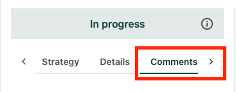
The comments tab is outlined in a red box, next to tabs for Strategy and Details
Fig. 1: The Comments tab in the right-side panel is marked in red.
  1. Enter text in the “Add comment” text box and click Post.

To reply to a comment in Content Hub Ops:

  1. Click the Reply arrow icon on a comment.
  2. Enter text in the “Add reply” text box and click Post. 

To assign a content item back to the content author for rework:

  1. As a best practice, add a comment to the content item indicating what is needed as a next step. For example, “See notes made in the Word document for feedback. Please have an updated draft submitted by Friday, June 6.”
  2. Click the Send back for rework or Reject button at the top right-side of the content item details page. Click Confirm.

A button on the right labeled
Figs. 2 (top) and 3 (bottom): The “Send back for rework” and “Reject” buttons assign the content item back to the author for revisions.


The content item is now reassigned to the content author. The content author can make changes and upload a new version of the file using another shared link in the comments (or make changes in the same document and indicate changes have been made using the comments section). Once changes are complete, the content author can resubmit for review and the process repeats until the reviewer has approved the copy. 

To Approve Content

Once all necessary revisions (aside from copy editing) are complete and the reviewer is satisfied with the quality and accuracy of the content, the reviewer can approve the content item. 

  1. Add a comment to the Content Hub Ops Comments tab to indicate a deadline for when edits are needed from the Editing Team.
  2. Click the Approve button at the top right corner of the content item details page.
  3. Click Confirm, if necessary. 

The content item cannot move forward to the next stage in the process until it has been approved by the reviewer.


Documentation updated: June 23, 2025

Is there an issue with this documentation? Report it here.
