Jump to HeaderJump to Main ContentJump to Footer
Michigan State University
Digital Experience Studio

University Communications and Marketing

Digital Experience Studio

  • Experience Program
    • Website Project Process
    • Working with a Vendor
    • Glossary
    • Taxonomy Data Dictionary
  • |
  • Experience Design
    • Website Strategy
    • Website Structure
    • Information Architecture and Navigation
    • User-Centered Design Conventions
    • Common UX Issues
    • Enterprise Design System
    • Content Planning
    • Creating Accessible Content
    • Taxonomy and Filters
  • |
  • Website Technology
    • Web Standards
    • Search Engine Optimization
    • Cascade CMS
    • Sitecore CMS
    • Content Hub Overview
    • Content Hub DAM
    • Content Hub Operations

    SitecoreAI

    Sitecore user login
  • |
  • Social Media
    • Alt Text Bookmarklet
    • Meta Ad Pixel
    • Social Media and Web Integration
    • Sprinklr

    Sprinklr

    Sprinklr user login
  • |
  • Analytics
    • Google Analytics (GA4)
    • Testing
    • Data Visualization

    Google Analytics

    Google Analytics user login
  • |
  • News and Events
    • News and Updates
    • Events and Trainings
Digital Experience Studio

University Communications and Marketing

  • Experience Program
  • Experience Design
  • Website Technology
  • Social Media
  • Analytics
  • News and Events

< Experience Program

  • Website Project Process
  • Working with a Vendor
  • Glossary
  • Taxonomy Data Dictionary

< Experience Design

  • Website Strategy
  • Website Structure
  • Information Architecture and Navigation
  • User-Centered Design Conventions
  • Common UX Issues
  • Enterprise Design System
  • Content Planning
  • Creating Accessible Content
  • Taxonomy and Filters

< Website Technology

  • Web Standards
  • Search Engine Optimization
  • Cascade CMS
  • Sitecore CMS
  • Content Hub Overview
  • Content Hub DAM
  • Content Hub Operations

SitecoreAI

Sitecore user login

< Social Media

  • Alt Text Bookmarklet
  • Meta Ad Pixel
  • Social Media and Web Integration
  • Sprinklr

Sprinklr

Sprinklr user login

< Analytics

  • Google Analytics (GA4)
  • Testing
  • Data Visualization

Google Analytics

Google Analytics user login

< News and Events

  • News and Updates
  • Events and Trainings
Digital Experience Studio > Website Technology > Content Hub > Content Hub Operations >

Navigating Content Hub Operations

Michigan State University

MSU Tools and Resources

  • A to Z Index
  • Find People
  • Email
  • Tech Support
  • Social Media Directory

Communications Resources

  • University Communications and Marketing
  • University Trademarks and Licensing
  • MSU Brand Studio
  • MSU Editorial Style Guide
  • MSU Photos

Contact us

517-355-7505

Address

Michigan State University 408 West Circle Drive East Lansing, MI 48824

Follow Us

  • Visit our Facebook page
  • Visit our page on X
  • Visit our Instagram page
  • Visit our LinkedIn page
  • Visit our YouTube page
  • Visit our TikTok page

If you're having accessibility issues, please let us know.

Know MoreTransparency Reporting: Budget & Salary/Compensation
Michigan State University
  • Contact Information|
  • Site Map|
  • Privacy Statement|
  • Site Accessibility|
  • Call MSU: (517) 355-1855|
  • Visit: msu.edu|
  • Notice of Nondiscrimination|

SPARTANS WILL|© Michigan State University|

Navigating Content Hub Operations

There are several sections within Content Hub. Access will depend on a user’s permission settings. If there is a section a user cannot access but they think they should be able to, the user should contact the UCAM platforms group.

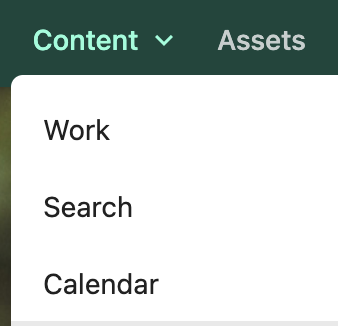
Content Hub Ops functions are accessed using the Content tab on the main toolbar:

The navigation bar in Content Hub for a content author shows Content, Assets, Collections and Create as tab options.
Fig. 1: The main toolbar within Content Hub.
The Content tab includes Work, Search and Calendar options.
Fig. 2: The options within the Content tab of the toolbar.

Content Hub Ops Workspaces

Work

The Work space is a content dashboard for an individual user. It has three main sections:

  • The “My Work” tab displays all content items assigned to the user with an overview of the main details of the content that requires action by the user.
  • The “All Work” tab uses a Kanban view with content grouped in columns by status (e.g., In Progress, In Review, Pre-Publishing, Final)
  • The “Created by me” panel on the right side shows a list of all content items created by the user, sorted by date of creation.

Individual content items are represented by cards. Users click a card to open, view and edit the content item. Content can also be initiated from this page.
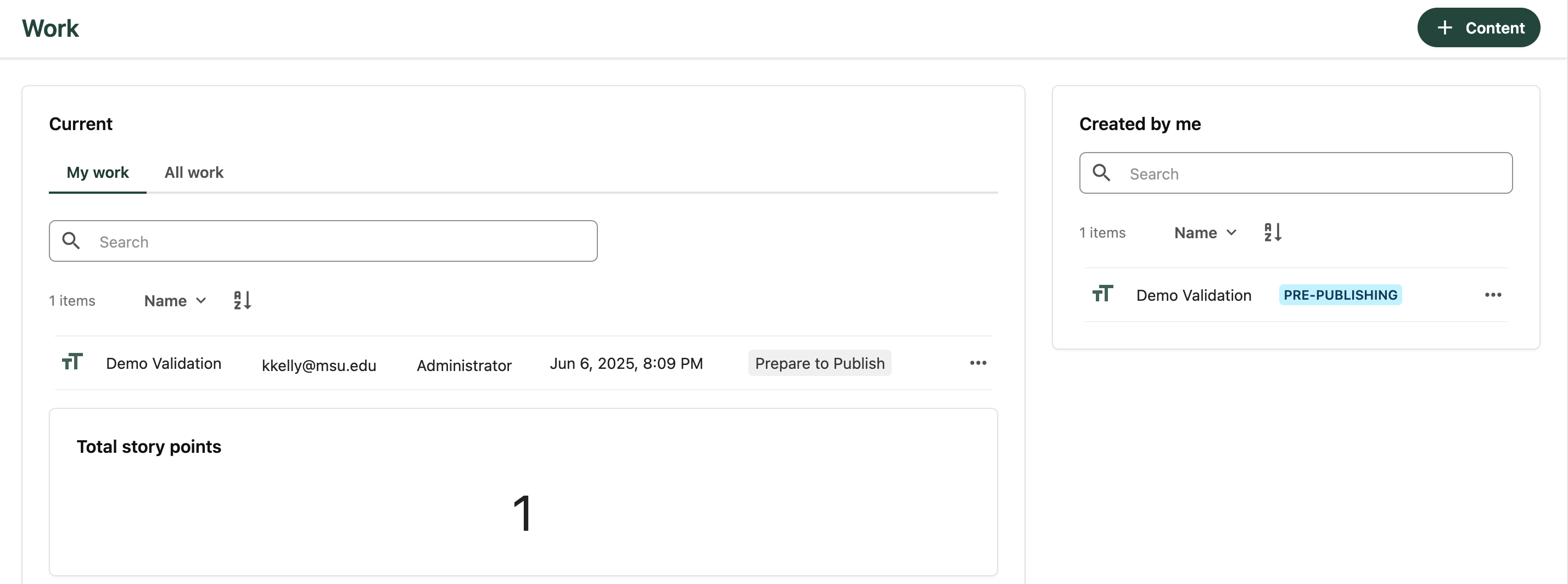
The Work tab shows Current
Fig. 3: The Work page.

Search

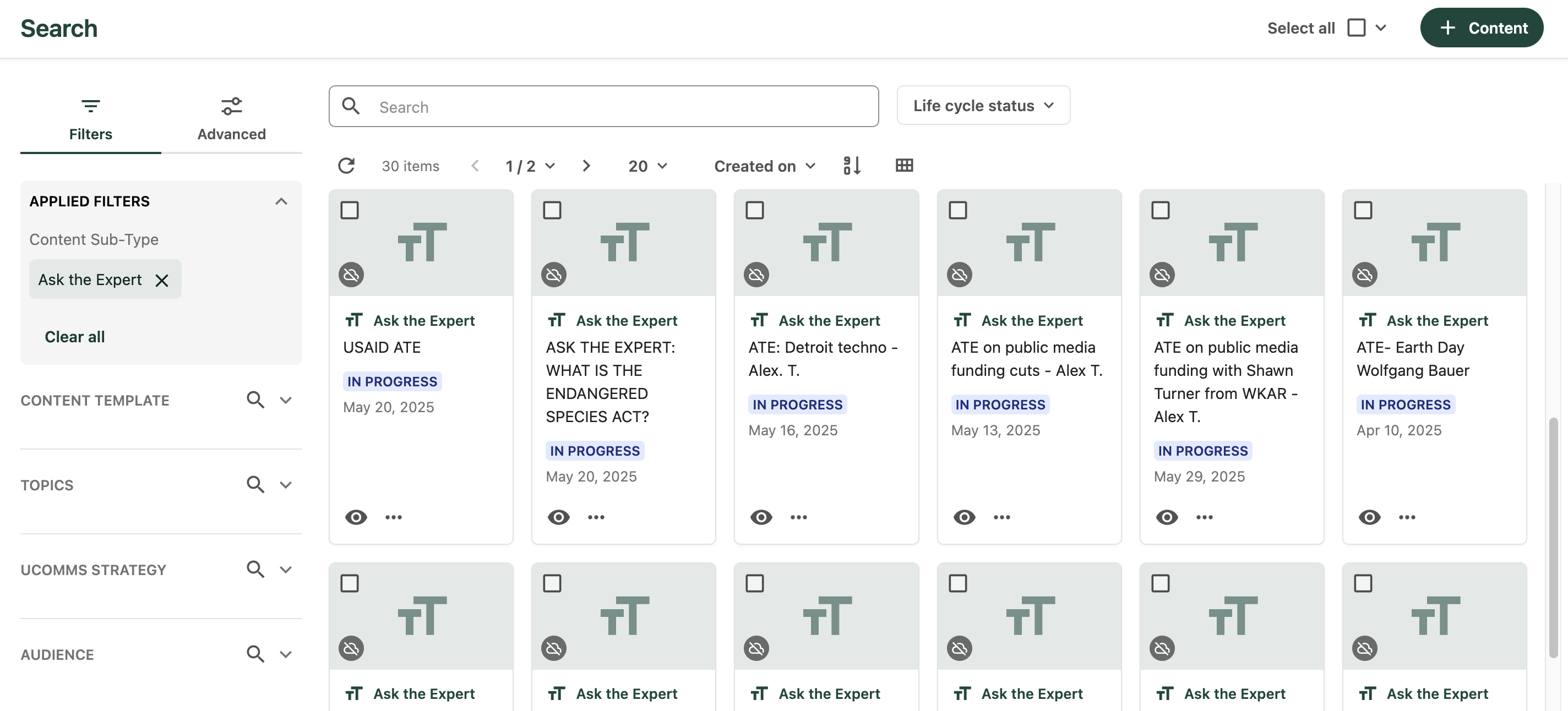
The Search space offers a powerful way to search, find and manage content. Content can also be initiated from this page. 

This page displays all content type items a user has access to (depending on their role), including both their own drafts and others’ content, regardless of the publication status or publication date.

Key search features:

  • Filters Panel (left side):
    • Use filters to narrow results by:
      • Content Sub-Type (e.g., News Release, Ask the Expert, Podcast)
      • Content Template (e.g., Standard Story, Brief Story, Photo Gallery Story, etc.)
      • Taxonomy tags (e.g., Organizational Entities, Topics, Strategy, Audience and Colleges
  • Search Bar (top):
    • Enter keywords to perform a full-text search across content items, their metadata and/or content fields.
  • Results List/Grid:
    • Toggle between grid or list views.
    • Each content item card displays the content item’s name, status, sub-type and publication date.
  • Bulk Actions:
    • Apply bulk edits to items using the Edit in Table function, such as:
      • Add items to Campaigns (Future use)
      • Add Content Tags (Future use)
    • Export a selection of content items to Excel.
    • This feature is available to Content Admins only.
The Search page shows a tile for each content item and various filters and a search bar for narrowing down results.
Fig. 4: The Search page, filtered to assets in “Final” Life Cycle Status and “Ask the Expert” Content Sub-Type. 

For more information on using Search in Content Hub Ops, see “Searching for Content in Content Hub Ops.”

Calendar

The Calendar space is used for planning and scheduling content. The calendar displays content based on the content items’ publication date. It pulls content from across all content types (e.g., Emails, Events, Stories, Ads).

Key Calendar features:

  • Displays upcoming and past content entries.
  • Enables users to switch between Month, Week, Work Week, Day and Agenda views.
  • Allows users to add new content by double clicking on a specific date.
  • Users can drag a content item to a new date to reschedule the item’s publication date.
  • Each entry provides an at-a-glance view of the content item Name, Content Sub-Type (icon and color code) and Publication Date.
  • Clicking an item and then the item name opens the content directly.
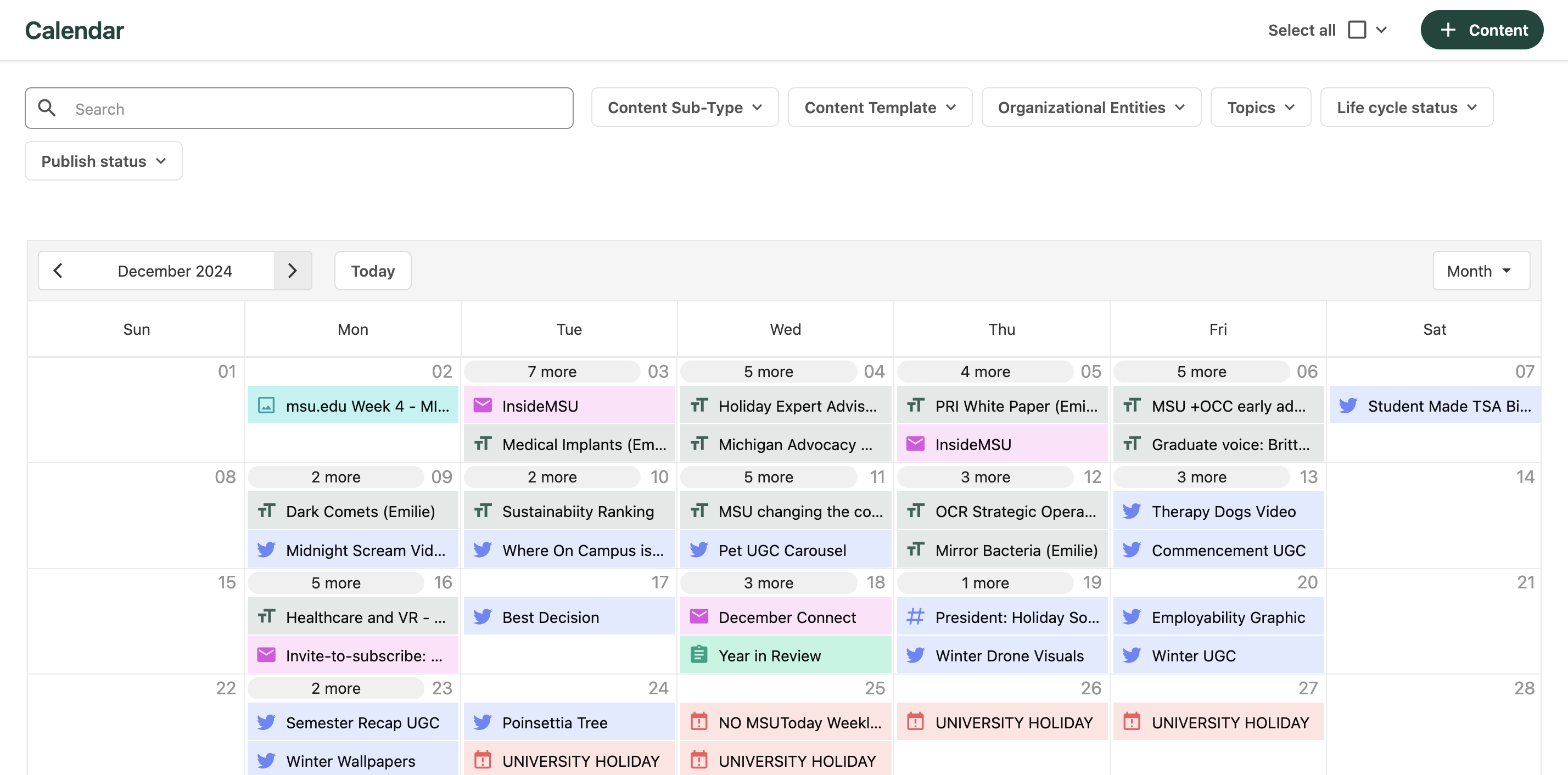
The calendar view shows all the content planned within the displayed timeframe, the content type and status. Filters are available to reduce what is visible.
Fig. 5: The Calendar page, filtered to assets scheduled for September 2024, with the MSU Homecoming Highlights campus story selected.

For more information on using Calendar in Content Hub Ops, see “Using Calendar.”


Documentation updated: June 18, 2025

Is there an issue with this documentation? Report it here.