Jump to HeaderJump to Main ContentJump to Footer
Michigan State University
Digital Experience Studio

University Communications and Marketing

Digital Experience Studio

  • Experience Program
    • Website Project Process
    • Working with a Vendor
    • Glossary
    • Taxonomy Data Dictionary
  • |
  • Experience Design
    • Website Strategy
    • Website Structure
    • Information Architecture and Navigation
    • User-Centered Design Conventions
    • Common UX Issues
    • Enterprise Design System
    • Content Planning
    • Creating Accessible Content
    • Taxonomy and Filters
  • |
  • Website Technology
    • Web Standards
    • Search Engine Optimization
    • Cascade CMS
    • Sitecore CMS
    • Content Hub Overview
    • Content Hub DAM
    • Content Hub Operations

    SitecoreAI

    Sitecore user login
  • |
  • Social Media
    • Alt Text Bookmarklet
    • Meta Ad Pixel
    • Social Media and Web Integration
    • Sprinklr

    Sprinklr

    Sprinklr user login
  • |
  • Analytics
    • Google Analytics (GA4)
    • Testing
    • Data Visualization

    Google Analytics

    Google Analytics user login
  • |
  • News and Events
    • News and Updates
    • Events and Trainings
Digital Experience Studio

University Communications and Marketing

  • Experience Program
  • Experience Design
  • Website Technology
  • Social Media
  • Analytics
  • News and Events

< Experience Program

  • Website Project Process
  • Working with a Vendor
  • Glossary
  • Taxonomy Data Dictionary

< Experience Design

  • Website Strategy
  • Website Structure
  • Information Architecture and Navigation
  • User-Centered Design Conventions
  • Common UX Issues
  • Enterprise Design System
  • Content Planning
  • Creating Accessible Content
  • Taxonomy and Filters

< Website Technology

  • Web Standards
  • Search Engine Optimization
  • Cascade CMS
  • Sitecore CMS
  • Content Hub Overview
  • Content Hub DAM
  • Content Hub Operations

SitecoreAI

Sitecore user login

< Social Media

  • Alt Text Bookmarklet
  • Meta Ad Pixel
  • Social Media and Web Integration
  • Sprinklr

Sprinklr

Sprinklr user login

< Analytics

  • Google Analytics (GA4)
  • Testing
  • Data Visualization

Google Analytics

Google Analytics user login

< News and Events

  • News and Updates
  • Events and Trainings
Digital Experience Studio > Website Technology > Content Hub > Content Hub Operations >

Searching for Content

Michigan State University

MSU Tools and Resources

  • A to Z Index
  • Find People
  • Email
  • Tech Support
  • Social Media Directory

Communications Resources

  • University Communications and Marketing
  • University Trademarks and Licensing
  • MSU Brand Studio
  • MSU Editorial Style Guide
  • MSU Photos

Contact us

517-355-7505

Address

Michigan State University 408 West Circle Drive East Lansing, MI 48824

Follow Us

  • Visit our Facebook page
  • Visit our page on X
  • Visit our Instagram page
  • Visit our LinkedIn page
  • Visit our YouTube page
  • Visit our TikTok page

If you're having accessibility issues, please let us know.

Know MoreTransparency Reporting: Budget & Salary/Compensation
Michigan State University
  • Contact Information|
  • Site Map|
  • Privacy Statement|
  • Site Accessibility|
  • Call MSU: (517) 355-1855|
  • Visit: msu.edu|
  • Notice of Nondiscrimination|

SPARTANS WILL|© Michigan State University|

Searching for Content

Content Hub Ops provides a robust search interface allowing users to quickly find content items. Users can use free text search or narrow results using filters.

Access Search

To access the Search page:

  1. Click Content on the navigation bar.
  2. Click Search in the drop-down menu.

Search Bar

Located at the top of the search results grid, the Search bar allows full-text search across all content and all metadata fields to return results.

To use:

  1. Navigate to the Content/Search page from the navigation bar.
  2. Click into the Search bar.
  3. Enter a keyword or phrase (e.g., “campus sustainability”).
  4. Hit Enter. A list of matching results will appear.
  5. Click a result to open the item.

Tip: Use quotation marks around a phrase to require an exact match. 

Filters Panel

For more targeted searches, use the filters in left-side panel. These allow filtering by content metadata and taxonomies.

To use:

  1. Use the filters on the left-hand panel to refine your search:
    1. Content Sub-Type (e.g., News Release, Campus Story, Podcast)
    2. Content Template (e.g., Standard Story, Photo Gallery Story, Brief Story)
    3. Life Cycle Status (shown on the right side of the Search bar as a drop-down box)
    4. Organizational Entities
    5. Topics
    6. Strategy
    7. Audience
    8. College
    9. Career Interest Area
  2. Combine multiple filters for precise results.
  3. Click the title of the desired content item in the search results to open it.

Sort and Viewing Options

Users can select the sorting filter to change the sorting of the results, such as by Date created or Name. Reverse the sorting by clicking the Sort button to the right of the sorting option.
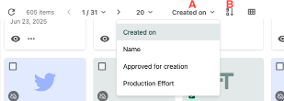
The Search page can be sorted by field like Created on, Name, Approved for creation and Production Effort
Fig. 1: The Sort method (A) and Order controls (B) are marked in the above screenshot.

Toggle between Grid and Table views to display search results in a grid or a table view. Click on the icon next to the sort options to change the view.
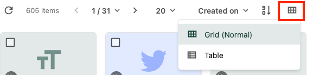
There is a toggle to switch between a grid and table (list) view for search results.
Fig. 2: The toggle between Grid and Table views is marked in red.

Bulk Actions (Admins Only)

Content Admins can manage items in bulk through the mass edit in table action, can export a selection of content items in Excel, and, in the future will be able to add items to Campaigns or Content Tags.

To use:

  1. From the Search page, select a few or select all items by clicking the checkboxes on item cards or dragging content items from the search results.
  2. On the top bar at the right side, additional actions will appear:
    1. Click the pencil with a grid icon (“Edit in table”) to edit items in bulk. The following fields can be viewed and edited from the mass edit table: Name, Content Sub-Type, Content Template, Reviewer, Publication Date, Primary Topic, Secondary Topic, Tertiary Topic, Primary Strategy, Secondary Strategy, Primary Audience, Secondary Audience, Career Interest Area, Campaigns, College, Organizational Entities, Production Effort, Status and Active States.
    2. Click the megaphone icon (“Add to Campaign”) to add items to an existing campaign or create a new campaign with the selected items. (Future use case)
    3. Click the tag icon (“Add to a Content Tags”) to add content tags to the selected items. Content tags are used primarily for reporting purposes. (Future use case)
    4. Click the three dots icon (“Actions”) to open a menu to show additional actions, including Export to Excel and bulk Delete. 

Tip: If exporting to Excel (for reporting purposes), give the download file a name, select “User-friendly cell values” and leave “User-friendly column values” unselected for more consistent formatting in the Excel report.


Documentation updated: June 19, 2025

Is there an issue with this documentation? Report it here.