Jump to HeaderJump to Main ContentJump to Footer
Michigan State University
Digital Experience Studio

University Communications and Marketing

Digital Experience Studio

  • Experience Program
    • Website Project Process
    • Working with a Vendor
    • Glossary
    • Taxonomy Data Dictionary
  • |
  • Experience Design
    • Website Strategy
    • Website Structure
    • Information Architecture and Navigation
    • User-Centered Design Conventions
    • Common UX Issues
    • Enterprise Design System
    • Content Planning
    • Creating Accessible Content
    • Taxonomy and Filters
  • |
  • Website Technology
    • Web Standards
    • Search Engine Optimization
    • Cascade CMS
    • Sitecore CMS
    • Content Hub Overview
    • Content Hub DAM
    • Content Hub Operations

    SitecoreAI

    Sitecore user login
  • |
  • Social Media
    • Alt Text Bookmarklet
    • Meta Ad Pixel
    • Social Media and Web Integration
    • Sprinklr

    Sprinklr

    Sprinklr user login
  • |
  • Analytics
    • Google Analytics (GA4)
    • Testing
    • Data Visualization

    Google Analytics

    Google Analytics user login
  • |
  • News and Events
    • News and Updates
    • Events and Trainings
Digital Experience Studio

University Communications and Marketing

  • Experience Program
  • Experience Design
  • Website Technology
  • Social Media
  • Analytics
  • News and Events

< Experience Program

  • Website Project Process
  • Working with a Vendor
  • Glossary
  • Taxonomy Data Dictionary

< Experience Design

  • Website Strategy
  • Website Structure
  • Information Architecture and Navigation
  • User-Centered Design Conventions
  • Common UX Issues
  • Enterprise Design System
  • Content Planning
  • Creating Accessible Content
  • Taxonomy and Filters

< Website Technology

  • Web Standards
  • Search Engine Optimization
  • Cascade CMS
  • Sitecore CMS
  • Content Hub Overview
  • Content Hub DAM
  • Content Hub Operations

SitecoreAI

Sitecore user login

< Social Media

  • Alt Text Bookmarklet
  • Meta Ad Pixel
  • Social Media and Web Integration
  • Sprinklr

Sprinklr

Sprinklr user login

< Analytics

  • Google Analytics (GA4)
  • Testing
  • Data Visualization

Google Analytics

Google Analytics user login

< News and Events

  • News and Updates
  • Events and Trainings
Digital Experience Studio > Website Technology > Website Standards and Best Practices >

Optimize for Search and Sharing

Michigan State University

MSU Tools and Resources

  • A to Z Index
  • Find People
  • Email
  • Tech Support
  • Social Media Directory

Communications Resources

  • University Communications and Marketing
  • University Trademarks and Licensing
  • MSU Brand Studio
  • MSU Editorial Style Guide
  • MSU Photos

Contact us

517-355-7505

Address

Michigan State University 408 West Circle Drive East Lansing, MI 48824

Follow Us

  • Visit our Facebook page
  • Visit our page on X
  • Visit our Instagram page
  • Visit our LinkedIn page
  • Visit our YouTube page
  • Visit our TikTok page

If you're having accessibility issues, please let us know.

Know MoreTransparency Reporting: Budget & Salary/Compensation
Michigan State University
  • Contact Information|
  • Site Map|
  • Privacy Statement|
  • Site Accessibility|
  • Call MSU: (517) 355-1855|
  • Visit: msu.edu|
  • Notice of Nondiscrimination|

SPARTANS WILL|© Michigan State University|

Optimize for Search and Sharing

Optimize for Search

  • Build the website to be responsive so that it looks nice on any sized device.
  • Generate a Google site map so search engines can understand the website structure.
  • Use Google PageSpeed Insights to ensure the website loads quickly.

Social Media Icons

Follow social media network guidelines for displaying icons and buttons. See “Integrating Social and Websites”  for more information.

Meta Tags, Open Graph and X Cards

Social media networks and search engines use a webpage’s open graph, X card, and meta tags when displaying summaries of and links to individual webpages. This helps content stand out when it is viewed in search results or shared to a social media feed.

Links to institutional webpages available via social media and search are easier for potential visitors to understand and evaluate when well-written open graph, X card and meta tags have been included. Social media managers, website managers and website content creators should work together to ensure open graph tags and X cards are available and are properly used.

Open Graph and Meta Tag Use and Placement

  • Include open graph and meta tags on every institutional webpage.
  • Include X card meta tags on featured/important MSU articles, media releases, multimedia elements and information pages.
  • Place open graph and meta tags between HTML <head></head> tags.

Descriptive Page Headings

  • Include at least one <h1> HTML tag that describes the main subject of the webpage.
  • Include <h2> through <h6> HTML tags for longer, complex documents.
  • Avoid gaps in the heading hierarchy (e.g., skipping from <h1> to <h3>).
  • Include key words and phrases in headings to describe content.
  • Use clear language that is easy to comprehend.
  • Use the fewest words possible.

Meta Tags

Meta tags are standard tags used on search engines to determine what a website is about and how the content on the website is structured. Search engines “crawl” a site, including the meta data, and use this information when providing search results to internet users.

Expand the tabs below to review some tips and best practices related to adding meta tags on the website. 
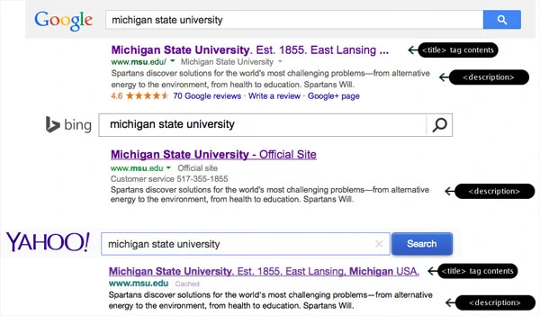
Tags in Search Results
MetaTags1
Fig. 1: Sample search engine result screens with title and description text


Title Tag

Open Graph Tags

Open graph tags are standard tags used by many social media channels, including Facebook, to display summaries and media when a link to an individual webpage is shared on the channel. 

Open graph tags should be used on every institutional webpage. Tags are placed between the HTML <head></head> tags.

Expand the tabs below to review some tips and best practices related to adding open graph tags on the website.

Title Tag

Include the text that should appear by default when a link to a webpage is shared via social media.

Description

X Cards

X cards, also known as Twitter cards, make it possible to attach media experiences to X (formerly Twitter) posts linking to web content from a website. Adding a few lines of HTML to webpages power these cards for X users that link to that page in one of their posts. Cards help provide additional context for the link, such as a thumbnail image and headline. 

X card meta tags should be included on featured or important MSU articles, media releases, multimedia elements and information pages. Tags are placed between the HTML <head></head> tags. 

The most commonly used cards for MSU websites are Summary Card and Summary Card with Large Image. 

Note: As of April 2024, X is still referring to this technology as a Twitter card in some parts of its documentation. X has experimented with changing how cards display on its platform. For the latest details, see the X Developer Platform webpage on X cards. 

Expand the tabs below to review some tips and best practices related to creating X cards on the website.

Card Type

For a Basic Summary Card, set the value to “Summary.”

Title

Additional Resources

  • Open Graph
  • X (Twitter) Cards
  • W3C
  • Specify Thumbnails for Google Search

Well-written titles can generate more visits to a webpage and improve search engine visibility.

  • Clearly summarize the content or benefit of the webpage.
  • Include key words and phrases that visitors would use when searching for information contained within the webpage.
  • Use 70 characters or less.
Description Tag

The content of the description tag should contain an abstract of what information is contained on an individual webpage.
  • Use text that is easy to read.
  • Include important keywords related to the content on the page.
  • Provide context for the information the visitor will find by following the link to the page.
  • Use 155 characters or less.
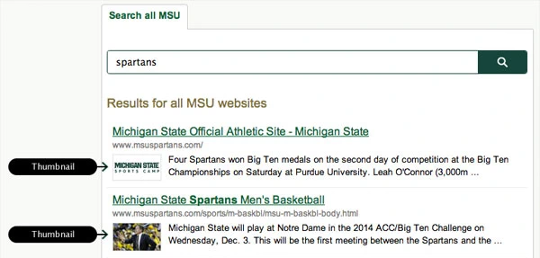
Thumbnail
MetaTags2
Fig. 2: Sample search results screen with thumbnails

A thumbnail image for a page can be manually specified. This small image will appear next to the search result. 

Add a thumbnail meta tag to the <head> section of the webpage (replace the URL with the path to the thumbnail image):

<meta name=“thumbnail content=“http://url.msu.edu/thumbnail.jpg” />

Include a one-to-two sentence summary describing the contents of the specific webpage.

Do not reuse the title or use this field to describe the general services provided by the unit or website. 

Type Tag

Specify the kind of object/content being linked. 

For example, <meta property=“og:type” content=“website”/> is used when linking to a website.

Image Tag

Include a URL for the graphic to be used when displaying a thumbnail preview along with a link to the webpage via social media.

URL Tag

Include the URL of the webpage being linked. The URL serves as the permanent link to the content. As such, content authors should link directly to the story/page, not a homepage featuring a link to the story/page. 

Validating Open Graph

Validate open graph to use. 

To test, visit Meta’s Test Your Markup webpage.

Additional Information

For complete details on open graph tags, see the Open Graph Protocol website.

Visit the Meta for Developers website for Facebook-specific assistance. 

Be concise. Use 70 or fewer characters for best appearance on X.

Site

Include the @username used by the website (e.g., @MichiganStateU).

Creator

Include the @username of the content creator.

Description

Summarize the content of the specific page. Use 200 or fewer characters. Keep search engine optimization in mind. 

Do not reuse the title or use this field to describe the general services provided by the unit or website. 

Image

Include a URL for a unique image representing the content of the specific page. The image should use a minimum square aspect ratio of 120 pixels x 120 pixels and be less than 1MB in size. 

Do not use a generic graphic or image used as the card image for other pages on the website. 

Note: If an image is not specified, the card may pull any image from the website. This could result in an inappropriate matchup between the loaded image and the content title.
Validating a Card

Validate a card prior to use. 

For information on testing a card, visit the X card validation tool. Click the Validator Tool link and log in to an account. 

Additional Information

For complete details on X cards, see the developer user guide.