Jump to HeaderJump to Main ContentJump to Footer
Michigan State University
Digital Experience Studio

University Communications and Marketing

Digital Experience Studio

  • Experience Program
    • Website Project Process
    • Working with a Vendor
    • Glossary
    • Taxonomy Data Dictionary
  • |
  • Experience Design
    • Website Strategy
    • Website Structure
    • Information Architecture and Navigation
    • User-Centered Design Conventions
    • Common UX Issues
    • Enterprise Design System
    • Content Planning
    • Creating Accessible Content
    • Taxonomy and Filters
  • |
  • Website Technology
    • Web Standards
    • Search Engine Optimization
    • Cascade CMS
    • Sitecore CMS
    • Content Hub Overview
    • Content Hub DAM
    • Content Hub Operations

    SitecoreAI

    Sitecore user login
  • |
  • Social Media
    • Alt Text Bookmarklet
    • Meta Ad Pixel
    • Social Media and Web Integration
    • Sprinklr

    Sprinklr

    Sprinklr user login
  • |
  • Analytics
    • Google Analytics (GA4)
    • Testing
    • Data Visualization

    Google Analytics

    Google Analytics user login
  • |
  • News and Events
    • News and Updates
    • Events and Trainings
Digital Experience Studio

University Communications and Marketing

  • Experience Program
  • Experience Design
  • Website Technology
  • Social Media
  • Analytics
  • News and Events

< Experience Program

  • Website Project Process
  • Working with a Vendor
  • Glossary
  • Taxonomy Data Dictionary

< Experience Design

  • Website Strategy
  • Website Structure
  • Information Architecture and Navigation
  • User-Centered Design Conventions
  • Common UX Issues
  • Enterprise Design System
  • Content Planning
  • Creating Accessible Content
  • Taxonomy and Filters

< Website Technology

  • Web Standards
  • Search Engine Optimization
  • Cascade CMS
  • Sitecore CMS
  • Content Hub Overview
  • Content Hub DAM
  • Content Hub Operations

SitecoreAI

Sitecore user login

< Social Media

  • Alt Text Bookmarklet
  • Meta Ad Pixel
  • Social Media and Web Integration
  • Sprinklr

Sprinklr

Sprinklr user login

< Analytics

  • Google Analytics (GA4)
  • Testing
  • Data Visualization

Google Analytics

Google Analytics user login

< News and Events

  • News and Updates
  • Events and Trainings

Sitecore released an update to the preview functionality on Tuesday, Aug. 18, changing how the page preview function works. See "Simulated Browser Preview," below, for more information.

Digital Experience Studio > Website Technology > Sitecore CMS > Sitecore User Guide >

Preview a Page

MSU Tools and Resources

  • A to Z Index
  • Find People
  • Email
  • Tech Support
  • Social Media Directory

Communications Resources

  • University Communications and Marketing
  • University Trademarks and Licensing
  • MSU Brand Studio
  • MSU Editorial Style Guide
  • MSU Photos

Contact us

517-355-7505

Address

Michigan State University 408 West Circle Drive East Lansing, MI 48824

Follow Us

  • Visit our Facebook page
  • Visit our page on X
  • Visit our Instagram page
  • Visit our LinkedIn page
  • Visit our YouTube page
  • Visit our TikTok page

If you're having accessibility issues, please let us know.

Know MoreTransparency Reporting: Budget & Salary/Compensation
  • Contact Information|
  • Site Map|
  • Privacy Statement|
  • Site Accessibility|
  • Call MSU: (517) 355-1855|
  • Visit: msu.edu|
  • Notice of Nondiscrimination|

SPARTANS WILL|© Michigan State University|

Preview a Page

Locate the page in the Site Content Tree (left pane) in Page Builder. Click the page name to select the page to be previewed.

Simulated Device Preview in Edit Mode

Page Builder allows content authors to view how the web page will appear on various devices. 

On the Local Toolbar, click the phone, tablet or laptop icon to adjust view settings. The active view will be highlighted in purple. 

Screenshot of the local toolbar with preview icons highlighted
Figure 1: The Local Toolbar with the view settings icons outlined in red.

To view additional display preview options, click the dropdown arrow icon next to the display dimension. 
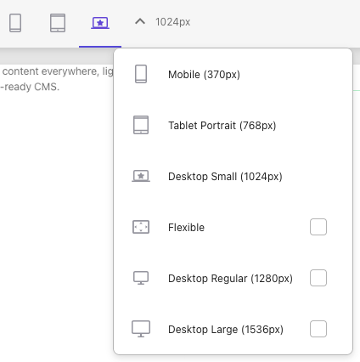
Screenshot of the expanded preview options menu
Figure 2: The Local Toolbar with the view settings additional options dropdown menu expanded.

Simulated Browser Preview

On the Local Toolbar, click the Preview icon (i.e., eyeball) to open the calendar preview menu. Select the date to preview the page in a new browser tab as the page will appear on that date. This provides a close approximation to what the page will look like when published on future dates. It also allows you to review previous page states to see what a visitor saw on a previous date. To preview changes made for publishing immediately, click today's date.

If changes are made in the edit panel of pages, re-click the Preview icon or refresh the Preview browser tab to view the changes.

A Note on Dynamic Content in Preview

List components (News, Events, People and Programs) and the Featured News and Events component are dynamically populated using Sitecore Search results from published content items matching parameters set within the component on the listing page. These components cannot be previewed within Page Builder due to this dynamic nature. 


Documentation updated: August 18, 2026

Is there an issue with this documentation? Report it here.