There may come a time when a unit needs to redirect a web address to point to a new web address. Redirects are commonly used when:
- updating outdated URLs after a website redesign;
- merging content from two pages (or two websites) into one;
- fixing broken links;
- shortening URLs;
- managing campaign tracking.
For example, when reorganizing website content or migrating from one content management system to another, the page URLs may change. If the original link was previously shared or may have been bookmarked, audiences won’t be able to find the page at the new location. Link redirects are added into the website to point visitors looking for the original URL to the new location.
Types of Redirects
A 301 redirect is a permanent redirect. This tells browsers and search engines that the URL has permanently moved and passes along nearly all search engine optimization value from the old URL to the new URL.
A 302 redirect is a temporary redirect. This indicates a temporary move and does not pass along full search engine optimization value.
In most cases, 301 redirects will be used.
Simple redirects are page-to-page. The redirect points the old URL to a new URL.
More complicated redirects are created using a regular expression, or regex, based on rules for URLs following distinct patterns. These are used to map sets of URLs following specific URL patterns, such as all news pages or all pages within a subdirectory. For example, if a URL for one page is changing, a regex redirect pattern could be used to redirect all the subpages of that page to the new correct path.
Creating Redirects
Sitecore users with site admin permissions can add simple one-to-one redirects directly within SitecoreAI. To add a redirect within the same site, such as when fixing a broken link due to a page move, follow the instructions below.
In Content Editor:
- Navigate to and expand the site node in the content tree.
- Click to expand Settings.
- Right click Redirects and click Insert and Redirect Map on the popup menu.
- Name the new redirect map. This name is internal to the system and does not impact the redirect links.
- Click OK.
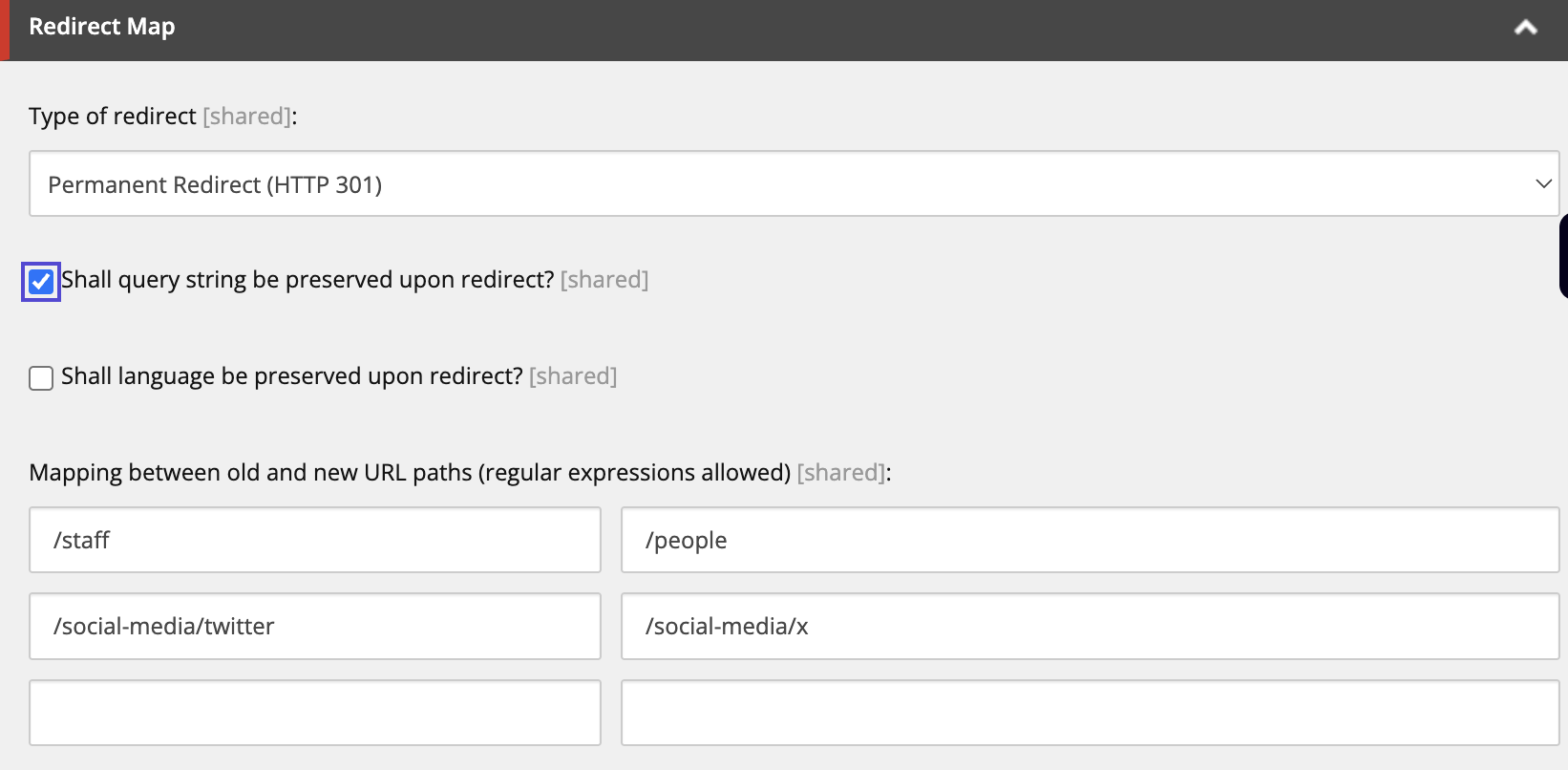
- Choose a type of redirect from the dropdown menu.
- Optional: Check "Shall query string be preserved upon redirect?" to carry over URL parameters when a link redirects.
- Optional: Check "Shall language be preserved upon redirect?" to carry over language settings when a link redirects. This is for multi-lingual translated sites.
- In the "Mapping between old and new URL paths" sections, enter the old URL path in the left box and the new URL path in the right box. Use the full URL string beyond the msu.edu ending of the root domain, starting with a "/" character.
- Add additional redirects using additional rows, as needed.
- Click Save.
- Submit the changes for publishing, following standard procedures.
Examples: All URLs for these examples are fictional.
- If redirecting a top-level page, one page will appear in the URL. For example, if redirecting dxstudio.msu.edu/people to dxstudio.msu.edu/staff, the left box will include "/people" and the right box will include "/staff".
- If redirecting a page deeper in the website, the full URL path must be included. For example, if redirecting dxstudio.msu.edu/social-media/twitter to dxstudio.msu.edu/social-media/x, the left box will include "/social-media/twitter" and the right box will include "/social-media/x".
If a user is unable to add redirects and believes it may be a permissions issue, please email Comms.WebSupport@msu.edu to request the UCAM platforms group check the user permissions.
If a published redirect is not behaving as expected, contact Comms.WebSupport@msu.edu to request assistance with troubleshooting the redirect.
Things to consider
A 301 redirect should always be used when the move is permanent. This will protect search engine optimization.
Avoid chains of redirected links (i.e., URL A redirected to URL B redirected to URL C). These slow down performance and impact search engine optimization.
It is not uncommon for a website that has been around for a long time or that has been migrated through a sequence of content management systems over time to have redirects in place because of technical debt. It’s likely many older redirects are no longer needed. If a webpage has been in place for an extended period at the current URL, it is less likely the old URL will be bookmarked or shared anywhere, and removing the redirect is less likely to negatively impact search engine optimization.
With larger website migration projects, it can be helpful to track needed redirects using a spreadsheet showing the old URL in one column and the new URL in the next column.
Documentation updated: Sept. 21, 2026
Is there an issue with this documentation? Report it here.
Note: Redirecting links presents implications for analytics. For example, if a story page headline and URL changed and a redirect was added to point visitors with the original URL to the new URL, there would be an impact on the traffic volumes. Take care with your analytic reporting if redirects are at play.