The Masthead contains the white MSU helmet logo and wordmark and the site name text. The helmet logo and wordmark link to msu.edu. The site name text links to the site homepage.
Masthead is a part of the header, along with Brand Bar and Main Navigation. These are found in a site’s Header folder inside the site’s Data node in Content Editor.
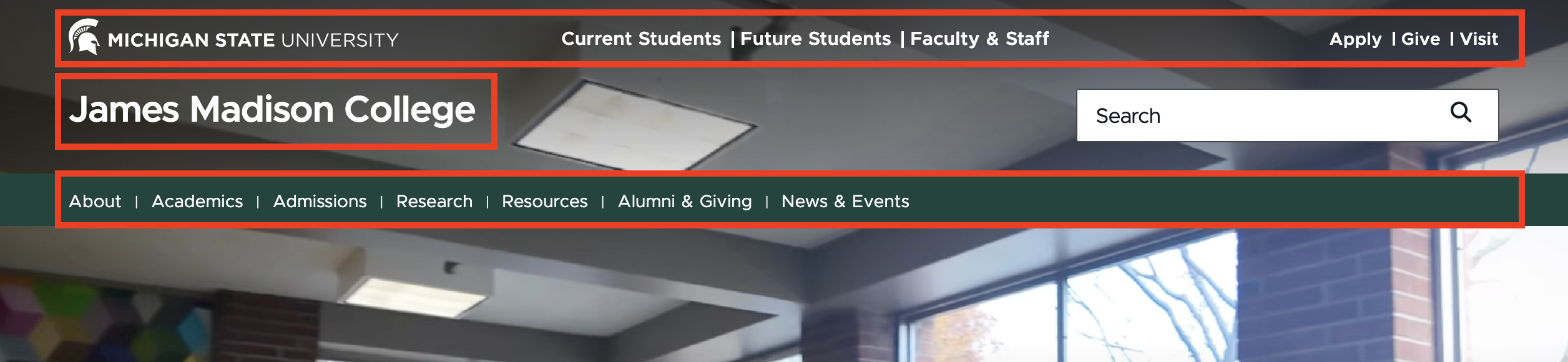

Note: While the search bar appears in this same area, it is a separate site configuration and not considered part of the Header component.
Component Information
Benefits
- This component displays the MSU helmet and wordmark in the header, along with the site name text.
- The MSU helmet, wordmark and the main site name (Site Name 1) are required fields.
- Additional site name lines are optional. Multiple lines are available to support unit’s needs for illustrating unit and college affiliation.
- The site name (Site Name 1 field) links to the website’s homepage, enabling visitors an easy means of returning home.
- The MSU helmet and wordmark link to the msu.edu homepage, enabling visitors an easy way to access that website and strengthening the brand connection between the unit and the university.
Component Options and Limitations
- There are up to three Site Name fields, enabling units to show hierarchy and unit/college affiliation.
- Site Name field text will wrap to the next line if too long for the space in the header. This should be avoided when possible, especially if using multiple Site Name fields.
Guidelines
- Keep text short to reduce text wrapping issues.
- The site name links to the website’s homepage.
- The MSU helmet and wordmark link to the msu.edu homepage.
- On mobile, the Site Name fields stack at the top of the menu. Be sure to check both desktop and mobile views, especially when using longer text.
Logo (image)
- The white MSU helmet and wordmark
- This is a fixed field. No editing is available.
- This links to the MSU homepage.
Site Name 1 (single-line text)
- The main site name
- Text will wrap if too long for the space in the header.
- Required field
- This links to the site's homepage.
Site Name 2 (general link)
- College or department text that appears above Site Name 1 with an optional link to the college or department website.
- Text will wrap if too long for the space in the header.
- The display text is the Description/Link Description text set in the Insert Link panel.
- Optional field
Site Name 3 (single-line text)
- Secondary site name text that displays below Site Name 1
- Text will wrap if too long for the space in the header.
- Optional field
- Not linkable
Related components:
Frequently Asked Questions
No, the masthead logo must be the white MSU helmet with wordmark and must link to the MSU homepage.
Instructions for Use
In Content Editor:
- Locate the site’s Masthead folder (site name > Data > Header > Masthead).
- Set or edit the main site name by adding or editing the text in Site Name 1.
- If a college or department name is desired:
- Set the link in Site Name 2 using the Insert link or Insert external link options.
- Set the Description/Link Description text to be the college or department name.
- If additional site name text is desired:
- Add text to Site Name 3.
- When done making changes, click Save.