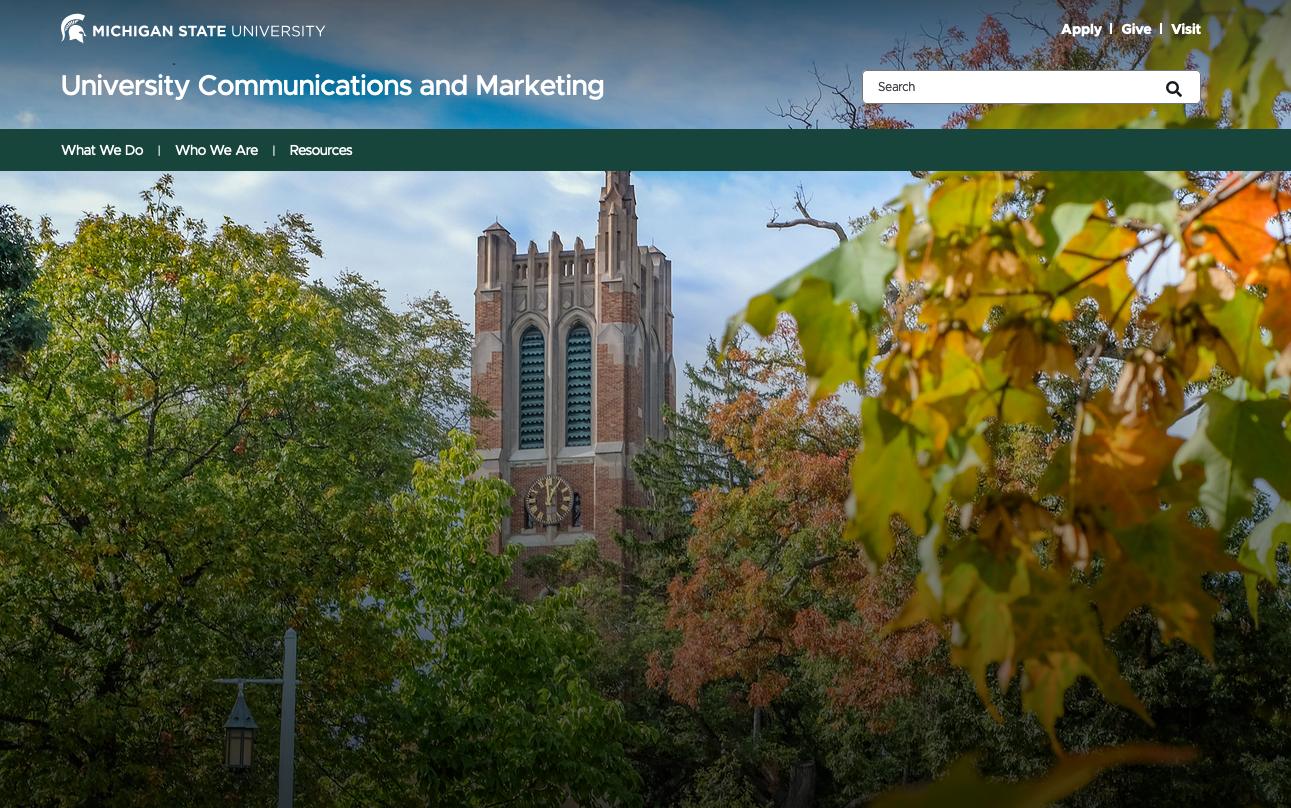
The Hero Banner is a large, full-width banner image or video. It is placed prominently at the top of the page and serves as the background for the masthead. Text is used as the page title. There are various options for customization.
Component Information
Benefits
- The standard default (larger-sized) Hero Banner components are generally used on the homepage of a website.
- The small-sized banner is generally used on section homepages within a website, though they aren’t mandatory.
- Some pages omit a banner and use a Page Title component instead. This is typical of tertiary pages (i.e., third level of navigation and deeper.)
- Hero Banners can be used on a standard Page or Story Page.
- Landing Hero Banners can be used on Landing Page templates. A Landing Hero Banner includes space for a Slate form component, used to capture information from prospective students.
Live Examples
Component Options and Limitations
- Hero Banners may only be used at the top of a page.
- Image size can be regular (default) or small.
- Text may be included on the banner but is optional.
- An optional CTA (call to action) button can be specified.
- Landing Hero Banners can only be placed on Landing Page templates.
Guidelines
- A Hero Banner and Page Title component should not be used on the same page. Using both would create two H1 heading tags. Redundant H1 heading tags cause accessibility and SEO issues.
- The large sized Hero Banner isn’t generally used on internal pages. It is reserved for the website homepage.
- Be careful with text length in the Title field. Use preview on all devices sizes to confirm text appears correctly and is not blocked by navigation elements. Reduce text content or text size, if needed.
- Video backgrounds should be used sparingly as they usually have large file sizes and can slow down webpage load times.
- When using a video background, it is a best practice to also select a Desktop Background Image as it will be used instead of the video.
- The background image may be changed in Pages or in Content Editor.
- Optional hero text and/or a button may be added in Content Editor.
Page Builder — Content Tab:
Banner Description (multi-line text)
- Optional text that can be used beneath the title.
Banner Title (single-line text)
- Optional title that can be added as text on top of the banner.
Hero Background Video (video)
- MP4 video that can be used as the background and will override any image background.
Hero Text Size (numeric)
- Users can override the default text site.
Desktop Background Image (image)
- Select the image file path to the background image.
Hero Button (single-line text)
- An optional CTA button can be added to link to another page.
Mobile Background Image (image)
- Users may set an optional background image that will be used on mobile devices. Otherwise, the desktop background image will be used.
Tablet Background Image (image)
- Users may set an optional background image that will be used on tablet devices. Otherwise, the desktop background image will be used.
Custom Rich Text (text)
- For use with custom rich text variant.
Page Builder — Design Tab:
Variant
- Standard banner is pre-populated with components for image/video and optional headline, subheadline and CTA button.
- Custom rich text variant is also available but should be used sparingly. University Communications does not support custom content.
CTA Button Color
- The background color of the CTA button can have a green (default) background or a transparent background.
Text Size
- Small, medium or large text can be used for the banner text.
Banner Size
- The default is MSU - Regular. This is the larger-sized Hero Banner typically used on a website's homepage (e.g., https://msu.edu/).
- Users may choose a smaller-sized banner for an internal page (e.g., https://msu.edu/academics).
Center Align Text
- This aligns the text to the center of the page.
Use Dark Text
- This can be used if the banner image is lighter in color so that text can be easily read with high contrast.
Use Gradient
- This displays a gradient over the the background image to assist with color contrast.
Add Horizontal Line
- This will include a small green line to separate the title from the text.
In Content Editor:
Banner Description (multi-line text)
- Optional text that can be used beneath the title.
Banner Title (single-line text)
- Optional title that can be added as text on top of the banner.
Hero Background Video (video)
- MP4 video that can be used as the background and will override any image background.
Hero Text Size (numeric)
- Users can override the default text site.
Desktop Background Image (image)
- Select the image file path to the background image.
Hero Button (single-line text)
- An optional CTA button can be added to link to another page.
Mobile Background Image (image)
- Users may set an optional background image that will be used on mobile devices. Otherwise, the desktop background image will be used.
Tablet Background Image (image)
- Users may set an optional background image that will be used on tablet devices. Otherwise, the desktop background image will be used.
Custom Rich Text (text)
- For use with custom rich text variant.
Instructions for Use
Using the Hero Banner placeholder:
- Select the page in the content tree.
- Click “+” button on the page layout in the Hero Banner placeholder just below the navigation. When published, it will stretch to the top of the page.
- Select Hero Banner component from list.
- Assign a Hero Banner content item:
- To use an existing item, choose a hero banner content item from the list and click Assign.
- To create a new item, click the "+" (Create New) icon to the right of Data, click Hero Banner, name the item and hit enter or click away to save the name. Then choose the new item and click Assign.
Image Specifications
Sketch Link: Large | Small | Extra Small
Home Page – Large Hero Banner (MSU - Regular; Default)
- Desktop – Width: 100% | Height: 812px
- Mobile – Width: 100% | Height: 592px
- Recommended size – Width: 2500px | Height: 1400px
Secondary Page – Small Hero Banner (MSU - Small)
- Desktop – Width: 100% | Height: 571px
- Mobile – Width: 100% | Height: 700px
- Recommended size – Width: 2000px | Height: 800px
Secondary Page – Extra Small Hero Banner (Used for MSUToday)
- Desktop – Width: 100% | Height: 375px
- Mobile – Width: 100% | Height: 325px
- Recommended size – Width: 2000px | Height: 500px