Jump to HeaderJump to Main ContentJump to Footer
Michigan State University
Digital Experience Studio

University Communications and Marketing

Digital Experience Studio

  • Experience Program
    • Website Project Process
    • Working with a Vendor
    • Glossary
    • Taxonomy Data Dictionary
  • |
  • Experience Design
    • Website Strategy
    • Website Structure
    • Information Architecture and Navigation
    • User-Centered Design Conventions
    • Common UX Issues
    • Enterprise Design System
    • Content Planning
    • Creating Accessible Content
    • Taxonomy and Filters
  • |
  • Website Technology
    • Web Standards
    • Search Engine Optimization
    • Cascade CMS
    • Sitecore CMS
    • Content Hub Basics
    • Content Hub DAM
    • Content Hub Operations

    SitecoreAI

    Sitecore user login
  • |
  • Social Media
    • Alt Text Bookmarklet
    • Meta Ad Pixel
    • Social Media and Web Integration
    • Sprinklr

    Sprinklr

    Sprinklr user login
  • |
  • Analytics
    • Google Analytics (GA4)
    • Testing
    • Data Visualization

    Google Analytics

    Google Analytics user login
  • |
  • News and Events
    • News and Updates
    • Events and Trainings
Digital Experience Studio

University Communications and Marketing

  • Experience Program
  • Experience Design
  • Website Technology
  • Social Media
  • Analytics
  • News and Events

< Experience Program

  • Website Project Process
  • Working with a Vendor
  • Glossary
  • Taxonomy Data Dictionary

< Experience Design

  • Website Strategy
  • Website Structure
  • Information Architecture and Navigation
  • User-Centered Design Conventions
  • Common UX Issues
  • Enterprise Design System
  • Content Planning
  • Creating Accessible Content
  • Taxonomy and Filters

< Website Technology

  • Web Standards
  • Search Engine Optimization
  • Cascade CMS
  • Sitecore CMS
  • Content Hub Basics
  • Content Hub DAM
  • Content Hub Operations

SitecoreAI

Sitecore user login

< Social Media

  • Alt Text Bookmarklet
  • Meta Ad Pixel
  • Social Media and Web Integration
  • Sprinklr

Sprinklr

Sprinklr user login

< Analytics

  • Google Analytics (GA4)
  • Testing
  • Data Visualization

Google Analytics

Google Analytics user login

< News and Events

  • News and Updates
  • Events and Trainings
Digital Experience Studio > Website Technology > Sitecore CMS > Sitecore Component Guide >

External Story Card

MSU Tools and Resources

  • A to Z Index
  • Find People
  • Email
  • Tech Support
  • Social Media Directory

Communications Resources

  • University Communications and Marketing
  • University Trademarks and Licensing
  • MSU Brand Studio
  • MSU Editorial Style Guide
  • MSU Photos

Contact us

517-355-7505

Address

Michigan State University 408 West Circle Drive East Lansing, MI 48824

Follow Us

  • Visit our Facebook page
  • Visit our page on X
  • Visit our Instagram page
  • Visit our LinkedIn page
  • Visit our YouTube page
  • Visit our TikTok page

If you're having accessibility issues, please let us know.

  • Contact Information|
  • Site Map|
  • Privacy Statement|
  • Site Accessibility|
  • Call MSU: (517) 355-1855|
  • Visit: msu.edu|
  • Notice of Nondiscrimination|

SPARTANS WILL|© Michigan State University|

External Story Card

External Story Cards allow content authors to display a story or other webpage from another website within the standard story card layout. Use this component to promote content that lives outside the current website without recreating that content within the Sitecore site.
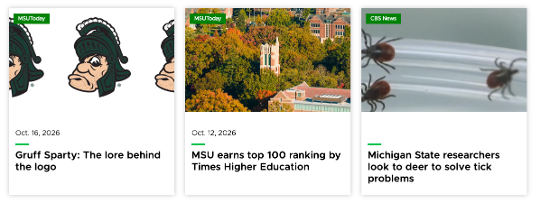
Three story cards appear in a row. The left story shows an MSUToday tag in the top left corner, an image of “Gruff Sparty,” small text reading “Oct. 16, 2026” above a short green line, and medium bold text reading “Gruff Sparty: The lore behind the logo.” The middle story shows an MSUToday tag in the top left corner, an aerial photo of Beaumont Tower surrounded by autumnal trees, small text reading “Oct. 12, 2026” above a short green line, and medium bold text reading “MSU earns top 100 ranking by Times Higher Education.” The right story shows a tag reading “CBS News” in the top left corner, a photo of three deer ticks above a small green line and medium bold text reading “Michigan State researchers look to deer to solve tick problems.”
Figure 1: Three External Story Cards appear on the page.

Component Information

  • Usage
  • Benefits

    • External Story Cards are best suited for:
      • Promoting an MSUToday story on another MSU website.
      • Linking to relevant stories or content hosted outside the current Sitecore site, including on non-MSU websites.
      • Avoiding duplicate content when the original story should remain the authoritative source.
    • Card content is generated automatically based on the shared link’s Open Graph data.

    Live Examples

    • Demo: Grid Components
  • Best Practices
  • Instructions for Use

    Add an External Story Card Component to a Page

    In Page Builder:

    1. Select the page in the Content Tree.
    2. Click “+” button in any Placeholder box below the Breadcrumb links.
    3. Select Media Story Layout component from the list. It appears in the Containers section.
    4. Click “+” button in the Media Story Layout component.
    5. Click External Story Card.
    6. Assign a data source.
      1. To add a new data source:
        1. Click the “+” to the right of Data.
        2. Click External Story Card.
        3. Name the content item.
        4. Click Assign.
      2. To add an existing data source:
        1. Choose the appropriate External Story Card option from the list.
        2. Click Assign.

    Alternate method:

    1. Click Components tab at top of Content Tree.
    2. Locate the Media Story Layout component in the Containers section.
    3. Drag the Media Story Layout component to any empty placeholder area in the main area of the page below the Breadcrumb links.
    4. Click “+” button in the Media Story Layout component.
    5. Click External Story Card.
    6. Assign a data source.
      1. To add a new data source:
        1. Click the “+” to the right of Data.
        2. Click External Story Card.
        3. Name the content item.
        4. Click Assign.
      2. To add an existing data source:
        1. Choose the appropriate External Story Card option from the list.
        2. Click Assign.

    Tool Use Guide


    Documentation updated: Oct. 22, 2026

    Is there an issue with this documentation? Report it here.

    Component Options and Limitations

    • The External Story Card uses information made available by the Open Graph data on the destination page to populate the card.
    • Fields that are not included in the Open Graph data, including Read Time, will remain empty.
    • Content authors cannot edit or override the Open Graph data. Users can work with site owners of other MSU websites to request updates to Open Graph data, but site owners have the right to approve or deny requests.

    Guidelines

    • Consider source label behavior when using External Story Cards to share stories between unit websites.
    • Before publishing, confirm the card displays the expected title, image, description, source label and destination URL.
  • Expected Behavior
    • Card information will display based on data pulled from the destination page. The source label varies depending on the source site.
    • On desktop view, multiple External Story Cards will appear in a row. Up to three stories appear per row.
    • On mobile view, multiple External Story Cards will stack.
    • If an Open Graph field is incomplete, the data field will not display and will appear empty in Sitecore. 
  • Related Information
  • Similar Components:

    • Story Card
    • Mixed Content
    Add a Link to an External Story Card
    1. Click the External Data Card component to select it.
    2. In the right-side panel, click the Content tab.
    3. Click Data to expand the data panel.
    4. Enter the full URL of the page the card should link to in the “External URL” field.
    Add Additional External Story Cards

    To add additional External Story Card components to the same Media Story Layout container:

    1. Click Components tab at top of the Content Tree.
    2. Locate the External Story Card component in the Grid Components section.
    3. Drag the External Story Card component to the Media Story Layout. A purple line will indicate where the component will be placed. Stories are stacked from left to right and top to bottom.
    4. Follow the steps above to create or select a data source and add the story link.

    Users may place multiple Media Story Layout containers on the same page. Story Cards and External Story Cards may be combined within the same Media Story Layout container.