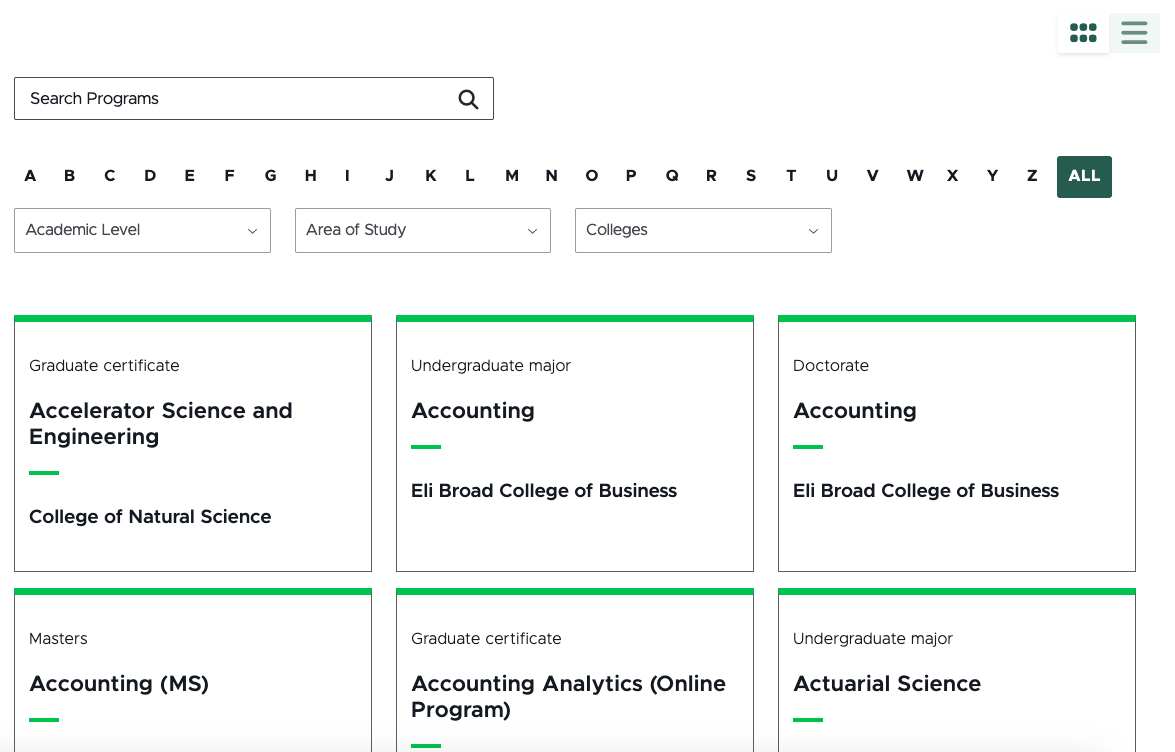
Adding the Program Finder feature to a website creates a Program Listing Page, which automatically displays Program Cards entries in a list view. These are filterable and searchable using the taxonomy and metadata fields that make up the Program Details Page data template.
Frequently Asked Questions
To request the Program Finder feature be activated on a unit website, fill out and submit this form.
The digital experience program manager will generate a ticket, and a member of the University Communications and Marketing platforms group will activate the feature on the website.
No, the Program Listing Page offers both grid and listing views to provide website visitors with their optimal user experience.
No, images are optional.
Content authors can adjust the number of Program Cards listed on a page using pagination controls in the Program Listing presentation settings.
No, the taxonomies were developed to be global for all campus units, in partnership with the Office of Admissions. If a unit has a suggestion for a change, contact University Communications and Marketing to discuss the use case.
The filters are contextual and additive. Options will only appear in the drop-downs if there is a Program Card tagged that matches the applied filters. If multiple filters are in use, the available options in the second (or third, etc.) filters will automatically update to contain only what is available in content on the site that already meets the other applied active filters.
Template Data
Many of the data template fields that make Program Listing Pages so powerful are only available in Content Editor. The data template fields are found on the Content tab of the Listing Page in Content Editor.
Title (single-line text)
- Required field.
- This is the page title displayed as the H1.
- It must be unique and should be 50-70 characters for best search engine optimization practices.
Browser Title (single-line text)
- Optional field.
- This title appears on the browser’s tab or top bar.
- If no text is placed here, the browser tab will show the Page Title.
Meta Description (single-line text)
- Add a description of the page to this field.
- This assists with search engine optimization and provides users a quick summary of what they can expect to find on the page. See “Search Engine Optimization” for additional information.
Meta Keywords (single-line text)
- Add keywords to this field to guide search engines on what this page content is about. See “Search Engine Optimization” for additional information.
No Index (checkbox)
- Check this box if search engine or AI crawlers should not index the page.
No Follow (checkbox)
- Check this box if search engines should not follow links to the page.
Canonical (single-line text)
- If the same content appears on multiple pages or websites, include the full URL of the web page that search engines should treat as canon (i.e., most important).
Open Graph Title (single-line text)
- This field controls the headline that appears when the Program Listing Page is shared via social media, web search, texting, etc.
Open Graph Type (droplist)
- This setting defaults to website for Program Listing Pages.
Open Graph Image (image selection)
- This field controls the thumbnail image that accompanies the Program Listing Page when it is shared via social media, web search, texting, etc.
Open Graph URL (single-line text)
- This field controls the open graph tag related to the page being shared, indicating the canonical URL of the web page to define how a shared link is displayed.
Hide Breadcrumb on Page (checkbox)
- Checking this box will remove the breadcrumb link trail from the top of the Program Listing Page.
Check to hide in navigation filters (checkboxes)
- Breadcrumb Navigation — Checking this box will hide the page from inclusion in breadcrumb navigation components, if present on a page.
- Sidebar Navigation — Checking this box will hide the page from inclusion in sidebar navigation components, if present on a page.
- Sitemap Navigation — Checking this box will hide the page from inclusion in the sitemap.
Site Names (single-line text)
- Enter the name of the site containing the academic program data.
- This is the system name exactly as it appears in the Content Tree in Sitecore
Facets (single-line text)
- Enter desired facets in the box, exactly as written, and separated by a comma.
- Options:
- academic_level
- program_location
- program_format
- colleges
- area_of_study
- taxonomy_college_department
Items Per Page (numeric)
- Enter a whole number to control the volume of program cards that appear on a listing page.
- If the website program finder contains more programs than this limit, pagination will automatically be enabled.
Instructions for Use
Note: The Program Finder feature must be activated on the website by University Communications and Marketing before it can be used.
Tip for using Content Editor: Most users have found working in Content Editor to create items to be the easiest for many tasks related to the Program Listing page. Users must have “Hidden Items” and “Buckets” checked in the View tab of the Content Editor navigation ribbon to view People-related items in the Content Tree.
To request the Program Finder feature be activated on a unit website, fill out and submit this form.
The digital experience program manager will generate a ticket, and a member of the University Communications and Marketing platforms group will activate the feature on the website.
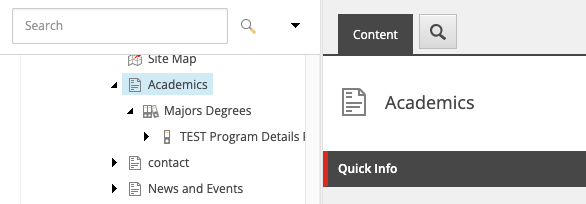
By default, activating the Program Finder feature adds a page titled “Academics” to the top level of the site’s Content Tree. This page is an automatically generated listing page that will populate with the Program Details items.
Users can rename this “Academics” page in the same way that other pages are renamed.
See “Naming a Page” for instructions.
By default, activating the Program Finder feature adds a page titled “Academics” to the top level of the site’s Content Tree. This page is an automatically generated listing page that will populate with the Program Details items.
Users can move the “Academics” page in the same way that other pages are moved within the Content Tree.
Note: Take care to ensure that any navigational components are updated to accurately reflect page locations, as needed.
Users can add select additional content components to the Program Listing Page in Page Builder. See “Add and Delete Components” for additional information.
Be sure to carefully consider the mobile user experience. Adding too much content above the listing widget will push the listing filters down on a page and may make it so that website visitors do not realize there is filterable program content on the page.
If a user experiences issues while using specific components on the Program Listing Page, they should report the issue to University Communications and Marketing. Not all component combinations have been tested.
Filters included on the Program Listing Page are controlled using widget settings in Content Editor.
To change included filters:
- Open Content Editor.
- Locate the Program Listing Page. The default location for this page is found by expanding the MSU node, website name, Home node, Academics node, and click to select the Majors Degrees page.
- On the navigation ribbon, click the Presentation tab.
- Click Details to open the Layout Details window.
- Click the Final Layout tab within the Layout Details window.
- Click the Program List link under MSU Headless Layout Controls.
- In the Facets field, list the desired filter facets. Separate facets by a comma. Available facets include:
- academic_level
- program_location
- program_format
- colleges
- area_of_study
- taxonomy_college_departments
- Click OK.
- Click Save.
- To send changes to the publication workflow, click the Review tab and Submit on the navigation ribbon.
Note: Users should not edit settings other than the fields described above without specific direction from the University Communications and Marketing platforms group. Adjusting the other fields, such as the RFK ID field, will cause issues with the results displaying on the page.
The number of individuals included on the Program Listing Page is controlled using widget settings in Content Editor.
To change included filters:
- Open Content Editor.
- Locate the Program Listing Page. The default location for this page is found by expanding the MSU node, website name, Home node, Academics node, and click to select the Majors Degrees page.
- On the navigation ribbon, click the Presentation tab.
- Click Details to open the Layout Details window.
- Click the Final Layout tab within the Layout Details window.
- Click the Program List link under MSU Headless Layout Controls.
- Enter a number in the Items Per Page field. This number represents the number of Program Cards listed on each page in the Programs Listing.
- Click OK.
- Click Save.
- To send changes to the publication workflow, click the Review tab and Submit on the navigation ribbon.
Publish the Program Listing Page like any other page in Sitecore. See “Publishing Content with Workflows” for more information.
Note: The Program Listing page will not show data until it is published and the listed items below it are published.
Tool Use Guide
Documentation updated: June 11, 2026
Is there an issue with this documentation? Report it here.
Note: Fields not listed below should not be edited without the assistance of University Communications and Marketing.