There are several places where pages can be named in Sitecore. How the name fields are approached impacts how the name displays within the system and publicly to website visitors.
All pages must have a page name applied using either the page title field on a Hero Banner component or using a Page Title component. The page title fields correspond to H1 tags for webpages and are critical for search engine optimization and accessibility. Do not use both a Hero Banner and a Page Title component, as this would mean the page contains two H1 tags. It is fine to combine one or more subtitle components with either a Hero Banner or a Page Title component.
Initial Page Item Name and URL
When initially creating a page item, use lowercase letters and hyphens, but no other special characters. This initial name impacts the page URL and appears in the Site Content Tree.
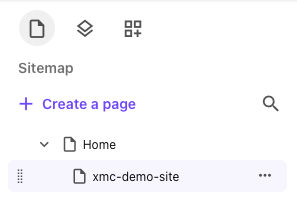
Changing the Item Name and URL
Changing the item name will also change the page’s URL. If the item name is changed, consider adding a redirect link to point the original URL to the new URL.
In Page Builder Editor Mode:
- Locate the page in the Site tree (left-side panel).
- Click the “…” icon to the right of the page name and click Settings.
- Change the item name field. Use lowercase letters and hyphens only.
- Click the X in the top right corner to close the Settings panel. The Sitemap Content Tree now shows the new Display name.
System Name Displayed in Content Tree
To change how the page name appears in the Site Content Tree within Sitecore:
In Page Builder Editor Mode:
- Locate the page in the Site tree (left-side panel).
- Click the “…” icon to the right of the page name and click Settings.
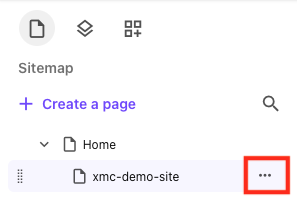
Change the Display name field. You can use spaces in this field. It is for internal use only.
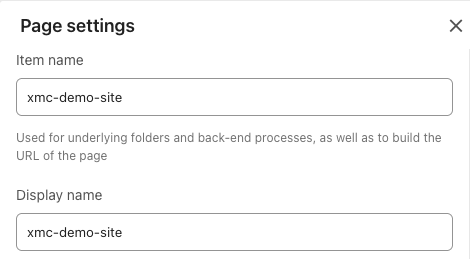
Figure 3: When initially added, the Display name matches the Item name. The Item name controls the page URL.
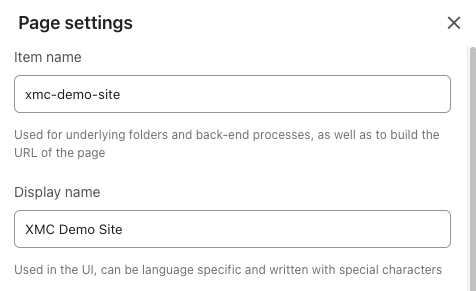
Click the X in the top right corner to close the Settings panel. The Site Content Tree now shows the new Display name.
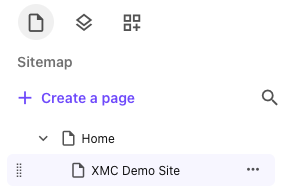
Figure 5: The Site Content Tree display name may be easier for content authors to read but it will not impact the website visitor experience. Note: Changing this field will not update the public display of the page name, such as what a site visitor would see in navigation.
Figure 6: The navigation and breadcrumb components still display the Item name.
Page Name Visible to Visitors
To change the visible page name that is referenced in the Main Navigation, Page Title and Contextual Navigation components and the Sitemap:
In Page Builder Editor Mode:
- Locate the page in the Sitemap content tree. Click to select.
- Click the “…” icon to the right of the page name and click Page content.
- Change the Title field.
- (Optional) Change the Browser Title field.
- Click the X in the top right corner to close the Page content panel.
- Add a Hero Banner or Page Title component to the page. It should display the text in the Title field.
In Page Builder Content Mode:
- Locate the page in the Sitemap content tree. Click to select.
- Change the Title field.
- (Optional) Change the Browser Title field.
- Return to Editor mode.
- Add a Hero Banner or Page Title component to the page. It should display the text in the Title field.
- Add a Page Title component to the Main Body content area.

- Update the text in the field to your desired page name.

- Refresh the page. The breadcrumb should now update to match the page name, confirming the change was accepted.

- Delete the Page Title component if it is not needed.
Note: This will not impact the Browser Title, which displays on the search page. To change the Browser Title, use Method 1.
In Content Editor:
- Locate the page in the Site Content Tree. Click to select.
- Change the Title field and the Browser Title fields to the desired page name.
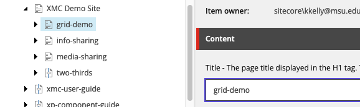
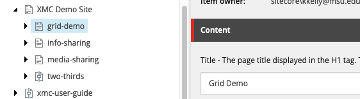
Note: The Browser Title field controls the site name on the search results page. Be sure to include the page name in this field on the Home page.
- Click Save.
- View in Page Builder. Refresh the canvas, if necessary.
- The Breadcrumb or Page Title component will update to show the change.

Note: This is the most reliable method. This method also allows content authors to set a Page Title and Browser Title that differs from the title field displayed in a Hero Banner.
Documentation updated: Sept. 21, 2026
Is there an issue with this documentation? Report it here.