Jump to HeaderJump to Main ContentJump to Footer
Digital Experience Studio
  • Experience Program
  • Experience Design
  • Website Technology
  • Social Media
  • Analytics
  • News and Events

< Experience Program

  • Website Project Process
  • Working with a Vendor
  • Glossary
  • Taxonomy Data Dictionary

< Experience Design

  • Website Strategy
  • Website Structure
  • Information Architecture and Navigation
  • User-Centered Design Conventions
  • Common UX Issues
  • Enterprise Design System
  • Content Planning
  • Creating Accessible Content
  • Taxonomy and Filters

< Website Technology

  • Web Standards
  • Search Engine Optimization
  • Cascade CMS
  • Sitecore CMS
  • Content Hub Overview
  • Content Hub DAM
  • Content Hub Operations

SitecoreAI

Sitecore user login

< Social Media

  • Alt Text Bookmarklet
  • Meta Ad Pixel
  • Social Media and Web Integration
  • Sprinklr

Sprinklr

Sprinklr user login

< Analytics

  • Google Analytics (GA4)
  • Testing
  • Data Visualization

Google Analytics

Google Analytics user login

< News and Events

  • News and Updates
  • Events and Trainings

MSU Tools and Resources

  • A to Z Index
  • Find People
  • Email
  • Tech Support
  • Social Media Directory
Michigan State University
Digital Experience Studio

University Communications and Marketing

Digital Experience Studio

  • Experience Program
    • Website Project Process
    • Working with a Vendor
    • Glossary
    • Taxonomy Data Dictionary
  • |
  • Experience Design
    • Website Strategy
    • Website Structure
    • Information Architecture and Navigation
    • User-Centered Design Conventions
    • Common UX Issues
    • Enterprise Design System
    • Content Planning
    • Creating Accessible Content
    • Taxonomy and Filters
  • |
  • Website Technology
    • Web Standards
    • Search Engine Optimization
    • Cascade CMS
    • Sitecore CMS
    • Content Hub Overview
    • Content Hub DAM
    • Content Hub Operations

    SitecoreAI

    Sitecore user login
  • |
  • Social Media
    • Alt Text Bookmarklet
    • Meta Ad Pixel
    • Social Media and Web Integration
    • Sprinklr

    Sprinklr

    Sprinklr user login
  • |
  • Analytics
    • Google Analytics (GA4)
    • Testing
    • Data Visualization

    Google Analytics

    Google Analytics user login
  • |
  • News and Events
    • News and Updates
    • Events and Trainings

University Communications and Marketing

Digital Experience Studio > Website Technology > Content Hub > Content Hub Operations > Workflows >

Validate Taxonomy

Validate Taxonomy

The Validate Taxonomy stage verifies that all required (and pertinent optional) metadata and taxonomy fields have been completed. This prepares the content for final publication.  

Editing Metadata

Communications Resources

  • University Communications and Marketing
  • University Trademarks and Licensing
  • MSU Brand Studio
  • MSU Editorial Style Guide
  • MSU Photos

Contact us

517-355-7505

Address

Michigan State University 408 West Circle Drive East Lansing, MI 48824

Follow Us

  • Visit our Facebook page
  • Visit our page on X
  • Visit our Instagram page
  • Visit our LinkedIn page
  • Visit our YouTube page
  • Visit our TikTok page

If you're having accessibility issues, please let us know.

Know MoreTransparency Reporting: Budget & Salary/Compensation
  • Contact Information|
  • Site Map|
  • Privacy Statement|
  • Site Accessibility|
  • Call MSU: (517) 355-1855|
  • Visit: msu.edu|
  • Notice of Nondiscrimination|

SPARTANS WILL|© Michigan State University|

After the content item copy and assets have been loaded and the content is considered final, the author should carefully review and complete all the metadata under the Strategy and Details tabs of the right-side panel. See “Field Descriptions,” below, for more information on each of the fields. 

Note: If the content was created by a student, the responsible staff member must verify all metadata before proceeding. 

To edit fields:

  1. Click the pencil icon for a section to edit the fields within that section.
  2. Enter text in text-based fields, as needed.
  3. For taxonomy-based fields, click the “+” icon to open the selection menu. Choose the appropriate item(s) from the available list and click Save.
  4. When all items requiring edits within a section have been updated, click Save next to the section header before continuing to the next section. 

Note: In addition to the metadata fields that were required earlier in the process, College and Primary Audience are required before the content can proceed to a published state. 

Field Descriptions

Below are descriptions for fields that should be confirmed by the content author prior to preparing for publishing. The fields are grouped in below by their location in the system.

Additional Information (Strategy Tab)

Topic Fields

The Primary Topic is a required field that denotes the topic that is most relevant to the content item. Click the arrow to the right of a “level one” (or L1) topic to access the list of “level two” (or L2) topics. Topics are assigned at the L2 level.

The Secondary Topic and Tertiary Topic fields are optional ways of tagging the content with additional relevant topics. The three topics should be assigned in order of most to least relevant. 

Strategy Fields

The Primary Strategy is a required field, previously entered, indicating which UCAM content strategy pillar this content primarily addresses. Confirm this setting remains accurate.

The Secondary Strategy and Tertiary Strategy fields are optional ways of tagging the content to additional UCAM content strategy pillars. The three strategies should be assigned in order of most to least relevant.

Audience Fields

The Primary Audience is a required field, indicating which UCAM strategic audience this content primarily addresses. Confirm this setting remains accurate.
The Secondary Audience field is an optional way of tagging the content to an additional UCAM strategic audience. The two audiences should be assigned in order of most to least relevant.

Career Interest Area

The Career Interest Area field allows content that may be relevant or interesting to prospective students to be tagged in alignment with a general career interest path. Tagging content to a career interest path enables personalization on the website for prospective students when we know what general path the prospect is exploring. For example, a prospect who has indicated interest in studying biology or nursing could be served up content tagged to the “Health sciences” career interest area. 

Note: Tagging content items with career interest areas, when relevant, helps support our efforts to optimize content for our audience members and helps support our partners in the Office of Admissions. 

Collection Fields

The optional Primary Collection and Secondary Collection fields are used to assign a content item for inclusion in a Collection. Collections will be available as a means of exploring content from the MSUToday navigation. There is a set list of collections pre-populated in the system. This list may grow over time. 

General Section (Details Tab)

Name

This is the content item name. The name becomes the URL for the content item when published on MSUToday. The name must be unique to this content item and should be clear and concise. 

Important: This is the last chance to change the content item name, and thus the story URL, before publishing. 

Additional Information Section (Details Tab)

College

The MSUToday story navigation allows visitors to filter stories by relevant college. Check the box next to the college(s) the story is about or in relation to. For example, if the content item is a Student View, check the box(es) for any college that the student is a member of. 

If there are no relevant colleges, such as for a story about the Board of Trustees, check “General MSU.”

Organizational Entities

The Organizational Entities list includes a robust list of units across campus, nested hierarchically when possible. Click an arrow to the right of an entity to see units nested underneath that entity. For example, the Department of English is nested under the College of Arts and Letters. 

Check the box next to any unit the story is about or in relation to. 

Tip: The Search box at the top can help content authors locate an entity without scrolling through hundreds of options. The taxonomy powering this field has been populated with synonyms to identify alternative terms for units, such as a former unit name. 

Production Effort (Future Use)

This field has been added for future use. It can be ignored for now. 

Meta Title

The meta title is used for search engine optimization and may also be crawled by AI bots. Include a descriptive title of the content item. 

Meta Description

The meta description is used for search engine optimization and may also be crawled by AI bots. Use clear, concise language fit for public consumption.

Keywords

Add any relevant keywords that could inform search engine crawlers and AI bots as to what this content is about. Be judicious in your choices. See “SEO Basics” and “Strategy and Keyword Research” for more information about search engine optimization.

Standard Story Details Section (Details Tab)

Read Time

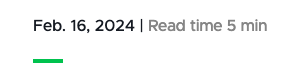
An experience optimization test conducted by UCAM showed that the presence of a read time indicator, providing an estimate of how long a story takes to read, lead to an increase read rate among audience members. Adding a whole number in this field, indicating average number of minutes to read, will display a read time at the top of the story.

To calculate read time: 

Reference the Word copy document.

Determine the number of words in the document, not including internal notes and comments. (If using the final document, there should not be any extraneous words as all comment thread should be marked “resolved” during edit reconciliation.) 

Tip: The Word Count tool is found on the Review tab of the navigation ribbon in Microsoft Word. 

Take the total number of words and divide by 200. This is the reading rate used by UCAM to calculate average read time. 

Round the answer up to the nearest whole number (i.e., whole minute). Do not add extra time for reading captions or video transcripts, and do not add video or podcast play length if the content item includes a media embed. 

Example: 

  • This page has 1,468 words in the copy.
  • 1,468 words / 200 = 7.34
  • Rounded up, this gives a read time of 8 minutes. 

Enter the number of minutes as a whole number without text in the “Read Time” field. 

On the left:
Fig. 1: The read time displays at the top of a story when it is published.


Public Author(s)

Public author(s) are listed with a byline on the story. Include one or more authors, as appropriate.

Note: Authors must already be in the Content Hub system. Many authors have been pre-populated based on historic data and staff directory information. To add a new author, contact a member of the MSUToday staff team. 

Media Contact(s)

Media contact(s) are listed on the story with contact information. Include one or more media contacts, as appropriate.

Note: Media Contacts must already be in the Content Hub system. Many contacts have been pre-populated based on historic data and staff directory information. To add a new media contact, contact a member of the MSUToday staff team. 

Show on News Release Page

The content sub-types of News Release, Statement, Ask the Expert, Media Advisory and Expert Advisory will automatically appear on the Releases and Statements page. No action is needed by the content author.

For the remaining content sub-types, the content author will use their judgement for if this content item should be included on the Releases and Statements page listing for media. If yes, check this box.  

Note: This designation is intended to demark actual news releases, making them easy for media members to find within the “For Media” section of MSUToday. This checkbox should not be a default selection for stories.

Prepare for Publication

After all the appropriate metadata and taxonomy fields have been completed, the content item is ready for publishing. Click the “Prepare to Publish” button at the top right corner of the content item details page, indicating that the content item is final. 

The
Fig. 2: The Prepare to Publish button has been marked in red.


Important: Once a content author selects "Prepare to publish" the name of the content item and taxonomy cannot be changed. 


Documentation updated: June 30, 2025

Is there an issue with this documentation? Report it here.