Reference Resources
Sitecore User Guide
View general documentation for using SitecoreAI, authoring content, working with links, files and images.
Sitecore Component Guide
Best practices and directions for using specific SitecoreAI components and features.
Common Issues
The Sitecore user account creation process includes multiple steps: UCAM invites the user to the Sitecore platform for the specific Sitecore environment (e.g., Green Prod or White Prod). The user activates their account by logging in to the environment and opening Page Builder. UCAM then assigns site-level permissions. When a user sees a list of sites that are not specific to their unit (view only, no editing possible) and is not able to make any changes to any websites, this means that the site-level assignments have not been completed.
To resolve this issue, email Comms.WebSupport@msu.edu and note which website you need access to manage.
The Sitecore publishing process has two stages. First, the content is published by a user in Sitecore. This pushes the content live in the system. Once that is complete, the content is published to the cloud-based servers (i.e., Netlify) where users access and view the site. Depending on how many users are publishing at any given moment and how many changes were made, there can be a slight delay in revised content appearing on the live website.
UCAM recommends users allow the system at least five minutes and then refresh their browser to view changes. Allow up to twenty minutes for listing page. Users may find that refreshing their browser multiple times will help clear the caching and make the changes appear. Users could also check in a private browser window. If a substantial amount of time has passed (i.e., an hour or more) and the changes have still not appeared, email Comms.WebSupport@msu.edu and provide details of what changes are expected to be seen, which Sitecore environment (e.g., Green or White prod), the website and page, and ask that the publishing queues be checked for a jam.
Users can lock content items, preventing other users from making changes. This is a good tactic to protect pages or components from being edited without permission. Sometimes there may be a time when something is locked by one user and another user needs it unlocked.
To resolve this issue, look at the user ID of the individual who locked the item. This is visible on the page in Content Editor.
- If the item was locked by someone in the unit (or another unit that shares access and responsibility for the website), contact that person directly and ask them to unlock it. This is the quickest means of resolution. To unlock the item, the user should navigate to the page in Content Editor, click the Review tab and click Check In.
- If the item was locked by someone no longer employed by the unit or the university, email Comms.WebSupport@msu.edu to explain the situation and ask for assistance in unlocking the item.
- If the item appears to have been locked by someone in MSU IT or University Communications and Marketing, this may have occurred during a website migration process. Email Comms.WebSupport@msu.edu to explain the situation and ask for assistance in unlocking the item.
Permissions to take specific actions are controlled by site-level role assignments. A user may receive an error message indicating they do not have permission to take a desired action, such as uploading an image to Media Library, if their role assignment does not provide the necessary access for the website in question.
To resolve this issue, email Comms.WebSupport@msu.edu to generate a help ticket. Include details about what action was attempted, the page and website it was attempted on, and screenshots or details of the error message received.
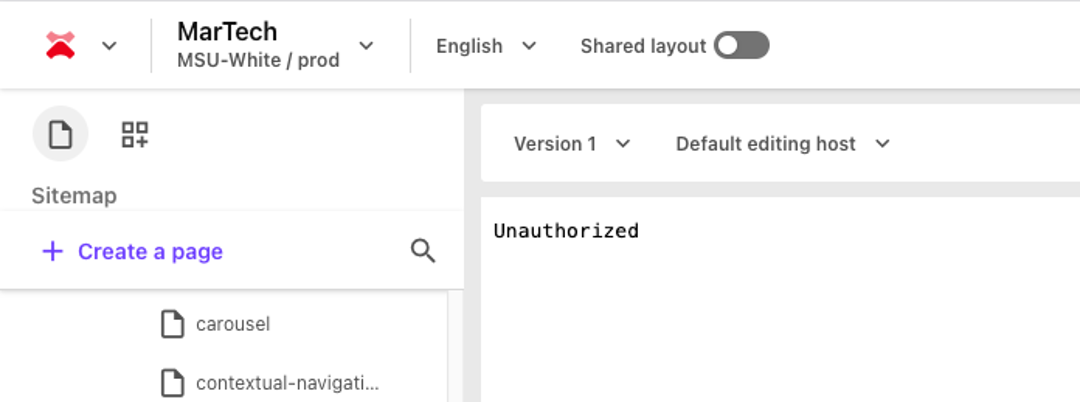
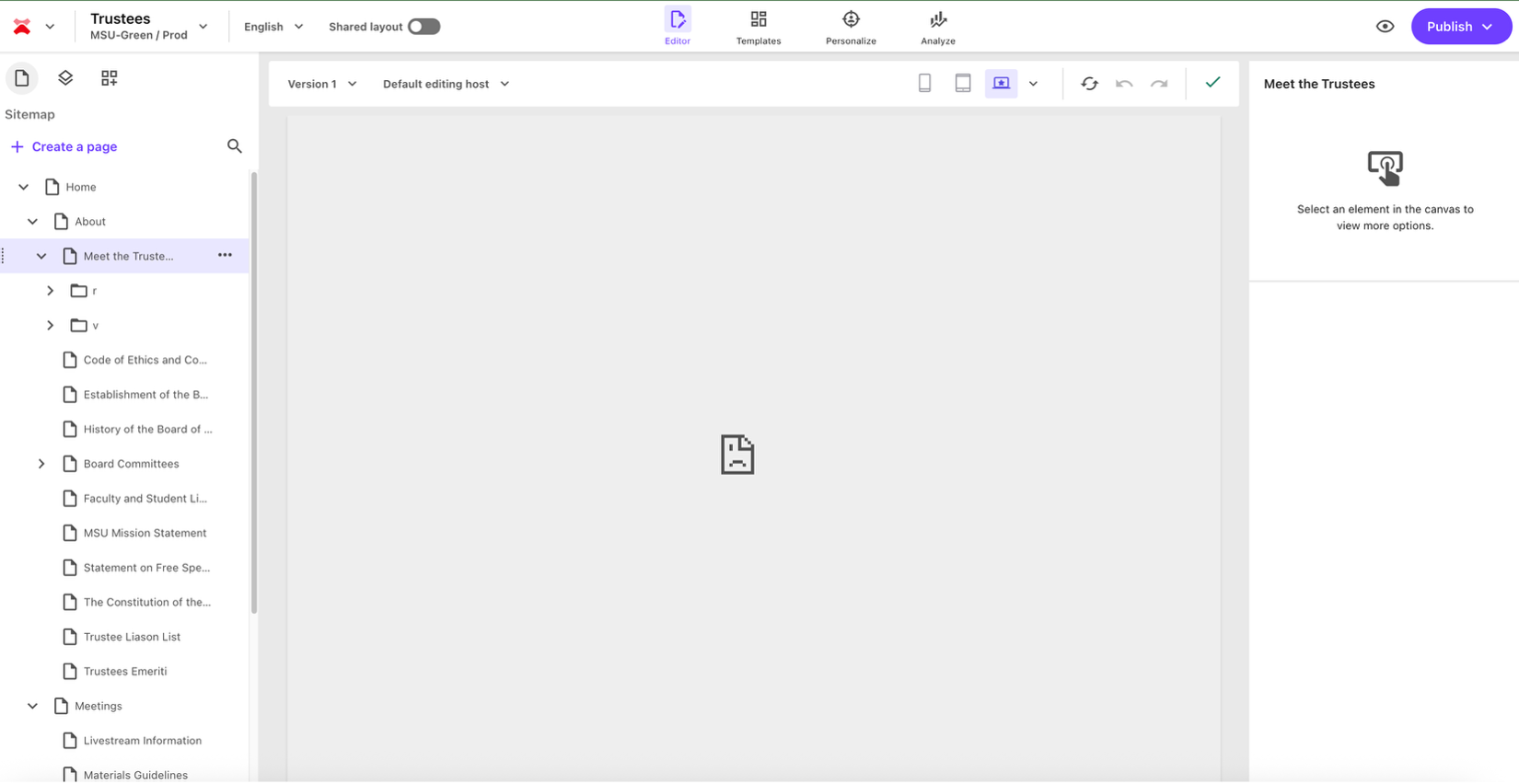
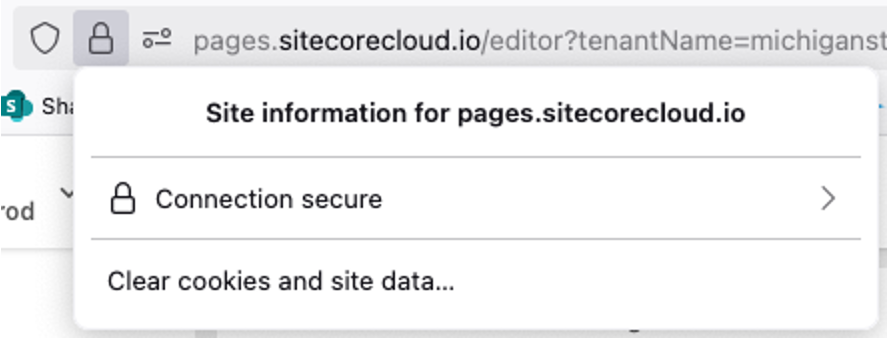
To resolve this issue, clear cookies for your browser for this website, then refresh the browser and log in to Sitecore. This typically resolves the issue. If the issue persists after taking these actions, email Comms.WebSupport@msu.edu to generate a ticket regarding the issue.
Tip: When using Firefox or Chrome, click the icon next to the browser bar to reveal an option to clear cookies and site data only for this website. This should retain other cookies.
Report an Issue
If the above documentation and troubleshooting tips do not resolve your issue, please email details to Comms.WebSupport@msu.edu to generate a support ticket. A member of the UCAM platforms group will investigate and may reach out for additional information.
Documentation updated: May 29, 2026
Is there an issue with this documentation? Report it here.
Note: User access is not granted to a website without preapproval of the website’s primary contact. When UCAM receives a request to access a website they may need to reach out to the website contact to get this approval before access is granted.