• Jump to Header
  • Jump to Main Content
  • Jump to Footer
Michigan State University
Digital Experience Studio

University Communications and Marketing

Digital Experience Studio

  • Experience Program
    • Website Project Process
    • Working with a Vendor
    • Glossary
    • Taxonomy Data Dictionary
  • |
  • Experience Design
    • Website Strategy
    • Website Structure
    • Information Architecture and Navigation
    • User-Centered Design Conventions
    • Common UX Issues
    • Enterprise Design System
    • Content Planning
    • Creating Accessible Content
    • Taxonomy and Filters
  • |
  • Website Technology
    • Web Standards
    • Search Engine Optimization
    • Cascade CMS
    • Sitecore CMS
    • Content Hub Basics
    • Content Hub DAM
    • Content Hub Operations

    SitecoreAI

    Sitecore user login
  • |
  • Social Media
    • Alt Text Bookmarklet
    • Meta Ad Pixel
    • Social Media and Web Integration
    • Sprinklr

    Sprinklr

    Sprinklr user login
  • |
  • Analytics
    • Google Analytics (GA4)
    • Testing
    • Data Visualization

    Google Analytics

    Google Analytics user login
  • |
  • News and Events
    • News and Updates
    • Events and Trainings
Digital Experience Studio

University Communications and Marketing

  • Experience Program
  • Experience Design
  • Website Technology
  • Social Media
  • Analytics
  • News and Events

< Experience Program

  • Website Project Process
  • Working with a Vendor
  • Glossary
  • Taxonomy Data Dictionary

< Experience Design

  • Website Strategy
  • Website Structure
  • Information Architecture and Navigation
  • User-Centered Design Conventions
  • Common UX Issues
  • Enterprise Design System
  • Content Planning
  • Creating Accessible Content
  • Taxonomy and Filters

< Website Technology

  • Web Standards
  • Search Engine Optimization
  • Cascade CMS
  • Sitecore CMS
  • Content Hub Basics
  • Content Hub DAM
  • Content Hub Operations

SitecoreAI

Sitecore user login

< Social Media

  • Alt Text Bookmarklet
  • Meta Ad Pixel
  • Social Media and Web Integration
  • Sprinklr

Sprinklr

Sprinklr user login

< Analytics

  • Google Analytics (GA4)
  • Testing
  • Data Visualization

Google Analytics

Google Analytics user login

< News and Events

  • News and Updates
  • Events and Trainings
Digital Experience Studio > Website Technology > Sitecore CMS > Sitecore Component Guide >

Sprinklr

Sprinklr

The Sprinklr component allows content authors to add a Sprinklr Gallery to a page within Sitecore. Sprinklr Galleries are social media feeds curated using settings within the Sprinklr platform. There are several variants, all built within Sprinklr.

Sprinklr is the university’s enterprise social media management solution. It is available to units at a per-seat cost. For more information about Sprinklr, please see the Sprinklr guide within this website. 

Component Information

  • Usage
  • Benefits

    • The Sprinklr component enables units to showcase their social media content on a webpage.
    • Social media content in a Sprinklr Gallery automatically updates as new content is published on social media channels.
    • Social media content can also be curated using workspace queues to highlight specific posts. 

    Suggested Use Cases

    • Embed a carousel or horizontal band of recent Instagram posts from the unit’s account.
    • Embed a carousel or horizontal band of recent Instagram reels or TikTok videos from a unit’s account.
    • Embed a cascade or grid style wall of posts on a page to showcase recent social media content from the unit’s account.

    Live Example

    • Demo: Full-Width Sprinklr Social Media Galleries
    • Demo: Two-Thirds Sprinklr Social Media Galleries
  • Expected Behavior
    • The Sprinklr component will display the Gallery as it is programmed within Sprinklr.
    • Social media posts in the component should update automatically once the Gallery has been published in Sprinklr.
  • Best Practices
  • Component Options and Limitations

    • Component use is limited to paid Sprinklr users.
    • The component settings, including layout, color, pagination, data source and card display design are all controlled within Sprinklr.
    • The Sprinklr component can only be placed in a full-width basic page layout or the left-side column of a two-thirds page layout or two-third sublayout component.
    • The same Sprinklr Gallery cannot be used more than once per page.
    • Gallery posts are subject to limitations from social media platform Application Programming Interface (APIs) that impact Sprinklr’s ability to display the post. Older video posts often will not auto-play on the website in a gallery but can be viewed by clicking the video post to go to the native platform.

    Guidelines

    • Users should take care in creating the feeds that populate a Sprinklr Gallery to ensure no private message, direct message or other private information is included in the data source.
    • All Sprinklr galleries should be designed in adherence with MSU brand standards, including MSU brand color palette.
    • If using a curated approach to the posts that are included in a Sprinklr gallery, be sure to regularly update the content included in the Sprinklr queue so it stays fresh on the website. 
  • Template Data
    • ClientID (single-line text)
      • The ClientID relates to MSU’s Sprinklr environment.
    • GalleryID (multi-line text)
      • The GalleryID is a unique string of characters specific to an individual Sprinklr Gallery.

    Frequently Asked Questions

    Can a unit curate a Sprinklr Gallery to include only specific posts?

    Unit Sprinklr users can use a workspace queue in Sprinklr to curate the posts that are included in a Gallery. Add specific posts to a dedicated workspace queue. Set that queue as the data source for the Gallery. For assistance in creating a workspace queue, contact Comms.WebSupport@msu.edu. 

    Can a Sprinklr Gallery include user-generated content?

    No, Sprinklr Galleries rely on “owned” outbound content from connected accounts. 

    How can a unit customize the appearance of the Sprinklr Gallery?

    Sprinklr users can customize the appearance of a Sprinklr Gallery directly in Sprinklr. See the Sprinklr Gallery page for more information.

    How can a unit include social media posts from other unit accounts in their Sprinklr Gallery?

    Unit Sprinklr users can include any “owned” outbound content from accounts that have been added to Sprinklr and that they have permissions to manage within Sprinklr. Posts from social media accounts that are not added to Sprinklr or not permissioned to the user cannot be used in a Gallery. 

    If a unit does not have a Sprinklr account, can they use the Sprinklr component to embed a social media feed on a webpage?

    No, the Sprinklr component is limited to embedding social media galleries from Sprinklr. 

    Instructions for Use

    Add a Sprinklr Component to a Page

    In Sprinklr:

    1. Create the data source feed as a column on a dashboard.
    2. Create and format the Gallery. 

    In Sitecore’s Page Builder:

    1. Select the page in the site tree.
    2. Click the “+” button in the placeholder for the CTA Button.
    3. Select Sprinklr component from the list.

    Alternate method:

    1. Select the page in the site tree.
    2. Click the Components tab at top of the left pane.
    3. Locate the Sprinklr component.
    4. Drag the Sprinklr component to placeholder on the page.
    Connect the Sprinklr Gallery to the Sprinklr Component

    In Sprinklr:

    1. Open the Gallery to be placed on the page.
    2. Confirm all settings are accurate.
    3. Click Publish at the bottom right corner of the settings panel.
    4. Click Get Embed Code at the top right corner of the settings panel.

    In Page Builder:

    1. Click the Sprinklr component to select it.
    2. On the Content tab of the right-side panel, fill in the settings:
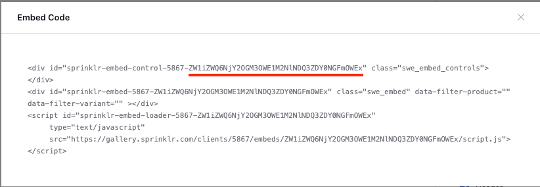
      1. ClientID – The first set of numbers that appears between hyphens in the embed code following “sprinklr-embed-control-.” (See Fig. 1)
      2. GalleryID – The second, longer string of characters that appears following the ClientID in the embed code. (See Fig. 2)
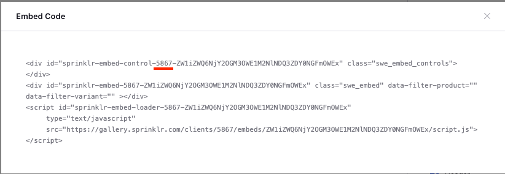
    A screenshot of the Embed Code pop-up window in Sprinklr. A four-digit numeric code is underlined in red.
    Fig. 1: The ClientID in this sample embed code is underlined in red.
    A screenshot of the Embed Code pop-up window in Sprinklr. A string of characters representing the GalleryID is underlined in red.
    Fig. 2: The GalleryID in this sample embed code is underlined in red.

    Layout Variants

    Slider Horizontal
    A screenshot of the slider horizontal gallery variant showing a photo of a residence hall with a text overlay reading “in case you’re having a bad day, here are 50 things to look forward to.” Below the image is a set of green dots with one darker green dot indicating the placement of this image in the slider.
    Fig. 3: A screenshot of a Slider Horizontal Sprinklr Gallery showing an Instagram post on a webpage.
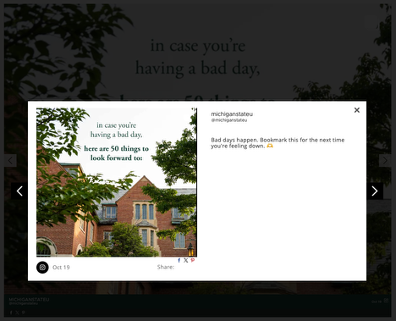
    A screenshot of the slider horizontal gallery variant opened to the post feature lightbox. The post image, showing a photo of a residence hall with a text overlay reading “in case you’re having a bad day, here are 50 things to look forward to,” appears on the left. The post caption reading “Bad days happen. Bookmark this for the next time you’re feeling down.” appears on the right. Arrows appear to the left and right of the lightbox for scrolling to other posts.
    Fig. 4: A screenshot of a Slider Horizontal Sprinklr Gallery that has been clicked on, opening the feed in a carousel lightbox.
    Carousel Horizontal
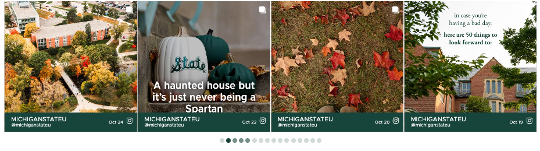
    A screenshot of the carousel horizontal gallery variant showing a strip of four photos, left to right: an aerial photo of campus; pumpkins painted green and white with a text overlay reading “A haunted house but it’s just never being a Spartan”; shoes standing on grass surrounded by fall leaves; and a photo of a residence hall with a text overlay reading “in case you’re having a bad day, here are 50 things to look forward to.” Below the images is a set of green dots with four darker green dots indicating the placement of these images in the carousel.
    Fig. 5: A screenshot of a Carousel Horizontal Sprinklr Gallery showing Instagram posts on a webpage.
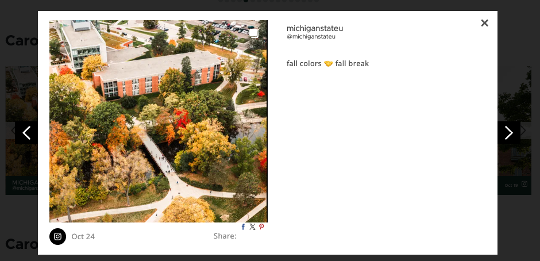
    A screenshot of the carousel horizontal gallery variant opened to the post feature lightbox. The post image, showing an aerial photo of campus, appears on the left. The post caption reading “fall colors, handshake emoji, fall break” appears on the right. Arrows appear to the left and right of the lightbox for scrolling to other posts.
    Fig. 6: A screenshot of a Carousel Horizontal Sprinklr Gallery that has been clicked on, opening the feed in a carousel lightbox.


    Packery Simple
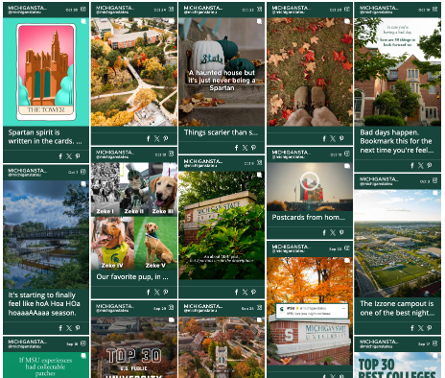
    A screenshot of the packery simple gallery variant showing a grid of a variety of images of differing heights with green bars above and below each. Text and social media icons appear in white on the green bars.
    Fig. 7: A screenshot of a Packery Simple Sprinklr Gallery showing Instagram posts on a webpage.
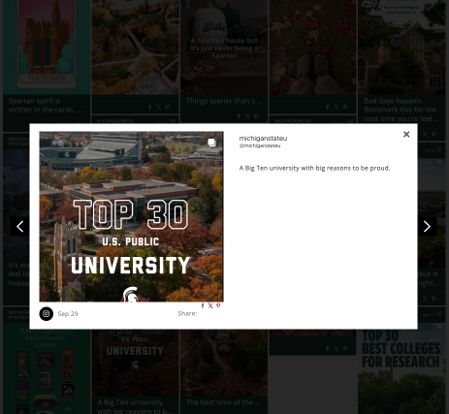
    A screenshot of the packery simple gallery variant opened to the post feature lightbox. The post image, showing an aerial photo of campus with a text overlay reading “TOP 30 U.S. PUBLIC UNIVERSITY,” appears on the left. The post caption reads “A Big Ten university with big reasons to be proud.” appears on the right. Arrows appear to the left and right of the lightbox for scrolling to other posts.
    Fig. 8: A screenshot of a Packery Simple Sprinklr Gallery that has been clicked on, opening the feed in a carousel lightbox.
    Packery Tile
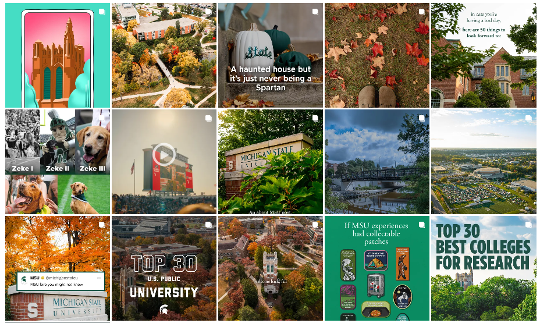
    A screenshot of the packery tile gallery variant showing a grid of a variety of square images.
    Fig. 9: A screenshot of a Packery Tile Sprinklr Gallery showing Instagram posts on a webpage.
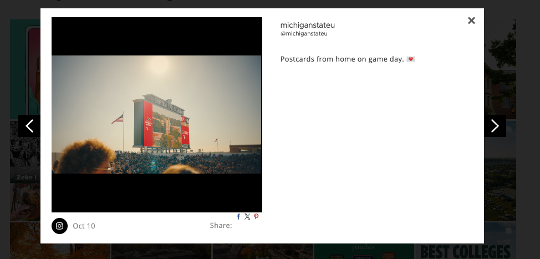
    A screenshot of the packery tile gallery variant opened to the post feature lightbox. The post image, showing a video of the scoreboard in Spartan Stadium appears on the left. The post caption reads “Postcards from home on game day. Envelope emoji” appears on the right. Arrows appear to the left and right of the lightbox for scrolling to other posts.
    Fig. 10: A screenshot of a Packery Tile Sprinklr Gallery that has been clicked on, opening the feed in a carousel lightbox.
    Packery Cascade
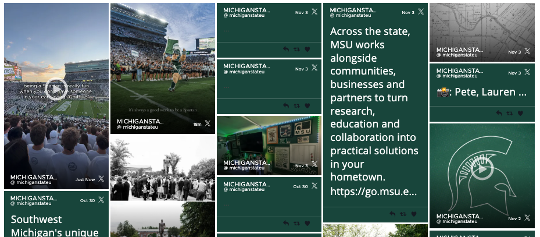
    A screenshot of the packery cascade gallery variant showing a grid of a mix of images and green boxes containing white text of various posts on the X social media platform. The different posts are a variety of heights, so they do not align to a straight horizontal grid.
    Fig. 11: A screenshot of a Packery Cascade Sprinklr Gallery showing X posts on a webpage.
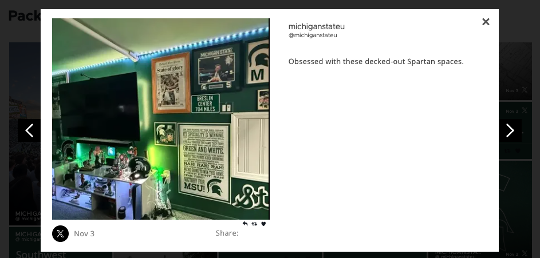
    A screenshot of the packery cascade gallery variant opened to the post feature lightbox. The post image, showing a room decorated with MSU art, appears on the left. The post caption reads “Obsessed with these decked-out Spartan spaces.” appears on the right. Arrows appear to the left and right of the lightbox for scrolling to other posts.
    Fig. 12: A screenshot of a Packery Cascade Sprinklr Gallery that has been clicked on, opening the feed in a carousel lightbox.
    Packery Editorial
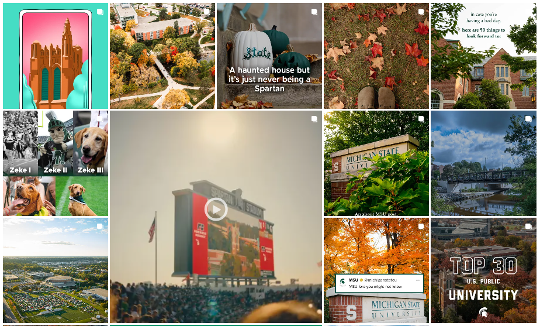
    A screenshot of the packery editorial gallery variant showing a grid of a variety of square images, with one image larger than the others, taking up the space of four smaller squares.
    Fig. 13: A screenshot of a Packery Editorial Sprinklr Gallery showing Instagram posts on a webpage.
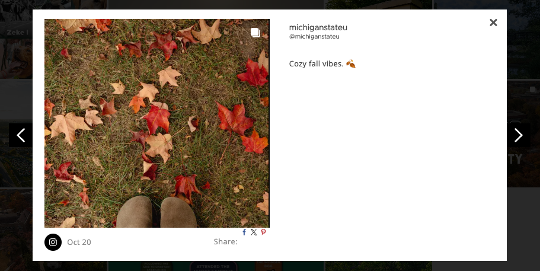
    A screenshot of the Packery Editorial gallery variant opened to the post feature lightbox. The post image, showing a photo looking down on a pair of shoes standing on green grass surrounded by red, brown and orange leaves, appears on the left. The post caption reads “Cozy fall vibes. Falling leaves emoji” appears on the right. Arrows appear to the left and right of the lightbox for scrolling to other posts.
    Fig. 14: A screenshot of a Packery Editorial Sprinklr Gallery that has been clicked on, opening the feed in a carousel lightbox.
    Vertical Carousel
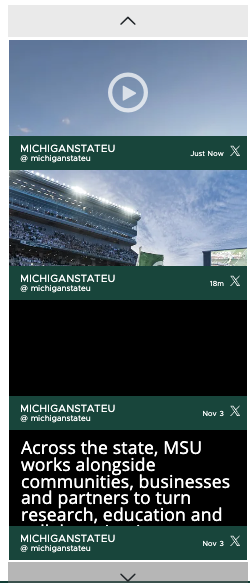
    A screenshot of the vertical carousel gallery variant showing a vertical strip of X posts with green bars framing each containing white text indicating the post date and the @michiganstateu account handle. Text-only posts appear as white text on a black background.
    Fig. 15: A screenshot of a Vertical Carousel Sprinklr Gallery showing X posts on a webpage.
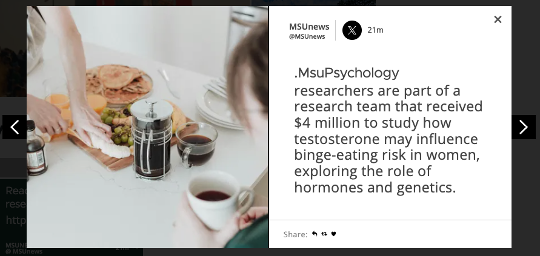
    A screenshot of the vertical carousel gallery variant opened to the post feature lightbox. The post image, showing a photo two people sitting with a charcuterie board, a French press coffee pot and two coffee mugs, appears on the left. The post caption reading “MSU Psychology researchers are part of a research team that received $4 million to study how testosterone may influence binge-eating risk in women, exploring the role of hormones and genetics.” appears on the right. Arrows appear to the left and right of the lightbox for scrolling to other posts.
    Fig. 16: A screenshot of a Vertical Carousel Sprinklr Gallery that has been clicked on, opening the feed in a carousel lightbox.


    Tool Use Guide

    Documentation updated: Nov. 24, 2026

    Is there an issue with this documentation? Report it here.

    MSU Tools and Resources

    • A to Z Index
    • Find People
    • Email
    • Tech Support
    • Social Media Directory

    Communications Resources

    • University Communications and Marketing
    • University Trademarks and Licensing
    • MSU Brand Studio
    • MSU Editorial Style Guide
    • MSU Photos

    Contact us

    517-355-7505

    Address

    Michigan State University
    408 West Circle Drive
    East Lansing, MI 48824

    Follow Us

    • Visit our Facebook page
    • Visit our page on X
    • Visit our Instagram page
    • Visit our LinkedIn page
    • Visit our YouTube page
    • Visit our TikTok page

    If you're having accessibility issues, please let us know.

    • Contact Information|
    • Site Map|
    • Privacy Statement|
    • Site Accessibility|
    • Call MSU: (517) 355-1855|
    • Visit: msu.edu|
    • Notice of Nondiscrimination|

    SPARTANS WILL|© Michigan State University|