Jump to HeaderJump to Main ContentJump to Footer
Michigan State University
Digital Experience Studio

University Communications and Marketing

Digital Experience Studio

  • Experience Program
    • Website Project Process
    • Working with a Vendor
    • Glossary
    • Taxonomy Data Dictionary
  • |
  • Experience Design
    • Website Strategy
    • Website Structure
    • Information Architecture and Navigation
    • User-Centered Design Conventions
    • Common UX Issues
    • Enterprise Design System
    • Content Planning
    • Creating Accessible Content
    • Taxonomy and Filters
  • |
  • Website Technology
    • Web Standards
    • Search Engine Optimization
    • Cascade CMS
    • Sitecore CMS
    • Content Hub Overview
    • Content Hub DAM
    • Content Hub Operations

    SitecoreAI

    Sitecore user login
  • |
  • Social Media
    • Alt Text Bookmarklet
    • Meta Ad Pixel
    • Social Media and Web Integration
    • Sprinklr

    Sprinklr

    Sprinklr user login
  • |
  • Analytics
    • Google Analytics (GA4)
    • Testing
    • Data Visualization

    Google Analytics

    Google Analytics user login
  • |
  • News and Events
    • News and Updates
    • Events and Trainings
Digital Experience Studio

University Communications and Marketing

  • Experience Program
  • Experience Design
  • Website Technology
  • Social Media
  • Analytics
  • News and Events

< Experience Program

  • Website Project Process
  • Working with a Vendor
  • Glossary
  • Taxonomy Data Dictionary

< Experience Design

  • Website Strategy
  • Website Structure
  • Information Architecture and Navigation
  • User-Centered Design Conventions
  • Common UX Issues
  • Enterprise Design System
  • Content Planning
  • Creating Accessible Content
  • Taxonomy and Filters

< Website Technology

  • Web Standards
  • Search Engine Optimization
  • Cascade CMS
  • Sitecore CMS
  • Content Hub Overview
  • Content Hub DAM
  • Content Hub Operations

SitecoreAI

Sitecore user login

< Social Media

  • Alt Text Bookmarklet
  • Meta Ad Pixel
  • Social Media and Web Integration
  • Sprinklr

Sprinklr

Sprinklr user login

< Analytics

  • Google Analytics (GA4)
  • Testing
  • Data Visualization

Google Analytics

Google Analytics user login

< News and Events

  • News and Updates
  • Events and Trainings
Digital Experience Studio > Website Technology > Sitecore CMS > Sitecore Component Guide >

Side Tabs

Michigan State University

MSU Tools and Resources

  • A to Z Index
  • Find People
  • Email
  • Tech Support
  • Social Media Directory

Communications Resources

  • University Communications and Marketing
  • University Trademarks and Licensing
  • MSU Brand Studio
  • MSU Editorial Style Guide
  • MSU Photos

Contact us

517-355-7505

Address

Michigan State University 408 West Circle Drive East Lansing, MI 48824

Follow Us

  • Visit our Facebook page
  • Visit our page on X
  • Visit our Instagram page
  • Visit our LinkedIn page
  • Visit our YouTube page
  • Visit our TikTok page

If you're having accessibility issues, please let us know.

Know MoreTransparency Reporting: Budget & Salary/Compensation
Michigan State University
  • Contact Information|
  • Site Map|
  • Privacy Statement|
  • Site Accessibility|
  • Call MSU: (517) 355-1855|
  • Visit: msu.edu|
  • Notice of Nondiscrimination|

SPARTANS WILL|© Michigan State University|

Side Tabs

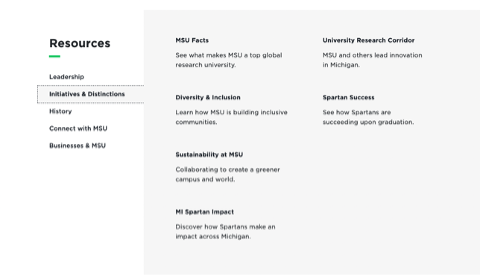
The Side Tabs component organizes content into different content tabs that are controlled by tab headings to the left side of the content area. Side Tabs are best used when displaying related lists of links with a small amount of text, images with descriptions or summary content that links to more in-depth pages.
side-tabs-example
Figure 1: Example of a Side Tabs component with five tabs.


Component Information

  • Usage
  • Best Practices
  • Tips and Tricks
  • Expected Behavior
  • Related Information
  • Side Tabs can be used to present multiple sections of content in a relatively small amount of space on a webpage. 
  • The tabs can contain different amounts of content and different types of components. 
  • Side Tabs can be used in the main body area of pages.

Component Options and Limitations

  • Side Tabs may contain up to 10 tabs of content.
  • Only one tab content may be active at a time in desktop and tablet views.

Guidelines

  • The Section Title and Tab Titles do not have specific character limits; however, if the text is too long for the space allowed, the titles will have line breaks which may not look great. Be sure to test how tabs look on all screen sizes to see how well the component handles the line breaks with the content.
  • While there are several component options for tab content, content authors should avoid having too much complexity inside a tab. Tabs should not be a replacement for a fully developed webpage.
  • Do not nest Accordion, Side Tab or Tab components. Doing so creates a bad experience for users, particularly on mobile devices.
  • Allowed components for tab content include:
    • Image
    • Column Splitter
    • Aside
    • Info Panel
    • Quote Box
    • Rich Text
    • Slate Form
    • Social Share
    • Subheading
    • Video Player
  • Use the Column Splitter tool to create a multi-column format inside a Side Tabs panel.
  • Side Tabs run vertically across the left side of the component.
  • Side Tabs headings can be clicked to change which panel content is currently displayed. Clicking a Side Tabs heading switches the displayed content in the Side Tabs panel area to the content associated with that heading.
  • Initial state: When the page loads, the first tabbed panel is displayed.
  • Side Tabs panels do not open and close independently. One, and only one, Tabs panel is displayed at any time.
  • Side Tabs headings display in the order in which they appear in the component item list.
  • In mobile view, the Side Tabs component behaves like the Accordion component.

Related Components

  • Accordion component — The Accordion component has similar functionality. Accordion and Side Tabs headings both display vertically. Opening an Accordion panel expands the panel. Panels remain open until clicked again, unlike Side Tabs, which will only display one panel at a time.
  • Tabs component — The Tabs component has similar functionality. Side Tab heading and panels display vertically. Tab headings and panels display horizontally. Opening a tab panel replaces the display of the previously opened tab panel.

Live Example

  • Demo: Information-Focused Content Components

Template Data

  • Component Fields
  • Tab Panel Fields

Section Title (single-line text)

  • The label that appears above the Tab label subheads, at the top of the left side of the component. This may be edited in Page Builder or Content Editor.

Green Line (checkbox in Pages)

  • This checkbox appears in Page Builder under Advanced Styling. When checked, a decorative green horizontal line appears below the Section Title.

Panel Title (single-line text)

  • This tab label appears to the left of the tab content area in desktop and tablet views.
  • This label becomes the Accordion label text in mobile view.
  • This may be edited in Page Builder or Content Editor.

Tab content (varies)

  • Tab content consists of allowable components added to the tab placeholder in Page Builder.

Frequently Asked Questions

How many tabs can a Side Tabs component have?

Content authors can have up to ten tabs in a Side Tabs component.

What content can I add to a Side Tabs tab?

Instructions for Use

Add a Side Tabs Component

In Page Builder:

  1. Select the page in the content tree.
  2. Click “+” button in any Placeholder box below the Breadcrumb links.
  3. Select Side Tabs component from list in the Containers section.

Alternate method:

  1. Click Components tab at top of content tree.
  2. Locate Side Tabs component in the Containers section.
  3. Drag the Side Tabs component to any area of the page below the Masthead and Breadcrumb links.

If this is new Side Tabs content:

  1. In the “Assign content item” window, hover over the Data folder and then click on the “+” icon that appears to open the options menu.
  2. Click Side Tabs.
  3. Type in the desired name for the Side Tabs component and hit enter.
  4. Select the item and click on the Assign button.

If using existing Side Tabs Data (content):

  1. Select an existing Side Tabs component from the Data folder.
  2. Click Assign.

The Side Tabs component and toolbar are displayed.

Image Specifications

Sketch Link: Side Tabs


Images in Side Tabs

  • Desktop – Width: 915px | Height: 665px
  • Mobile – Width: 275px | Height: 200px
  • Recommended size – Width: 1000px | Height: 700px

Tool Use Guide

*Add content type and then follow component-specific instructions


Documentation updated: July 14, 2026

Is there an issue with this documentation? Report it here.

There are several components allowed to be used inside of a tab. These include:

  • Image
  • Column Splitter
  • Aside
  • Info Panel
  • Quote Box
  • Rich Text
  • Slate Form
  • Social Share
  • Subheading
  • Video Player
Where is the best place to add or edit a Side Tabs component?

It is best to add or edit a Side Tabs component, its tabs and any tab components in Page Builder. Tab component content is best added in whichever editor works best for that specific component.

Editing Side Tab Section Titles 
  • Edit the section title directly in Page Builder by clicking in the Side Tabs Section Title field and typing the desired text.
  • The Side Tabs Section Title may also be edited in Content Editor.
Add/Remove Optional Green Line

In Page Builder:

  1. Select the Side Tabs component.
  2. Go to the Advanced styling section of the Design tab on the right side panel in Page Builder.
  3. Click on the check box next to “Green Line” to add or remove.
Manage Tabs in Side Tabs Component

Add the first tab, in Page Builder:

  1. With the Side Tabs component selected, click the "+" icon to add a component.
  2. Choose Tab Panel from the menu.  

If this is new Side Tabs tab content:

  1. In the “Assign content item” window, hover over the Data folder and then click on the “+” icon that appears to open the options menu.
  2. Click Tab Panel.
  3. Type in the desired name for the Tab Panel component and hit enter.
  4. Select the item and click on the Assign button.

If using existing Side Tabs tab content:

  1. Select an existing Tab Panel component from the Data folder.
  2. Click Assign.

The Tab Panel component and toolbar are displayed.

Add additional tabs:

  1. Click Components tab at top of content tree.
  2. Locate Tab Panel component in the Components section.
  3. Drag the Tab Panel component to the base of the Side Tabs component until a dark purple line appears.
  4. Follow the above instructions to create and assign a new Tab Panel component data source or assign an existing data source.
  5. Add up to 10 tabs to display in a Side Tabs component. Any additional tabs added over 10 will not display.

Change tab order:

  1. With a Tab Panel within a Side Tabs component selected, click the Move up or Move down arrow and repeat as needed until the Tab Panel is in the desired location. 
Add Content to Tabs
  1. Add a tab title using the text field at the top of the Side Tab Panel or the tab title field in the Content panel on the right side in Page Builder.
  2. If more than one column is required, first add a Column Splitter to the tab placeholder. Column Splitter and Row Splitter components can also be combined if multiple column and single column content sections are needed within the same tab.
  3. Add the desired component(s) to the tab placeholder(s). Components should be added in the Data folder level for the page. They should not be placed under the Side Tabs component. Allowed components include:
    • Image
    • Column Splitter
    • Accordion
    • Aside
    • Info Panel
    • MSU Rich Text
    • Quote Box
    • Slate Form
    • Social Share
    • Subheading
    • Video Player
  4. Continue adding content to the component(s), following individual component guidelines.
Alternative: Edit Using Content Editor

In Page Builder:

  1. Click the dropdown arrow to the right of the SitecoreAI icon in upper left.
  2. Select Content Editor. Content Editor opens in a new tab.

In Content Editor:

  1. Navigate to the page and data folder in the Content Tree.
  2. Select the Side Tabs component.
  3. To add a section title: Select the Add text to the Section Title field.
  4. To add tabs:
    1. Right click on the Side Tabs component in the Content Tree.
    2. Click Insert.
    3. Select General Tab.
    4. Enter a name for the tab and click OK.
  5. To rename tabs:
    1. Select the tab in the Content Tree.
    2. Change the name in the Tab Title field of the Tab Content menu.
  6. To copy a tab:
    1. Right click on the tab in the menu.
    2. Click Duplicate.
    3. Enter a name for the new tab.
    4. Click on the OK button.
  7. To delete a tab:
    1. Right click on the tab in the menu.
    2. Select Delete.
    3. Click on the OK button.
  8. To reorder tabs:
    1. Click and drag tabs within the Content Tree.
Manage Tabs in Side Tabs Component (OLD)
Note: The Side Tabs component was rebuilt in late 2024 resulting in some changes in how they are constructed. Any side tabs built before this change will display "Side Tabs (OLD)" when hovered on in Page Builder and will still work using the instructions for the previous version. See "Manage Tabs in Side Tabs Component (OLD)," below.

When making changes to the Side Tabs component using Manage items, allow time for the page to refresh between each change.

Add tabs:

  1. With the Side Tabs component selected, expand the Manage items section of the Design tab on the Element Options panel on the right.
  2. Click on the “+ Add new” link to add a tab.
  3. Hover over a tab until the three-dot icon appears. Click this icon to access options to rename or delete a tab.
  4. Choose General tab.
  5. Type the desired name for the tab. This will also be the initial Tab title. Hit enter.
  6. Add up to 10 tabs to display in a Side Tabs component. Any additional tabs added over 10 will not display.

Change tab order:

  1. With the Side Tabs component selected, expand the Manage items section of the Component Options panel on the right.
  2. To change the order of tabs, click and drag them into the desired order in the Manage items section.

Rename or delete tabs:

  1. With the Side Tabs component selected, expand the Manage items section of the Component Options panel on the right.
  2. Hover over a tab until the three-dot icon appears. Click this icon to access options to rename or delete a tab.
  3. You can also rename a tab by clicking in the Tab Title field in the Page Builder content canvas and editing the text directly on the page.