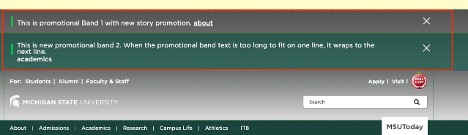
An important, usually time-sensitive message that is displayed at the top of a page below any Alert (MSU site only) and above the masthead. Visitors can opt out of future displays once the message is read.
Component Information
Benefits
- Display timely messages to visitors at the top of a page above the masthead, outside of the page’s normal content area between Breadcrumb links and Footer.
- Visitors can click to close the message once they’ve seen it.
- Content authors can schedule when the promotion bar stops showing to visitors.
Example Use Cases
- Provide a prominent message and optional text link to visitors.
- Provide a message that visitors can choose to opt out of displaying.
- Provide a message with an expiration date, on or after which the message no longer displays.
Component Options and Limitations
- There is no maximum number of characters in the message.
- The message field is a text box. It does not support styling or HTML.
- The Promo Bar background can be set to gray (default) or dark green.
- An expiration date can be specified. The Promo Bar no longer displays on that date or on any date going forward.
- A text link can be appended to the end of the message.
- The Promo Bar can only be specified for a single page. There is no option to display one Promo Bar on multiple pages.
- Data (content) is created for a specific component. Sitecore will not allow Data to be assigned to another type of component. For example, a Data>Promo Bar item cannot be assigned to a Hero Banner component.
Guidelines
- The Promo Bar is used for a text-based message that is typically time-sensitive and not permanent content.
- The Promo Bar can be used on all page types.
- Provide clear and succinct messages. Content authors should use their best judgment on the length of text to display.
- No fields are designated as required. To ensure a quality user experience, the background image and at least one line of text or the CTA button should be specified.
- Although the message text cannot be styled, the presence of “<br />” in the text starts a new line.
- There is no option to display a Promo Bar on multiple pages. However, one bar can be shared by multiple pages by storing it in the sitename > Data > Promo Bar node (instead of a page Data node) and referencing it in multiple pages
- Content authors should not replace the text in an existing Promo Bar to create a new Promo Bar. Users who had previously closed the original Promo Bar will not see the new message. Instead, create a new Promo Bar component, place it on the page and remove the original component from the page.
- The Promo Bar displays in the page’s content area. It is not full bleed (edge to edge of browser window).
- Multiple bars are stacked horizontally.
- A maximum of three bars are displayed on the page. If more than three bars are created, the three listed first in the asset tree are used.
If multiple consecutive bars have a gray background, the bars display with gradient shades of gray to provide contrast.
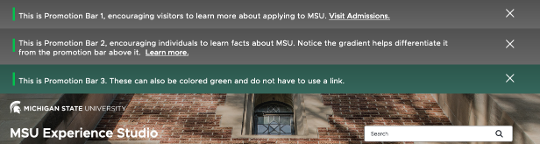
Figure 2: Example of three promo bars. Two are grey and one is green. The Promo Bar displays every time the page is visited. The visitor can opt out of repeatedly displaying the message on page visits by clicking the “X” icon on the right edge of the component. However, the message will resume displaying if the visitor clears their browser cache.

Figure 3: Example of a promo bar with an expiration date.
Promotion Text (single-line text)
- A short text message
- There is no character limit.
Color (droplist)
- This determines the bar’s background color: gray (default) or dark green.
Expiry Date (date) – Available in Explorer or Content Editor
- This field determines if the bar will be displayed, based on the date. Display occurs if expiry date is in the future or is empty.
- Standard date and time selection panel.
- The date can be changed anytime on an existing bar to restart or extend the Expiry period.
Promotion Link — General Link
- A text link that navigates to an internal or external page or file.
- This optional link (internal, media asset or external) displays at the end of the Promotion text, with one space as a separator.
Related Components
- Info Panel — The Info Panel component can also be used to provide messages. An Info Panel displays in the page’s normal content area (between Breadcrumb links and Footer) and does not have an Expiry date option.
Live Example
Frequently Asked Questions
No. You can manually place the same bar on multiple pages.
Instructions for Use
In Page Builder:
- Select the page in the content tree.
- Click “+” button in the topmost placeholder area, above the masthead.
- Locate Promo Bar from the component list and drag it to the top of the page.
Note: You cannot add a Promo Bar below the masthead.
- In the Assign content item dialog box, expand the MSU node, expand the appropriate website, expand Home, expand the appropriate page and expand Data. Then skip to step 5, below.
Alternate method:
- Click Components tab at the top of the content tree.
- Locate Promo Bar and drag it from the left column Components list into the main area’s topmost placeholder above the masthead.
- In the Assign content item dialog box, expand MSU > site name > Home > page name > Data.
Assign data:
- Select Data and click “+” to the right of the Data item.
- Select Promo Bar and give it a name unique within the context of the page. For example, “Promo Bar 1.”
- Select the new component and click Assign.
- Choose Promo Bar options. See additional instructions below.
