Jump to HeaderJump to Main ContentJump to Footer
Michigan State University
Digital Experience Studio

University Communications and Marketing

Digital Experience Studio

  • Experience Program
    • Website Project Process
    • Working with a Vendor
    • Glossary
    • Taxonomy Data Dictionary
  • |
  • Experience Design
    • Website Strategy
    • Website Structure
    • Information Architecture and Navigation
    • User-Centered Design Conventions
    • Common UX Issues
    • Enterprise Design System
    • Content Planning
    • Creating Accessible Content
    • Taxonomy and Filters
  • |
  • Website Technology
    • Web Standards
    • Search Engine Optimization
    • Cascade CMS
    • Sitecore CMS
    • Content Hub Overview
    • Content Hub DAM
    • Content Hub Operations

    SitecoreAI

    Sitecore user login
  • |
  • Social Media
    • Alt Text Bookmarklet
    • Meta Ad Pixel
    • Social Media and Web Integration
    • Sprinklr

    Sprinklr

    Sprinklr user login
  • |
  • Analytics
    • Google Analytics (GA4)
    • Testing
    • Data Visualization

    Google Analytics

    Google Analytics user login
  • |
  • News and Events
    • News and Updates
    • Events and Trainings
Digital Experience Studio

University Communications and Marketing

  • Experience Program
  • Experience Design
  • Website Technology
  • Social Media
  • Analytics
  • News and Events

< Experience Program

  • Website Project Process
  • Working with a Vendor
  • Glossary
  • Taxonomy Data Dictionary

< Experience Design

  • Website Strategy
  • Website Structure
  • Information Architecture and Navigation
  • User-Centered Design Conventions
  • Common UX Issues
  • Enterprise Design System
  • Content Planning
  • Creating Accessible Content
  • Taxonomy and Filters

< Website Technology

  • Web Standards
  • Search Engine Optimization
  • Cascade CMS
  • Sitecore CMS
  • Content Hub Overview
  • Content Hub DAM
  • Content Hub Operations

SitecoreAI

Sitecore user login

< Social Media

  • Alt Text Bookmarklet
  • Meta Ad Pixel
  • Social Media and Web Integration
  • Sprinklr

Sprinklr

Sprinklr user login

< Analytics

  • Google Analytics (GA4)
  • Testing
  • Data Visualization

Google Analytics

Google Analytics user login

< News and Events

  • News and Updates
  • Events and Trainings
Digital Experience Studio > Website Technology > Sitecore CMS > Sitecore Component Guide >

Aside

MSU Tools and Resources

  • A to Z Index
  • Find People
  • Email
  • Tech Support
  • Social Media Directory

Communications Resources

  • University Communications and Marketing
  • University Trademarks and Licensing
  • MSU Brand Studio
  • MSU Editorial Style Guide
  • MSU Photos

Contact us

517-355-7505

Address

Michigan State University 408 West Circle Drive East Lansing, MI 48824

Follow Us

  • Visit our Facebook page
  • Visit our page on X
  • Visit our Instagram page
  • Visit our LinkedIn page
  • Visit our YouTube page
  • Visit our TikTok page

If you're having accessibility issues, please let us know.

Know MoreTransparency Reporting: Budget & Salary/Compensation
  • Contact Information|
  • Site Map|
  • Privacy Statement|
  • Site Accessibility|
  • Call MSU: (517) 355-1855|
  • Visit: msu.edu|
  • Notice of Nondiscrimination|

SPARTANS WILL|© Michigan State University|

Aside

The Aside component allows users to showcase a small image (i.e., a thumbnail) with rich text in a narrow right column of a two-column component. 
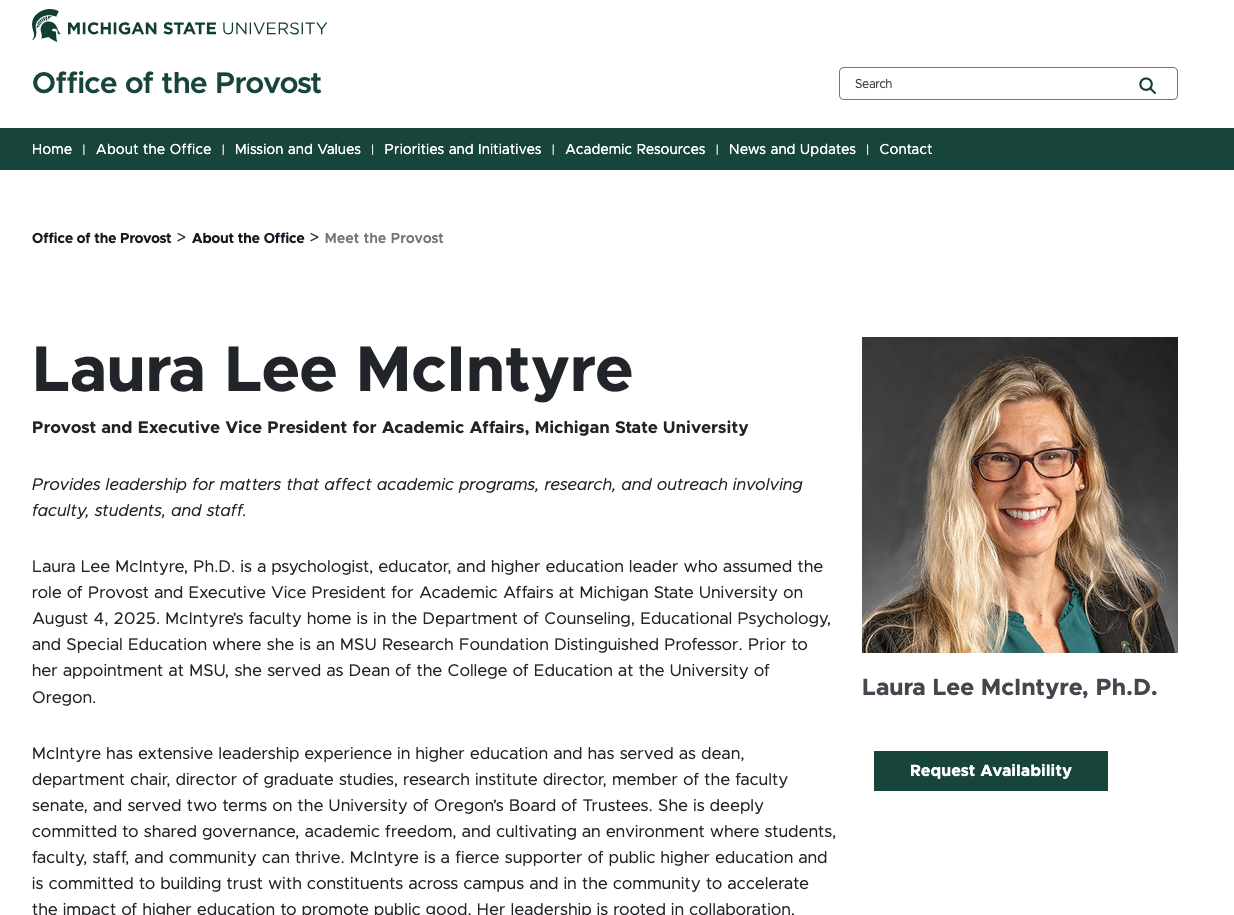
A screenshot of an Aside component with the CTA button used to request an appointment with the faculty member.
Figure 1: Example of an Aside component, shown on the right side of text content.

Component Information 

  • Usage
  • Best Practices
  • Template Data
  • Expected Behavior
  • Related Information

Benefits

  • This allows for displaying additional content to the side of a main content area. 
  • A rich text area can be added below the photo. This area can include related links. 

Example Use Cases

  • This component is commonly used to highlight a staff profile photo, such as on a profile or biography page.

Component Options and Limitations

  • The Aside component is designed to be used in the right column of a Two Thirds Page layout.

Thumbnail (image)

  • Image path is used to select the image.

Caption (multi-line text)

  • Rich text area used to add a caption to the image.

When viewed on mobile, this component will move below the main content section.

Related Components

  • Two-Thirds Page Layout
  • Two-Thirds Sublayout Component

Live Example

  • Demo: Two-Thirds Layout and Mixed Content Components

Frequently Asked Questions

Can I use an Aside on any webpage?

No, an Aside component can only be used on pages using a Two Thirds Page layout component. It must be placed in the right side (narrow) column.

Can I add a link button below the image in the Aside?

Instructions for Use

Add an Aside to a Page

In Page Builder:

  1. Open a Two Thirds Page from the Content Tree, create a new Two Thirds Page, or add a Two Thirds Sublayout to a Page. 
  2. Click “+” button in the right-side column Placeholder box. 
  3. Select Aside component from the list.

Alternate method: 

  1. Open a Two Thirds Page from the Content Tree or create a new Two Thirds Page, or add a Two Thirds Sublayout to a Page. 
  2. Click Components tab at top of Content Tree.  
  3. Locate Aside component.  
  4. Drag the Aside component to placeholder in the right-side column.
Add Thumbnail Image

Tool Use Guide

*Alt text can also be added directly to the image in Media Library or Content Hub.


Documentation updated: May 28, 2026

Is there an issue with this documentation? Report it here.

Yes, additional content, such as links, can be added in the rich text portion of the component. See instructions below.

  1. Click on the thumbnail placeholder image. 
  2. Click on the Add button to select the image in Media Library or to upload a new image.
Note: Alt text can be added to the image when adding it to Media Library or Content Hub. Images pulled directly from Media Library or Content Hub will have this alt text applied.
Optional: Add Caption
  1. Click on the Caption area just below the Thumbnail. The placeholder text reads “No text in field.” 
  2. Enter the desired text. 
  3. Text formatting tools are available in the Element Options area.
Optional: Advanced Styling
  • Advanced Styling options are available by selecting the Aside component and viewing the Design tab.
    • Hint: An easy way to select it is to click just below the caption.
  • Options include:
    • Enlarge Thumbnail
    • Show Green Line — This adds a small green line between the photo and caption.
Alternative: Edit Using Content Editor
  1. In Page Builder, click the dropdown arrow to the right of the SitecoreAI icon in upper left.
  2. Select environment.
  3. Open Content Editor.
  4. In the Content Tree, expand Content > MSU > site name > Home > page name > Data or wherever the component was added.
  5. Locate and select the Aside component.
  6. If the Aside does not appear in the Content Tree, close the page's Data node and expand it again to refresh the Content Tree.
  7. Use the file location tool to select an image.
  8. Add text to the necessary fields.  
  9. Click Save.
  10. Return to Page Builder and refresh the canvas.
  11. Preview and submit the page to the publishing workflow. 

Examples
A screenshot of an Aside component with the CTA button used to request an appointment with the faculty member.
Figure 2: In this example of an Aside, a profile photo is used with a call to action, or CTA, button allowing website visitors to request a meeting with the individual.
A screenshot of an Aside component showing a faculty member. The Aside CTA button links to a biography.
Figure 3: In this example of an Aside, a profile photo is used with a call to action, or CTA, button linking to a webpage with the individual's biography.