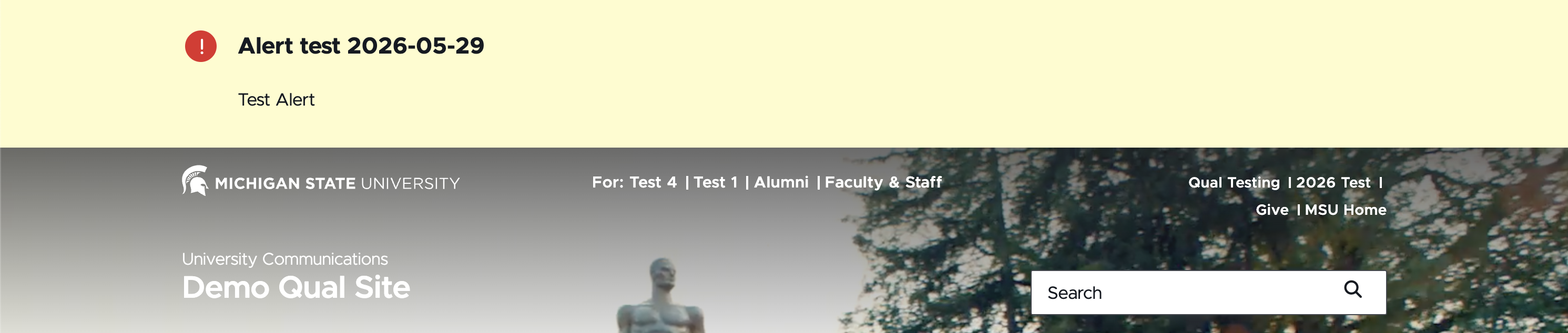
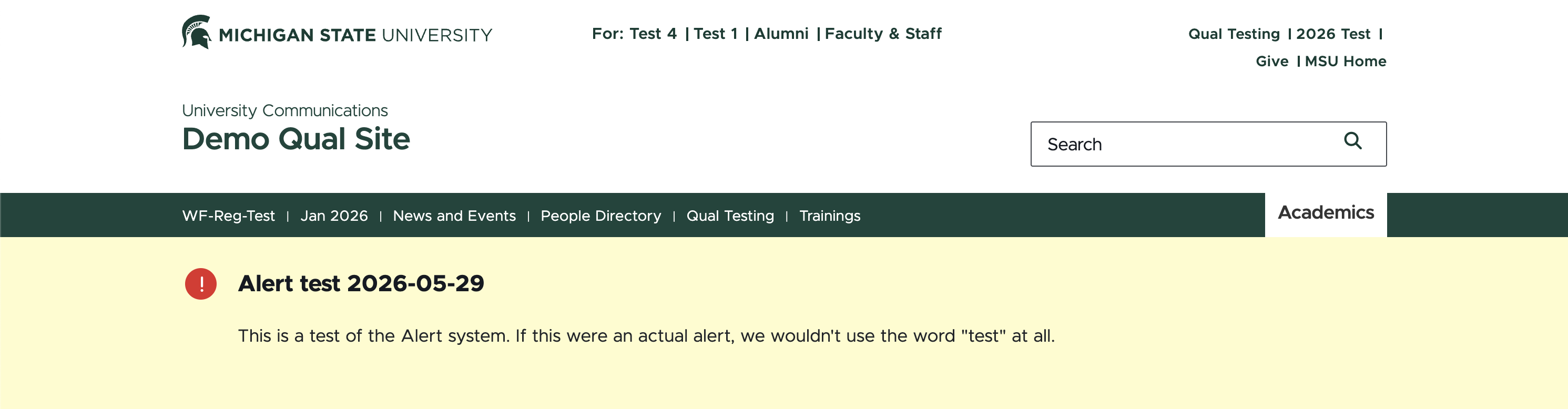
The Alert component creates a special content box on all pages of a site to display an emergency alert message. Depending on the alert level, the amount of the site’s homepage content displayed on screen will change.
Component Information
Benefits
- Alert components enable the university to quickly disseminate emergency information to website audiences during times of crisis.
Alert Levels
- Level 1: Sitewide banner message
- Level 2: Replaces the homepage hero banner. Other pages on the website will have a Level 1 banner message.
- Level 3: Replaces all homepage content
Component Options and Limitations
- The Alert component is not available to content authors.
- If an alert is needed, contact a system administrator.
Guidelines
- Alerts are for displaying high-level emergency information only.
- For displaying nonemergency information in an alert-like box on a page, choose either a Promo Bar that appears at the top of a page or an Info Panel that can be added in the main body of a page.
Alert – Details Section
Title (single-line text)
- An internal system name for the alert.
- This field does not display publicly.
Teaser Short (multi-line text)
- This text that is displayed in a Level 1 Alert banner
- This field is required for all alert levels.
Teaser Long (rich text)
- This text is displayed for Level 2 and Level 3 Alerts.
- This field is required for Level 2 and Level 3 Alerts.
CTA Link (general link)
- URL for the call to action
- The display text comes from the link description.
Site - Alert Section
Alert Level
- This sets the Alert level for the entire website.
- Whichever level is selected will apply to all pages of the site.
- Alert level options are:
- Level 1: Sitewide banner message
- Level 2: Replaces the homepage hero banner. All other pages on the website will have a Level 1 banner message.
- Level 3: Replaces all homepage content
Alert Data (droplist)
- Choose the Alert to display from the Global Alerts folder.
Related Components
- Promo Bar — A nonemergency equivalent in which Promo bars appear at the top of a page
- Info Panel — A nonemergency component that can be added in the main body of a page
Frequently Asked Questions
No. Contact a system administrator to add alerts.
No, the Alert is only for high-level emergency messages.
Instructions for Use
Alerts are set up by system administrators in Content Editor in the Shared Sites > Data > Global Alerts folder.
- Fill out all Alert fields. Save and submit when finished.
- Once an Alert has been created, it is activated on a site by selecting the site name node and choosing the alert Level and the Active Alert in the Alerts section.
- Select the Alert to use and select the needed Alert level.
- Level 1: Sitewide banner message
- Level 2: Replaces homepage hero banner. The other pages on the website will have a Level 1 banner message.
- Level 3: Replaces all homepage content. The other pages on the website will have a Level 1 banner message.
- Save and submit to send the component to the publishing workflow.
- The Home page will need to be republished after the alert component has been loaded. If need be, click the Version # dropdown and click + Create version to create a new version of the home page, enabling the Actions and Submit button options so the Home page can be republished.
Variant Examples