Jump to HeaderJump to Main ContentJump to Footer
Michigan State University
Digital Experience Studio

University Communications and Marketing

Digital Experience Studio

  • Experience Program
    • Website Project Process
    • Working with a Vendor
    • Glossary
    • Taxonomy Data Dictionary
  • |
  • Experience Design
    • Website Strategy
    • Website Structure
    • Information Architecture and Navigation
    • User-Centered Design Conventions
    • Common UX Issues
    • Enterprise Design System
    • Content Planning
    • Creating Accessible Content
    • Taxonomy and Filters
  • |
  • Website Technology
    • Web Standards
    • Search Engine Optimization
    • Cascade CMS
    • Sitecore CMS
    • Content Hub Basics
    • Content Hub DAM
    • Content Hub Operations

    SitecoreAI

    Sitecore user login
  • |
  • Social Media
    • Alt Text Bookmarklet
    • Meta Ad Pixel
    • Social Media and Web Integration
    • Sprinklr

    Sprinklr

    Sprinklr user login
  • |
  • Analytics
    • Google Analytics (GA4)
    • Testing
    • Data Visualization

    Google Analytics

    Google Analytics user login
  • |
  • News and Events
    • News and Updates
    • Events and Trainings
Digital Experience Studio

University Communications and Marketing

  • Experience Program
  • Experience Design
  • Website Technology
  • Social Media
  • Analytics
  • News and Events

< Experience Program

  • Website Project Process
  • Working with a Vendor
  • Glossary
  • Taxonomy Data Dictionary

< Experience Design

  • Website Strategy
  • Website Structure
  • Information Architecture and Navigation
  • User-Centered Design Conventions
  • Common UX Issues
  • Enterprise Design System
  • Content Planning
  • Creating Accessible Content
  • Taxonomy and Filters

< Website Technology

  • Web Standards
  • Search Engine Optimization
  • Cascade CMS
  • Sitecore CMS
  • Content Hub Basics
  • Content Hub DAM
  • Content Hub Operations

SitecoreAI

Sitecore user login

< Social Media

  • Alt Text Bookmarklet
  • Meta Ad Pixel
  • Social Media and Web Integration
  • Sprinklr

Sprinklr

Sprinklr user login

< Analytics

  • Google Analytics (GA4)
  • Testing
  • Data Visualization

Google Analytics

Google Analytics user login

< News and Events

  • News and Updates
  • Events and Trainings
Digital Experience Studio > Website Technology > Content Hub Operations >

Workflows

MSU Tools and Resources

  • A to Z Index
  • Find People
  • Email
  • Tech Support
  • Social Media Directory

Communications Resources

  • University Communications and Marketing
  • University Trademarks and Licensing
  • MSU Brand Studio
  • MSU Editorial Style Guide
  • MSU Photos

Contact us

517-355-7505

Address

Michigan State University 408 West Circle Drive East Lansing, MI 48824

Follow Us

  • Visit our Facebook page
  • Visit our page on X
  • Visit our Instagram page
  • Visit our LinkedIn page
  • Visit our YouTube page
  • Visit our TikTok page

If you're having accessibility issues, please let us know.

Know MoreTransparency Reporting: Budget & Salary/Compensation
  • Contact Information|
  • Site Map|
  • Privacy Statement|
  • Site Accessibility|
  • Call MSU: (517) 355-1855|
  • Visit: msu.edu|
  • Notice of Nondiscrimination|

SPARTANS WILL|© Michigan State University|

Workflows

Every content item in Content Hub Ops is automatically assigned to a workflow. This workflow defines the steps the content item must go through — from initial drafting to final publication — and determines who is responsible at each stage.

Understanding Workflows

Workflows are made up of workflow states and transitions between these states, such as:

Initiate Content → Content Development → Review → Pre-Publishing → Published

Each state controls what actions can be taken and who can take these actions (i.e., assignees).

A user will only see actions available for them to take based on their assigned role(s) and the content item’s current state. 

The top-right corner of the content item’s Details page displays workflow information. An available action button will appear if the user is able to take action on the item. The content item’s current stage displays. Clicking the “i” information icon reveals additional information about the workflow. The assignee indicator shows who is responsible for the content item in the current workflow stage. 
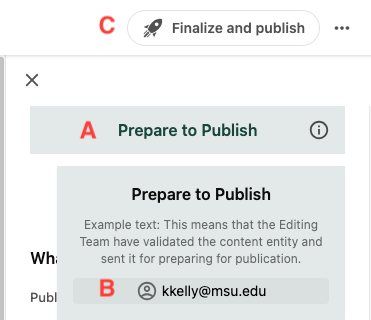
The corner of the content item details screen includes information on the stage and assignee.
Fig. 1: The content item’s Details page provides information on the current workflow stage (A), assignee (B) and action available to the user (C). Clicking the Information icon next to the workflow state label opens a window with additional information about the workflow.
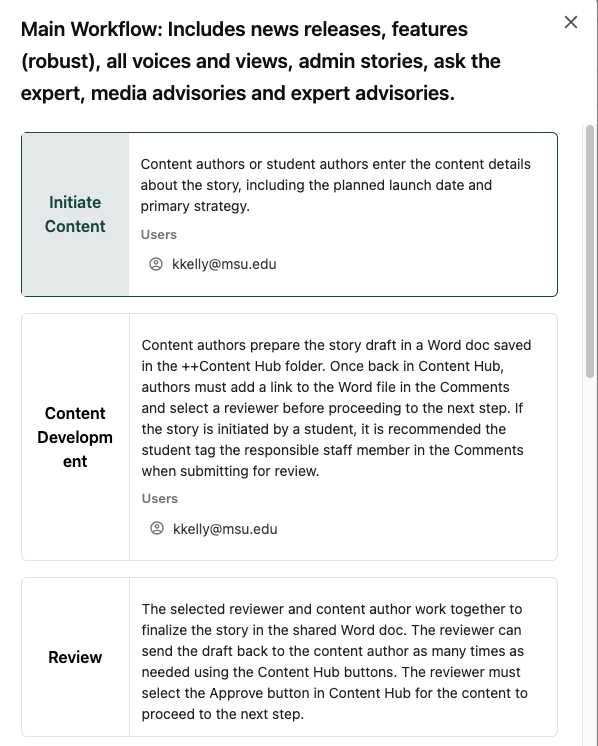
The workflow information icon reveals information about the workflow for this content item.
Fig. 2: Clicking the Information icon next to the workflow stage label (see Fig. 1) opens a window with additional information about the workflow, showing details about all stages in the workflow and indicating which stage the content item is currently in.


Best practice: When routing a content item to another user by transitioning the item to the next state in the workflow, a user should always leave clear comments and notes to support a smooth transition. For example, clarify what actions have been done and what is expected of the next user.  

Workflow Assignments

View the workflows that are assigned based on content sub-type and content template.

View assignments

Workflow Summaries

View a diagram and details of each available workflow.

See the details


Documentation updated: Sept. 25, 2026

Is there an issue with this documentation? Report it here.